In this Topic Hide
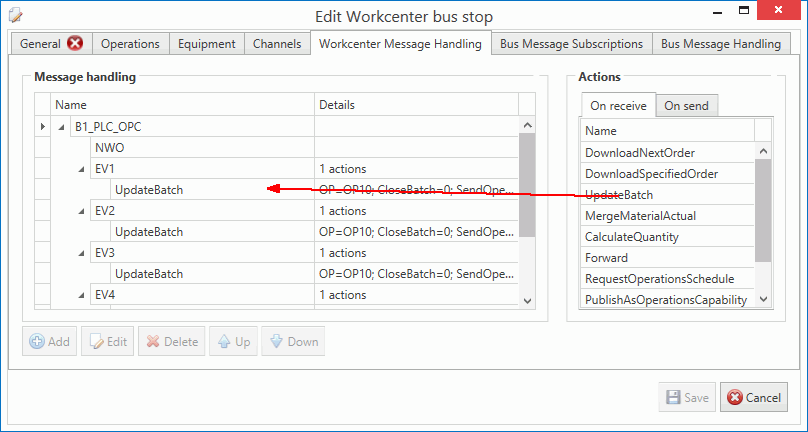
A number of actions are available when a Workcenter channel message is handled by the bus stop.
When the Workcenter bus stop channel receives a message, it is converted to a shopfloor message and published (by NServiceBus) to the internals of the workcenter bus stop.
If the channel message handling fails before being published, an exception is raised to the windows event log and the channel message is not retried again.
In the workcenter handler, actions are being executed upon shopfloor message arrival.
If a message action fails, an exception is raised and the message is retried. This is a NServiceBus feature.
If one shopfloor message has 10 actions associated to it, and the sixth one fails, then all actions will be executed again.
The workcenter does not remember which actions have been successfully executed.
The MES bus stop works different, its channel messages are not converted to intermediate messages and published on the bus, so they cannot rely on the retry mechanism. If the MES channel message handling fails, the error is reported and nothing else happens.
Bus messages (messages that arrive via the bus a.k.a. NServiceBus) do leverage from the retry mechanism.
So if a bus message has 10 bus message actions bound to it, and the 9th action fails, then the bus message actions are aborted, a message is logged to the event log and the message is retried.
In the case a message is retried, this may cause actions to run multiple times for the same message. This is something that must be taken into account.
Another important item to bear in mind is that NServiceBus does not guaranty the order of messages being sent/received.
You can assign one or multiple actions to the selected Workcenter channel message. In principal you define what to do with an incoming message sent by equipment or outgoing messages sent to equipment.
These actions are executed when a message is received from the shopfloor to the Bus Stop.
The Workcenter bus stop stores each enqueued order internally. This action gets the first available order (the one with the oldest date) with a matching operation number from the storage and sends it to the equipment via the configured channel message. The following parameters must be set:
● Operation: Either a static operation number selected from the operations enabled in the Operations tab or a variable operation number taken from a specified Field of the received message.
● Message: A channel message subscribed to in the Channels tab. The order will be downloaded via this channel message.
The Workcenter bus stop stores each enqueued order internally. This action gets the order with a matching Lot ID, Serial Number or Equipment ID and matching operation number from the storage and sends it to the equipment via the configured channel message. The following parameters must be set:
● Operation: Either a static operation number selected from the operations enabled in the Operations tab or a variable operation number taken from a specified Field of the received message.
● Find order by: Select Lot ID, Serial Number or Equipment ID. The selected order must match the value given in the received message.
● Message: A channel message subscribed to in the Channels tab. The order will be downloaded via this channel message.
When information from the production line is received the batch record (production run) is updated with the information it contains.
This can be used in different ways. The first equipment on the production line can start the current batch. After each cycle UpdateBatch is called to append production information from the shopfloor channel message. The last equipment with UpdateBatch can close current batch and send a ProcessOperationPerformance message to the Bus.
The following parameters must be set:
● Operation: Either a static operation number selected from the operations enabled in the Operations tab or a variable operation number taken from a specified Field of the received message.
● Close batch: Should the batch be closed? This is either a static answer (Yes/No) or a variable answer taken from a specified Field of the received message.
● Dispose batch: Should the batch be disposed? This is either a static answer (Yes/No) or a variable answer taken from a specified Field of the received message.
● Send operations performance: Should a summary of all the update batch actions for this order be sent to the Bus as a ProcessOperationPerformance message? This is either a static answer (Yes/No) or a variable answer taken from a specified Field of the received message.
● Find
order by: Find the work order by providing a single serial number,
lot ID or Equipment ID.
When
to use Find order by
This parameter has the following options:
o DataTypeScope: Find the work order by using the datatype scope values.
o OrderId: Find the work order by querying all OperationsSchedules for an OrderId that matches the OrderId in the Shopfloor message.
o EquipmentId: Find the work order by querying all OperationsSchedules for an EquipmentId that matches the first EquipmentId in the Shopfloor message.
o LotId: Find the work order by querying all OperationsSchedules for a LotId that matches the LotId in the Shopfloor message.
o SerialNumber: Find the work order by querying all OperationsSchedules for a serial number that matches the first serial number in the Shopfloor message.
● Update
running orders only: Only update running work orders i.e. work
orders that are dispatched or running.
When
to use Update running orders
only.
● Merge Material Actual: Merge the MaterialRequirement nodes for produced goods (MaterialUse=Produced) from the OperationsSchedule (B2MML) message to the MaterialActual nodes in the OperationsPerformance message. This is used for equipment that does not copy this information. This action ensures that all information is present in the OperationsPerformance message. This parameter has either a static answer or a variable answer taken from a specified Field of the received message. If you select a static answer there are two options.
o All material lots: All material requirements information from OperationsSchedule operation request node (with attribute MaterialUse=Produced) is copied to the shopfloor message including serial numbers, material ID, part number and quantity information.
o All serial numbers for material lots: The same behavior as All material lots but only for specific serial numbers (LotIds).
Accumulate all produced materials to complete the quantity information in the produced material section of the OperationsPerformance message.
The shopfloor message Counters is updated with information from ProducedMaterialContexts counts.
This action contains no parameters.
Forward this channel message to the selected channel message.
This action can be used for data conversion. For example a message can be received on an XML channel and sent on to a CSV channel.
The source channel message has to be set up with upload direction and the destination channel with download direction.
The channel messages need to have the same fields in their message definitions. If they don't then only matching fields will be transferred.
The Workcenter asks for the operation schedule for a specified operation. This is done by sending a GetOperationsSchedule message to the Bus. The MES application should respond with a ShowOperationsSchedule message which is downloaded using the DownloadOrderOperation action. Normally an EnqueueOrderOperation is used.
The following parameter is required:
● Operation: Either a static operation number selected from the operations enabled in the Operations tab or a variable operation number taken from a specified Field of the received message.
Publish information from this channel message, such as equipment Ids, equipment states and equipment modes, onto the Bus as a ProcessOperationsCapability message.
There are no parameters for this action.
This action selects and processes specific orders based on user defined expressions. The action requires three parameters:
● Operation: Either a static operation number selected from the operations enabled in the Operations tab or a variable operation number taken from a specified Field of the received message.
● Channel message: A channel message subscribed to in the Channels tab. The order will be downloaded via this channel message.
● Expression: Defines the conditions for selecting the next order to be processed. Up to five expressions can be specified. Each expression is run in order. As soon as an order is found it is dispatched and no further expressions are run. If all expressions are run and no order is found then the message NoOrderFound is dispatched.
The expression parameter is a section of programming code (C#). There are two “classes” called Order and Message.
You can combine these two classes and their properties with constants (numerical, text and date time) or other properties. The declaration of new variables is not permitted. Only existing properties can be used. The available logical operators are equals (==), greater than (>), less than (<) and not equal (!=). The user interface for entering the expression uses Intellisense technique. Typing a full stop after the class displays a drop-down containing the available properties.
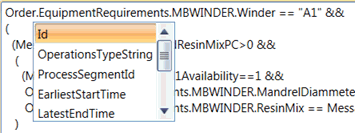
Let’s see what's inside the two classes:
An order represents an operation schedule request. Segment parameters and equipment requirement are supported in Inspect 6.0 but more collections will be available in future releases. Receive operation schedule XML is transformed into tree hierarchy like you are familiar from C#. Example of property definition:
The source xml structure:
<OperationsSchedule xmlns="http://www.mesa.org/xml/B2MML-V0600">
<OperationsRequest>
…
<SegmentRequirement>
<ID>0010</ID>
<ProcessSegmentID></ProcessSegmentID>
<SegmentParameter>
<ID>Param0</ID>
<Value>
<ValueString>123456</ValueString>
</Value>
<Description>Test</Description>
</SegmentParameter>
The example above has the following order class and properties:
● Order.Id ~ 0010
● Order. ProcessSegmentID ~
● Order.SegmentParameters.Param0 ~ 123456
A message class contains information from the shop floor message. As we know, all shop floor messages have a message definition ancestor. Cockpit will read all tags and message fields for the channel message you are adding.
This is a list of available collections with properties for yours expressions:
● Contexts
● CustomContexts
● Properties
● EquipmentStates
● EquipmentModes
● EquipmentIds
● Counters
● CustomCounters
● ComponentContexts
● CustomComponentContexts
● ComponentCounters
● CustomComponentCounters
● OperationTimes
● StepTimes
● Fields
● ProducedMaterialContexts
● DataScopes
● ToolContexts
● CustomToolContexts
● ToolProperties
● Attachments
● AttachmentProperties
● PersonnelContexts
● PersonnelCounters
● PersonnelProperties
● PhysicalAssetContexts
● PhysicalAssetCounters
● PhysicalAssetProperties
Only those with corresponding tags in the channel message are included in the list.
Examples of message properties:
● Message.Contexts.OrderId
● Message.ComponentContexts.ComponentSerialNumberAN_RELEASE_AGENT_GRN (here we have a composite property name from a class name ComponentSerialNumber and index value AN_RELEASE_AGENT_GRN)
● Message.Properties.AN_TEMPERATURE
● Message.Properties.AN_MANDREL_SURFACE_ALARM
● Message.PersonnelContexts.PersonnelIdAN_SETUP_OP
● Message.PersonnelContexts.PersonnelIdAN_MANDREL_INSP_OP
In your expression you can mix Order and Message properties such as:
Order.SegmentParameters.MaxTemeperatureParam1 < Message.Properties.AN_TEMPERATURE
or
Message.Properties.AN_TEMPERATURE > 85
Also is possible concatenate multiple conditions.
Order.SegmentParameters.MaxTemeperatureParam1 < Message.Properties.AN_TEMPERATURE && Message.PersonnelContexts.PersonnelIdAN_SETUP_OP == “Gordon.Freeman“ && (35*48*52>5)
An expression will only work when your output from the expression is a bool type (i.e. it is evaluated as true or false).
Publish information from this channel message, such as equipment Ids, equipment states and equipment modes, onto the Bus as a ProcessWorkResponse message.
There are no parameters for this action.
These actions are executed when a message is sent from the Bus Stop to the shopfloor.
Start order on Confirmation. The following parameter must be set:
● Operation: Either a static operation number selected from the operations enabled in the Operations tab or a variable operation number taken from a specified Field of the received message.
Download next available order for the selected operation. The following parameters must be set:
● Operation: Either a static operation number selected from the operations enabled in the Operations tab or a variable operation number taken from a specified Field of the received message.
● Message: A channel message subscribed to in the Channels tab. The order will be downloaded via this channel message.
The Bus Stop is constantly watching the Bus. When it sees a message that matches with a message type and operation combination that it's configured for it downloads it. You can assign one or multiple actions to each operation available in each Bus message.
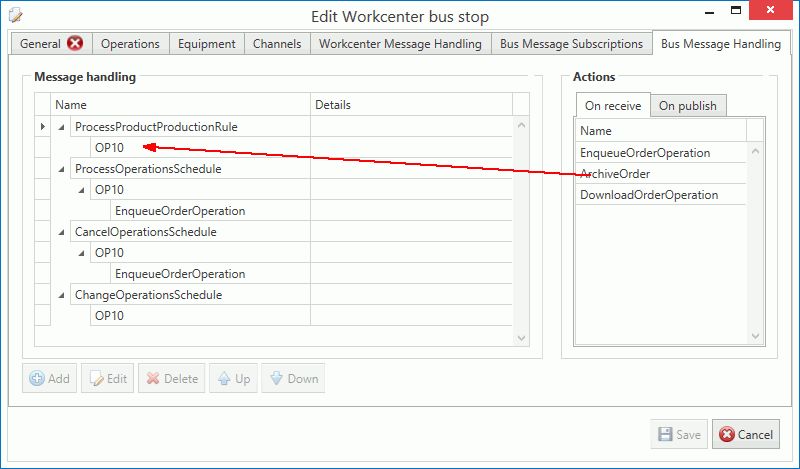
Enqueue a new order for the specific operation to the list of orders that the workcenter has to run.
There are no parameters for this action.
Enqueue and download the order directly to a channel message. This action is used as a result of the RequestOperationsSchedule action.
The following parameters must be set:
● Operation: Either a static operation number selected from the operations enabled in the Operations tab or a variable operation number taken from a specified Field of the received message.
● Message: A channel message subscribed to in the Channels tab. The order will be downloaded via this channel message.
When information from the Bus is received the batch record (production run) is updated with the information it contains.
This can be used in different ways. The first equipment on the production line can start the current batch. After each cycle UpdateBatch is called to append production information from the shopfloor channel message. The last equipment with UpdateBatch can close current batch and send a ProcessOperationPerformance message to the Bus.
The following parameters must be set:
● Operation: Either a static operation number selected from the operations enabled in the Operations tab or a variable operation number taken from a specified Field of the received message.
● Close batch: Should the batch be closed? This is either a static answer (Yes/No) or a variable answer taken from a specified Field of the received message.
● Dispose batch: Should the batch be disposed? This is either a static answer (Yes/No) or a variable answer taken from a specified Field of the received message.
● Send operations performance: Should a summary of all the update batch actions for this order be sent to the Bus as a ProcessOperationPerformance message? This is either a static answer (Yes/No) or a variable answer taken from a specified Field of the received message.
Download content of this bus message to the selected channel message.