In this Topic Hide
General Info and NServiceBus Info
Select Operations to be Handled by Bus Stop
Select Topics to be Handled by Bus Stop
Select Equipment Bus Stop will Communicate with
Select Channels Bus Stop will Use to Communicate
Select Actions Bus Stop will Take for Channel Data
Bus Stops are the interfaces between ATS Bus and the outside world. Bus Stops translate data into B2MML before putting it onto the bus. Other Bus Stops that require that data can then read it and translate it into the appropriate format before sending it to the appropriate recipient.
The bus stops must first be installed on the required servers and then the individual bus stops can be configured using Cockpit. Installation and configuration is the same for all bus stop types.
OT |
OT (Operational Technology) Bus Stops allow data to be exchanged with equipment on the factory floor. |
IT |
IT (Information Technology) Bus Stops allow data to be exchanged with IT systems, such as MES, MOM, ERP and PLM. |
Archive |
Archive Bus Stops record data in a separate archive database which can then be referenced for historical data. This data can also be used by analysis applications to generate production and quality reports. |
ADOS |
ADOS Bus Stops allow ADOS applications to connect to the Bus. |
Cloud |
Cloud Bus Stops allow data to be exchanged with Azure Event Hubs and Azure IoT Hub on the cloud. |
1. Select the required bus stop tab.
2. Click Bus Stops.
A list of the existing bus stops is shown.
3. Click Add to create a new bus stop or double-click on an existing bus stop to modify it.
A new window opens.
4. Enter the required information in the General tab.
§ Name: A unique name for the bus stop.
§ Host and Monitoring Port: Where the bus stop is connecting to.
§ Enable heartbeat plug-in: A tool named ServicePulse shows the bus stop’s (endpoint) availability using this plug-in. The plug-in sends heartbeat messages to ServiceControl.
§ Enable saga plug-in: This plug-in enables the ‘Saga’ view in ServiceInsight. Sagas are containers that can be used by various handlers to add information. Sagas are used for long running operations such as work orders. More information about the plug-in can be found on:
More information about sagas can be found online here.
§ Immediate retries: How often to immediately retry the message. Remove the tick to override the default value.
§ Delayed retries: How often to repeat the immediate retries. Remove the tick to override the default value.
§ Enter a description in all required languages.
5. Enable the operations that will be handled by the bus stop in the Operations tab.
The Operations tab is not available in the Archive bus stop.
6. If you are using an OT bus stop select the Data Type Scope Description for each enabled operation.
For information on operations see here.
The Topics tab is not available in the Archive bus stop.
7. Enable the topics that will be handled by the bus stop in the Topics tab.
The Equipment tab is only available in the OT bus stop.
The Equipment tab allows you to select which equipment this bus stop will communicate with.
8. Enable the equipment that will be handled by this bus stop in the Equipment tab.
The selected equipment will appear in the right-hand column.
For information on creating the equipment hierarchy see here.
The Channels tab is not available in the Archive bus stop.
The Channels tab allows you to select the channels that will be used by this bus stop to communicate with the outside world. The messages handled by the selected channels will be available in the Channel Message Handling tab.
9. Enable the channels that will be handled by this bus stop in the Channels tab.
The Channel Message Handling tab is not available in the Archive bus stop.
The Channel Message Handling tab allows you to define the actions that will be taken when messages are received through the channels that were selected in the Channels tab.
10. Select the Channel Message Handling tab.
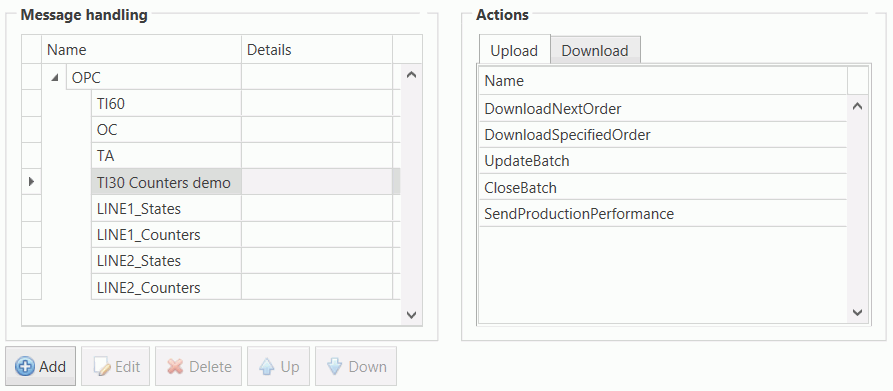
The left-hand pane lists the channels and the messages they contain. The right-hand pane lists the actions that can be carried out.
11. In the right-hand pane select the Upload or Download tab to choose the type of action you want.
12. Drag and drop an action
onto a message on the left-hand pane.
Alternatively, you can select a message, click Add
and select an action from the drop-down list.
13. Enter the required message action parameters.
14. Click OK.
The action is added to the list.
The Database Configuration tab is only available in the Archive bus stop.
This tab can be used to:
o Create a database schema
o Test database connection and version
o Update database schema
o Test distributed transaction capabilities
For information on this tab see the Archive Bus Stop documentation here.
This tab allows you to select the bus messages that will be handled by this bus stop. The messages selected in this tab will be available in the Bus Message Handling tab.
15. Select the Subscribed Messages tab.
Every combination of operation and bus message type is listed.
For information on managing operations see here.
16. Enable the messages that will be handled by this bus stop.
The Bus Message Handling tab is not available in the Archive bus stop.
The Bus Message Handling tab allows you to define the actions that will be taken when messages are received from the Bus. These are messages that were selected in the Bus Messages tab.
17. Select the Bus Message Handling tab.
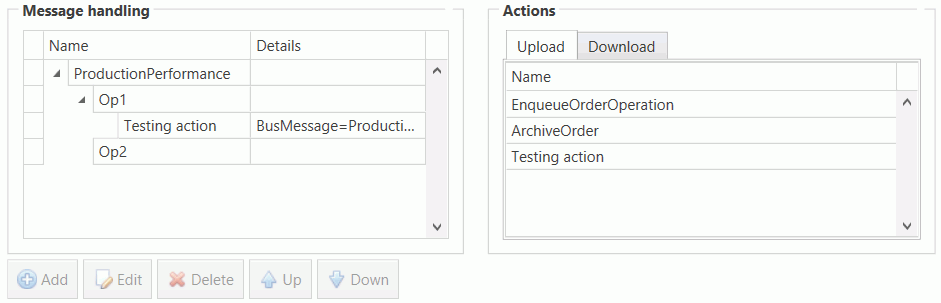
The left-hand pane lists the bus message type and the operations. The right-hand pane lists the actions that can be carried out.
18. In the right-hand pane select the Upload or Download tab to choose the type of action you want.
19. Drag and drop an action onto an operation on the left-hand pane. Alternatively, you can select an operation, click Add and select an action from the drop-down list.
For information on managing operations see here.
20. Enter the required message action parameters.
21. Click OK.
The action is added to the list.