In this Topic Hide
CSV Channels are used to create named connections to the shop floor via a text file containing Comma Separated Variables. These connections are called tags.
1. Select the OT Bus Stop tab.
2. Click CSV Channels.
A list of the existing CSV channels is shown.
3. Click Add.
A new window opens.
4. Enter a name for the channel.
The name of the channel must be unique within the entire ATS Bus configuration.
5. Enter a description in the default language and any other required languages.
6. Enter the Input Directory. This is the folder in which incoming messages will be received (upload direction).
7. Enter the Output Directory. This is the folder in which outgoing messages will be placed (download direction).
8. Enter a Scan Pattern. This is a file mask for incoming files. For example, if the file mask is *.xml then only files with an XML extension will be read.
9. Enable Backup original file to archive incoming files. You can then enter a Backup directory path to archive the files in.
10. Enter a Directory for errors. This is the folder in which messages that could not be processed are stored.
11. Enter a Processed directory. This is the folder in which processed messages are stored.
Message Definitions must be created before channel messages can be created.
Time can be saved by importing an example of the CSV file that will be used. This will automatically create tags with the correct name and data type. See here.
Channel messages can be created once a CSV channel has been defined.
1. While editing a CSV Channel select the Channel Messages tab.
All existing channel messages contained in the channel are listed. The table shows the name of the channel message, the direction in which the message is going and whether or not the message is currently active.
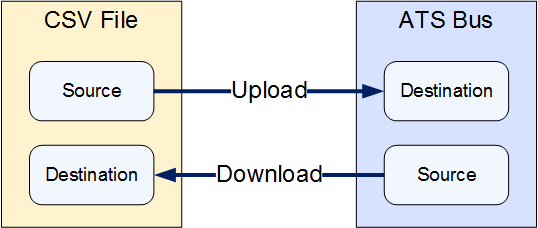
Messages are Uploaded towards the Bus and Downloaded away from it.
2. Click Add.
3. Enter a name for the channel message.
The name of the channel message must be unique within the entire ATS Bus configuration.
4. Select a Message Definition. Message Definitions act as templates when adding messages to a Channel. They specify whether the message is being uploaded from equipment or downloaded to equipment and also list the different data fields that will be available in the message.
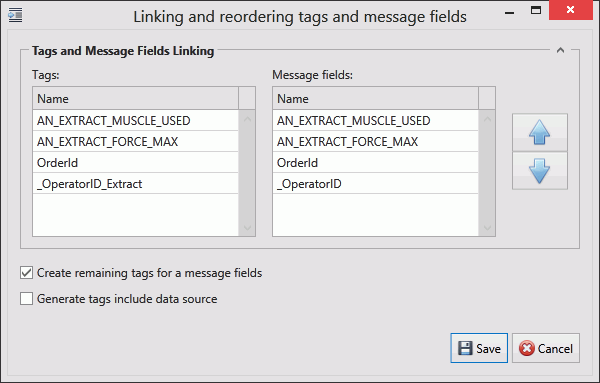
The Tags control opens. In the right-hand pane it lists the fields contained within the message. The left-hand pane lists tags that will be created that match those fields.
If the field has an Index value associated to it this will be added to the end of the tag name. For example, if the field name is _OperatorID and the field index is Extract then the tag name will be _OperatorID_Extract.
5. If you don't want tags to be created automatically disable Create remaining tags for message fields.
6. Use the arrows on the right-hand side to re-order the fields. To refresh the list of tags to match it disable and enable Create remaining tags.
7. If required, enable Include data source in generated tags. This will populate the Column number / Constant value column.
8. Click Save to close the Tag/Field window.
You can now specify the rest of the channel message details.
9. Enter a File Prefix.
o For upload: The CSV files that will be associated with this specific message must have this prefix. The wildcards '*' (representing 0 or more characters) and '?' (representing one character) are allowed. No other special characters are allowed. For example:
§ ?test.?ip will find 1test.zip, btest.pip and so on
§ *test.*ip will find 1test.zip, 123abcxyztest.abc123ip
o For download: The file prefix is a string that is placed in front of the saved filename, it should not contain \, /, :, ", <, >, |, * or ?. The standard filename is a time stamp (year, month, day, hour, minute, second, millisecond) followed by the file extension. For example:
§ myXmlPrefix will result in a file named myXmlPrefix_<yyyyMMddHHmmssfff>.xml
10. Use Encoding input files to select the format in which input files will be encoded.
11. Use Message Delimiter to specify how each value will be separated.
12. Enter the First data row counter. This specifies the row number where data starts. Many files contain configuration information in the first few lines.
13. Use String qualifier to specify how each string of data will be separated.
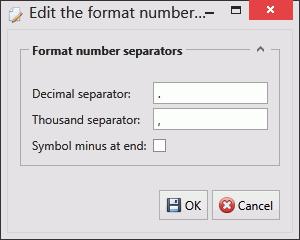
14. Click ( )
for the Numbers format to define
the decimal separator, thousand separator and whether the last symbol
of each value should be ignored.
)
for the Numbers format to define
the decimal separator, thousand separator and whether the last symbol
of each value should be ignored.
15. Select a Date Format from the drop-down list. This will be a combination of day(D), month(M), and year(Y).
The tags provide the link to the location of the data on the server.
16. Click Add below the Tags pane (or Edit to modify an existing tag).
A new window opens.
17. Enter the name of the tag in the Description field.
18. Select a Data Type. This is the format in which the data will be received (e.g. Integer, Text, Char, etc.).
19. Enable the Active checkbox to ensure the tag is active.
20. If required, enable Mandatory. If a message is received and a mandatory tag doesn't have a value then the message won't be processed.
The source and destination can now be selected. The source and destination will depend on whether it is an Upload or Download message definition.
21. Select the Data source. This can be one of the following:
Name |
Description |
Required Information |
From Column (upload only) |
The value is read from a specific column of the CSV file. |
Enter the column index. |
Message Field (download only) |
The message field. |
Select the message field. |
Constant value |
The tag will always be the same value. |
Enter the value to be used. |
Translation table |
The value is read from a specific column of the CSV file and then translated using a data translation table. |
Select the translation table to use and the column index for the source value. |
Function evaluation |
The value is read from a specific column of the CSV file and then modified using a function. |
Enter the function to use and the column index for the source value that will be modified by the function. |
Reset counter evaluation |
Instead of sending the received value it sends the iteration. For example, if the last known value was 50 and it receives a value of 53 then the output will be 3. |
No extra information required. |
Rollover counter evaluation |
Instead of sending the received value it sends the iteration. As soon as a defined limit is reached the value is reset and the counter goes back to zero. For example, if the current value is 99, rollover is set to 100 and 5 is the incoming value then the result is 6. This is calculated as follows: (100 – 99 + 5 = 6) |
Specify the rollover value set for the equipment the value is being received from. |
|
|
|
22. Select the Destination. This will either be a column within the CSV file (for download) or a message field (for upload).
23. Click OK.
The tag is added to the channel message.
24. Click OK.
The channel message is added to the channel.
25. Click OK.
The channel is saved.
Time can be saved by importing an example of the CSV file that will be used. This will automatically create tags with the correct name and data type.
This action is carried out when adding a channel message.
1. Click Import CSV file.
2. Locate and open the example file.
3. If tags are already present it will ask whether you want to overwrite them.
o Select Yes to erase all existing tags list new tags instead.
o Select No to add new tags to the end of the existing list.
4. If the file is not correctly formatted you will be asked to make modifications to the file which you must then save.
Changes to the file are not added automatically to the channel. You will need to re-import the file for the changes to be incorporated.
The tags from the file are now added to the channel.