EventSmith - Subscription Administrators
|
The EventSmith Subscriptions (Admin) blade is where an administrator subscribes to events for all users in the database, modifies events for multiple users at one time, removes subscriptions for users that have self-subscribed, and creates or modifies the Notification Text for any subscriptions. To see the Subscriptions (Admin) tab, the Event Administrator and Event Manager user roles are required. |
As an Event Admin, you may also subscribe yourself to events through the same bulk editor that is used when subscribing other users to an event. However, navigating to the Subscriptions blade may make it easier for you to locate and manage your own subscriptions.
See also:
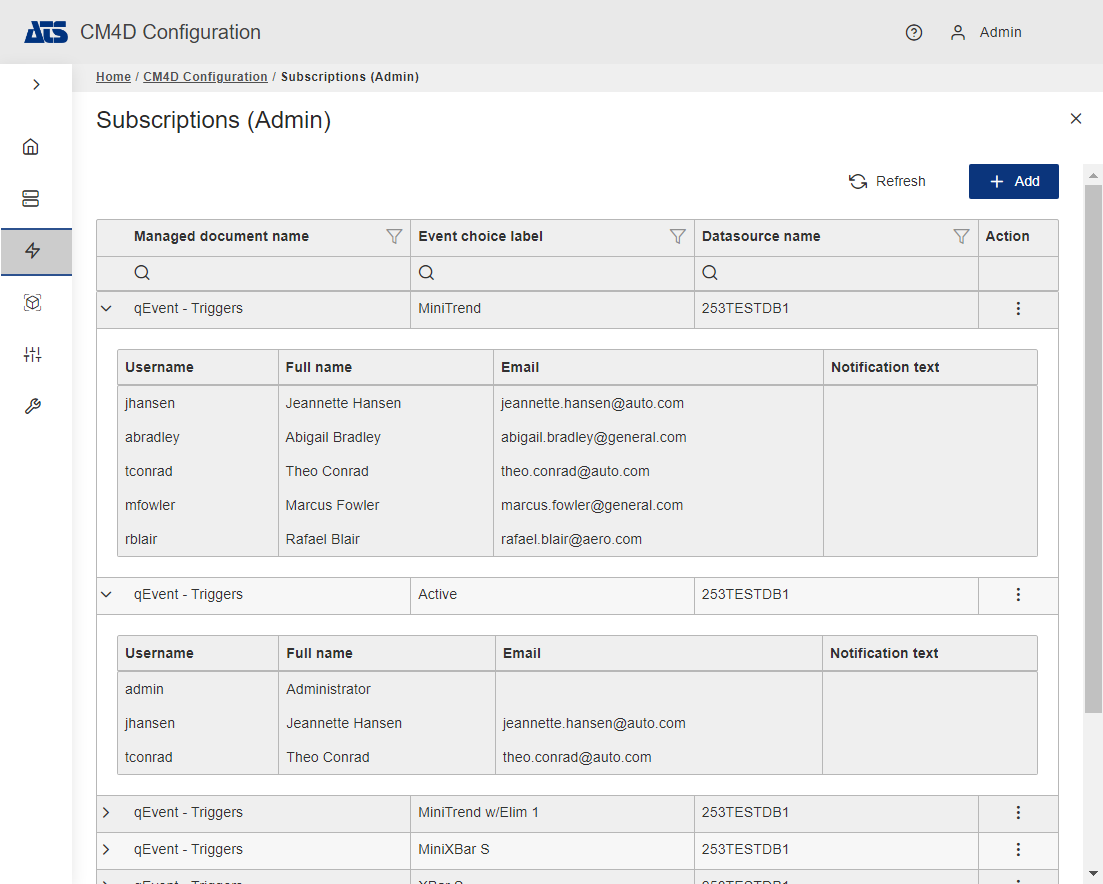
If users have already subscribed to events, the grid displays all the events to which those users are subscribed. Click the arrow (>) to see which users are subscribed to an event. Click on an event row to open its properties.
- Add - Create a new Subscription by selecting events and users to be subscribed to those events.
- Refresh - Reloads the grid to show any updates to the current status of the contents.
- Properties - Click on a grid row to modify the properties, or use the Action menu ( Open).
 |
|
| Action | Click the three dots
to open the menu of available actions for the selected row.
|
| DataSource Name | The name of the datasource managing the document containing the event setup. |
| The email address of the user who will receive the event notifications. | |
| Event Choice Label | The label of the Event; the DataSet label for which the event is configured. |
| Full name | The full name of the user receiving the event notification. |
| Managed Document Name | The name of the Managed Document in which the Event is configured. |
| Notification Text | Any custom text entered by either a user or an admin. |
| Username | The system username for the user who will receive the event notifications. |
Add Subscriptions
The Add Subscriptions blade includes tabs for Events and Users. For each event there must be at least one user subscribed to that event. If you select two events and two users at once and save the changes, the two users are added to the grid for each of the selected events.
Use the column headers to search, filter or sort the grid to find specific events or users.
New Subscriptions are created by clicking Add in the top right of the Subscriptions (Admin) card.
- Click Add to create a new subscription.
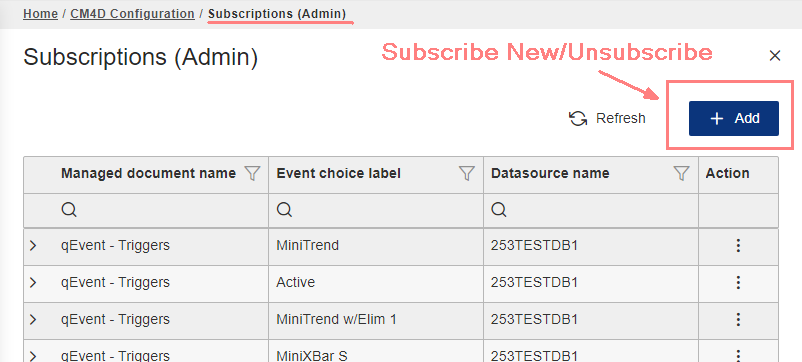
- The Add subscriptions blade opens to the Events tab.
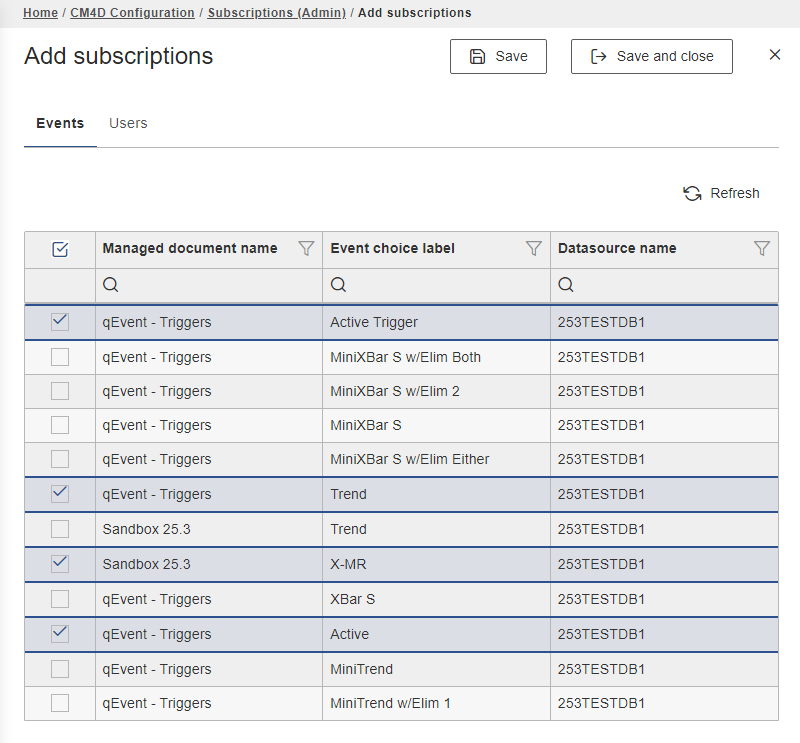
- Check the boxes to select one or more events.
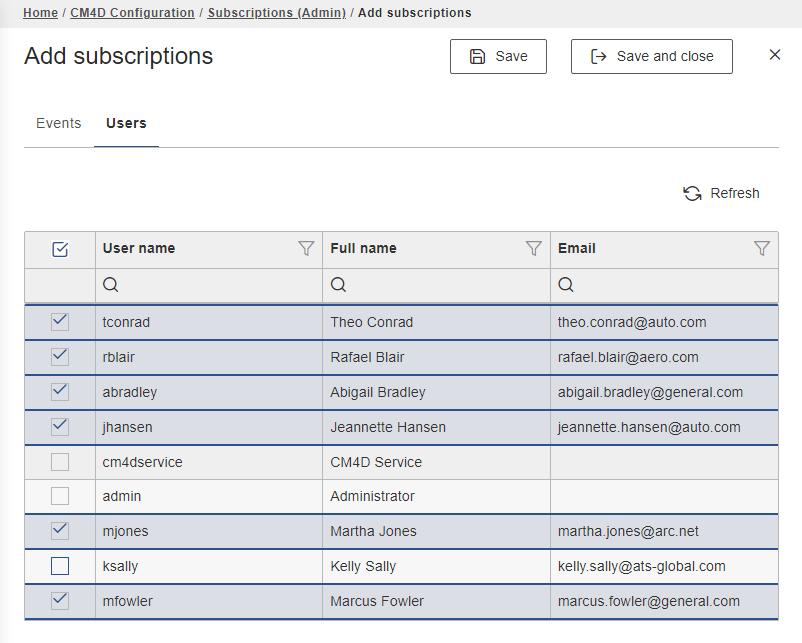
- Switch to the Users tab and check the boxes to select one or more users.
- Click Save and Close.
Add Subscriptions | Events
The Events tab contains a grid of all available events to which you can subscribe on behalf of other users.
 |
|
| DataSource Name | The name of the datasource managing the document. |
| Event Choice Label | The label of the Event; the DataSet label for which the event is configured. |
| Managed Document Name | The name of the Managed Document in which the Event is configured. |
Add Subscriptions | Users
The Add Subscription Users tab contains a grid of all available users that can be added to the subscription.
 |
|
| The email address of the user who will receive the event notifications. | |
| Full name | The full name of the user receiving the event notification. |
| Username | The system username for the user who will receive the event notifications. |
See also, CM4D User Roles.
Add User to Subscription
New users are added to existing subscriptions is done the same way as subscribing to a new event. All events to which any users are currently subscribed are selected automatically, but no users are selected in the 'Users' grid.
In cases where other events were previously selected and you make no changes to the Events tab, the new user is subscribed to all selected events in the 'Events' grid.
If you have users subscribed to events and want to add more users to an event:
- Click Add to open the events blade.
- Switch to the Users tab and check the boxes to select one or more users for the new event subscription.
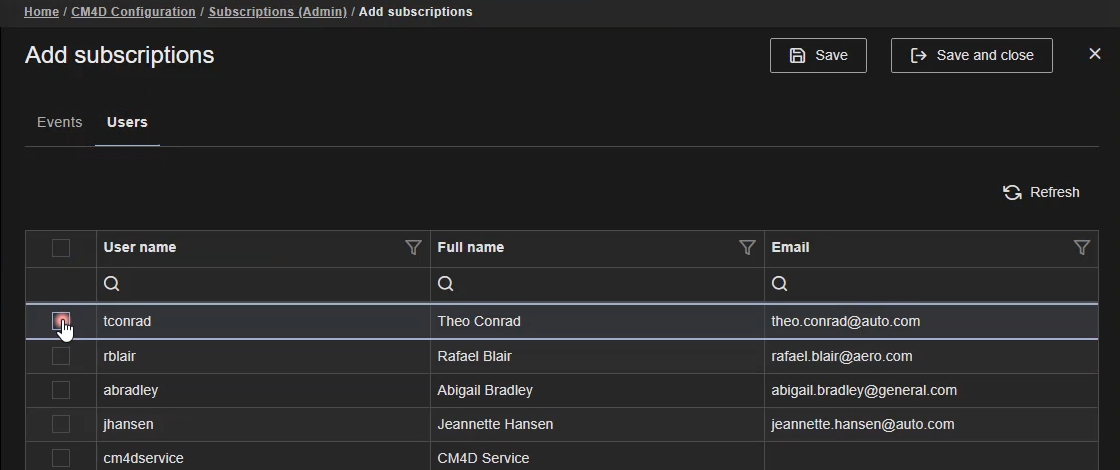
- Click Save and Close.
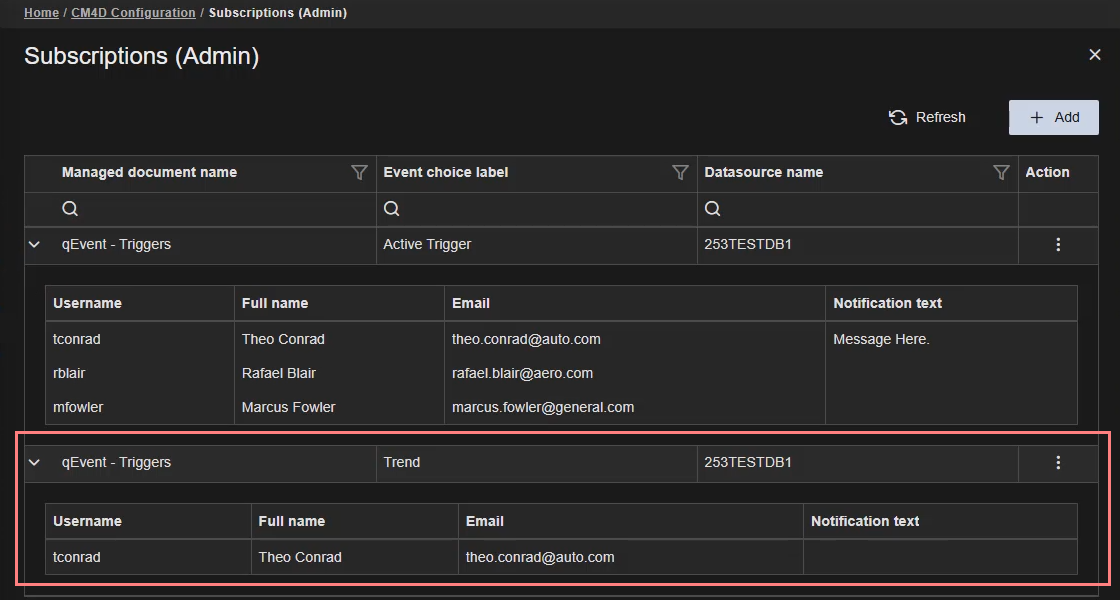
Add Notification Text
Access the notification text field using one of two methods:
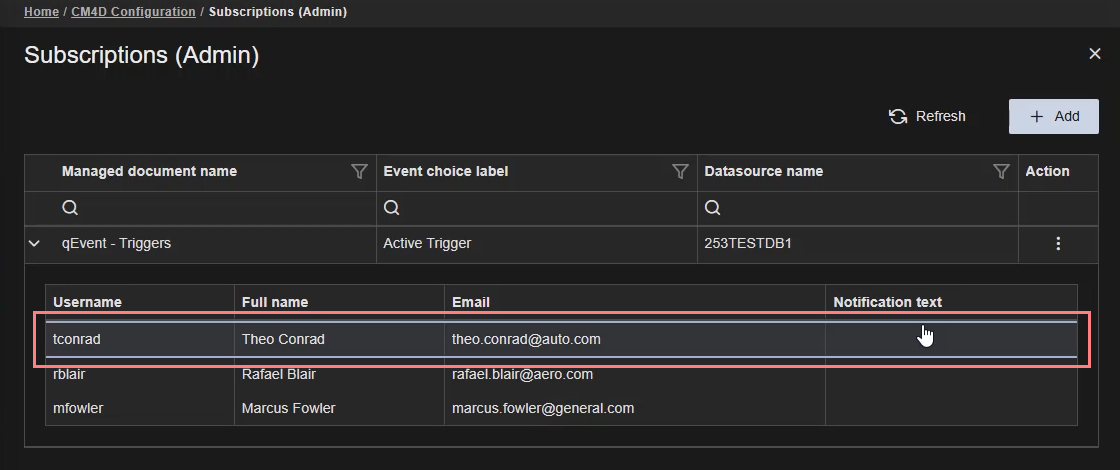
- Click on the event row or select
Open from the Actions menu of the event row to open the users grid.
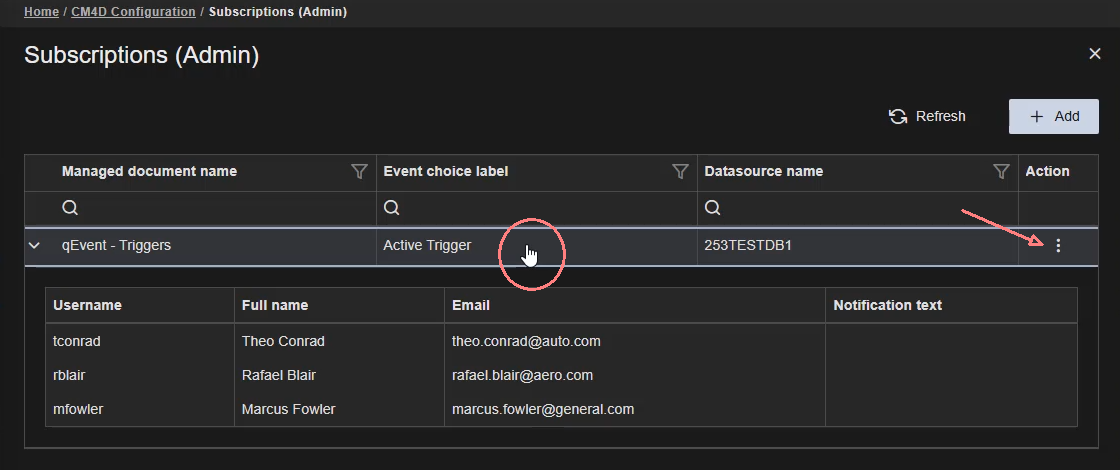
If using the Open method, select a user row in the event blade to open the user blade for the Notification text.
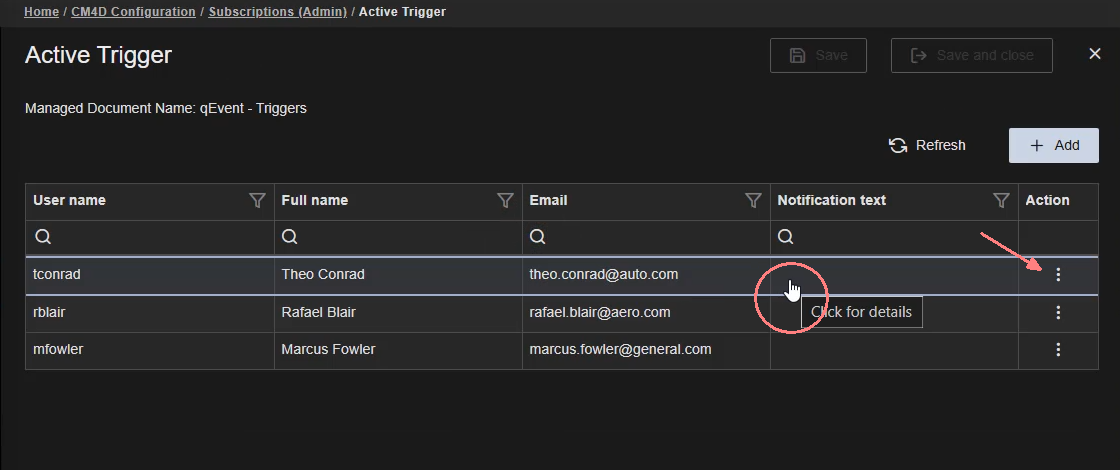
- Click on the user row to jump directly to the Notification text blade for the selected user.
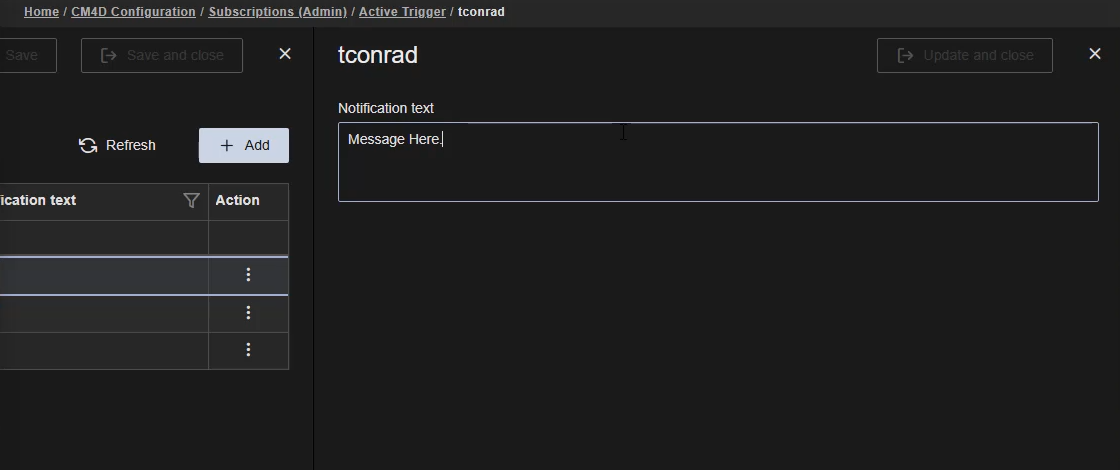
In the user blade, type in the text your want to include with the event notification, then click Update and Close.
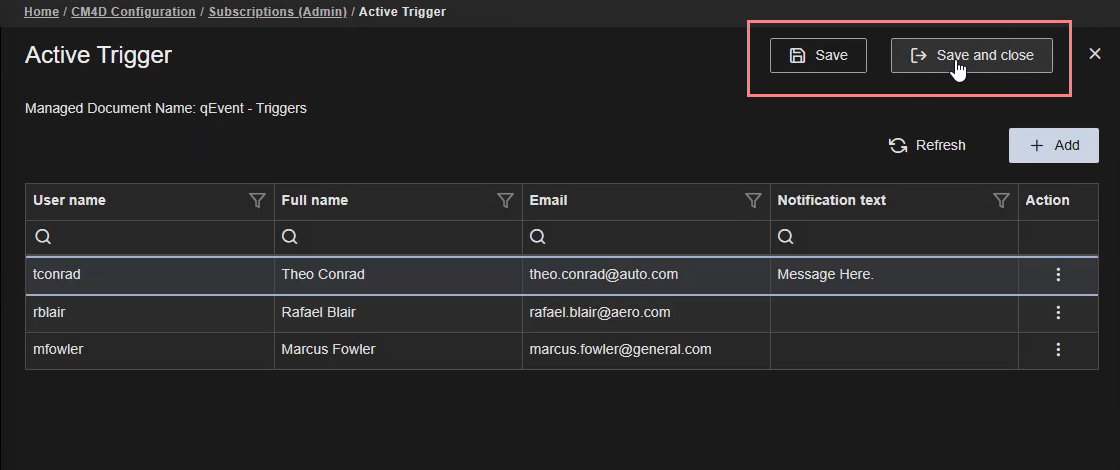
On the Event blade, click Save and Close.
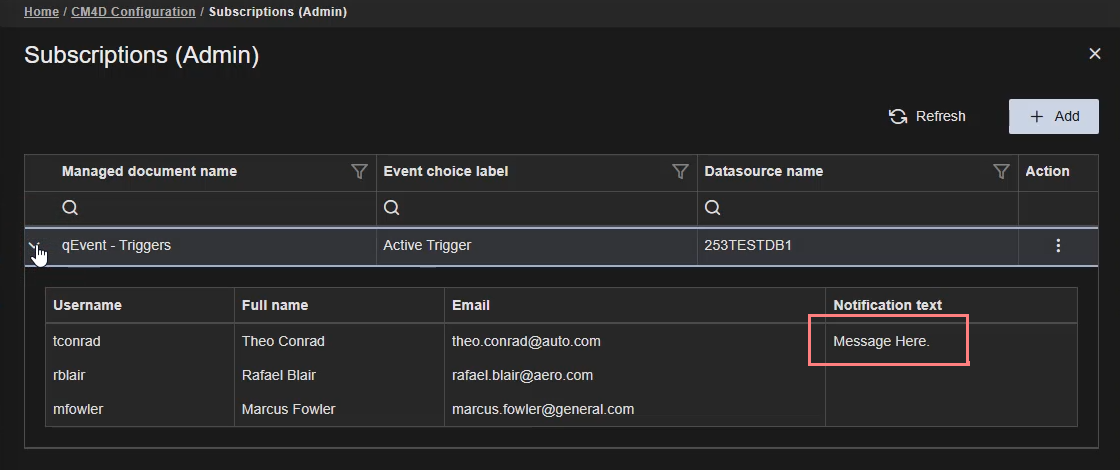
The text is now assigned to be sent with all notifications to that user for the event.
Unsubscribe Events
Unsubscribing a user is done by reversing the method used to subscribe users.
Unsubscribe Users
To Unsubscribe individual users:
- Click Add in the top right of the Subscriptions (Admin) card.
- Deselect the check boxes for the user you want to remove from the event.
- Save the changes.
Unsubscribe All
All subscriptions/users can be removed in a single bulk operation. There is no UNDO operation; once removed, all subscriptions are reset and must be resubscribed.
To unsubscribe all users from all events:
- Click Add in the top right of the Subscriptions (Admin) card.
- On the Events tab, click the "Check All" box in the top left of the grid to clear all the check boxes in the grid.
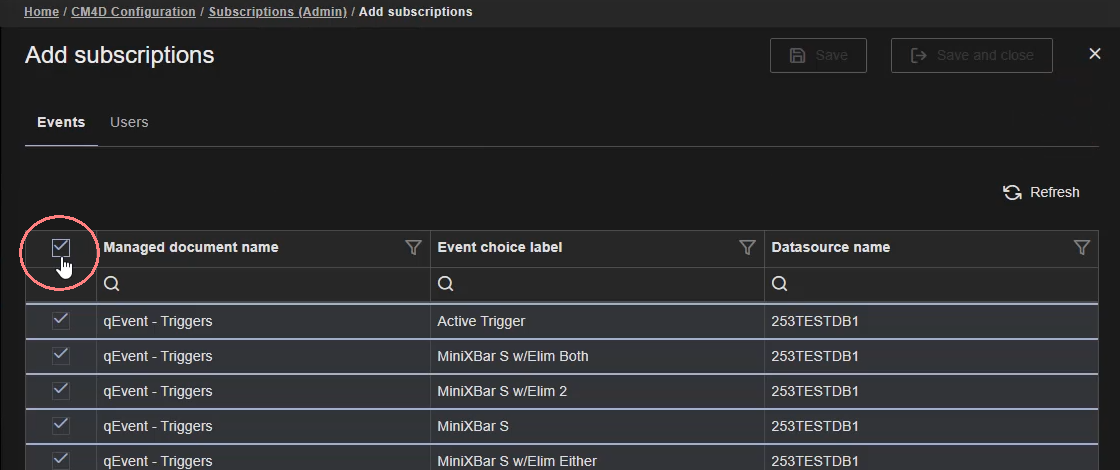
- Click Save and Close.
Watch Subscription Administrator Tasks Demo
Can we improve this topic? Click Send Feedback in the upper right of the screen to share your comments!