Subroutines are a collection of features which have been selected from source routines and saved to the database. When activated, a subroutine becomes a query's DataSource. A subroutine can contain features from more than one source routine.
Load All Subroutines
Clicking Load All Subroutines in the Query Properties dialog will load all of the subroutines in the DataSource.
Unload All Subroutines
Unloads the subroutines from the selected query.
Create a subroutine
- Right click a feature and select Edit Feature. In the Feature Editor dialog, click Edit Subroutines.
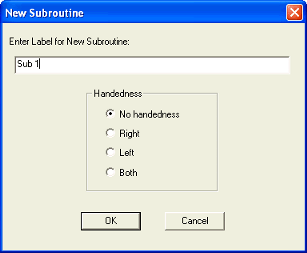
- In the Subroutines dialog, click New. Enter a label for the new subroutine, select a handedness, then click OK.
- The label of the subroutine will be displayed, and the source routine will be displayed underneath it. Expanding the source routine will display all of the features in the routine. Select the check boxes next to the features you want to include in your new subroutine. Click Apply to add the selected features to your new subroutine. Click OK to close the Subroutines dialog.
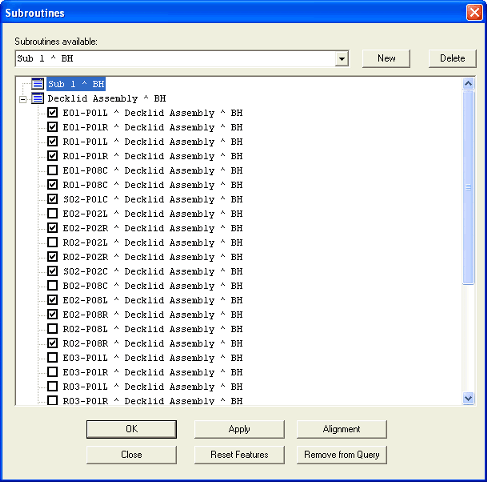
If you click Close before clicking OK or Apply, you will lose your changes.
Apply
Clicking apply will apply the changes you have made to the subroutine.
Reset Features
Clicking Reset Features will revert back to the state the subroutine was in the last time Apply or OK was clicked.
Remove from Query
Clicking Remove from Query will remove the subroutine from the Query.
Alignment
Clicking Alignment will open the Alignment dialog, in which you can create and edit alignments. For more information about how to create or edit alignments, please refer to the Alignment topic.

Can we improve this topic? Click Send Feedback in the upper right of the screen to share your comments!