Cutting Planes are used to hide geometry on one side of a plane. One or more cutting planes can be added to the model to create a View that shows only part of the model. The X, Y and Z axis planes can be used in an AND/OR function. Markers for the Features located on the part of the model 'cut' out are removed from the view if the cutting plane excludes the center point of the marker. When enabled, the cutting plane boundary sizes automatically adjust to fit within the bounding box of the model. The cutting planes have the option to show or hide the outline of the plane, but while the plane is hidden it cannot be moved.
|
|
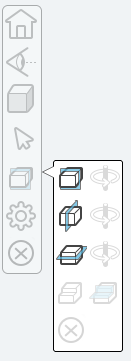
To cut the model, open the cutting planes fly-out menu and select an option.
|
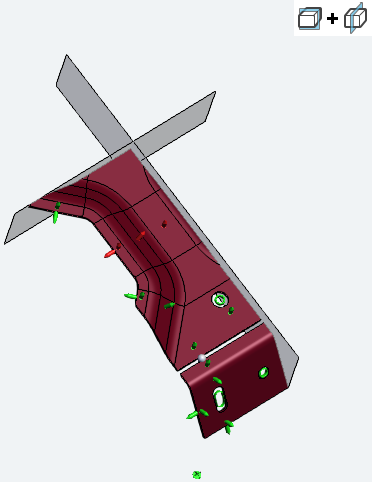
Plane X & Plane Y |
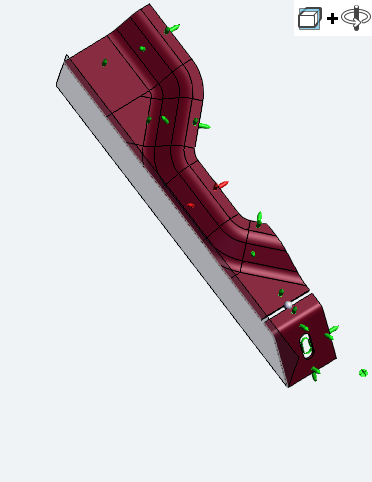
Plane X Inverted |
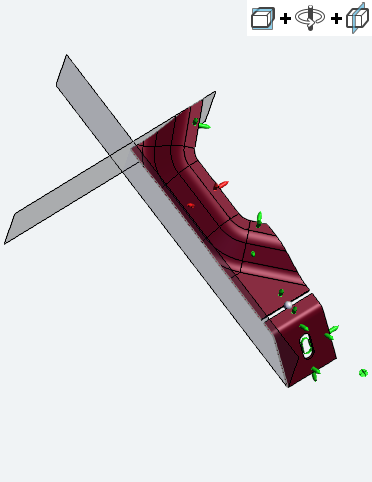
Plane X Inverted & Plane Y |
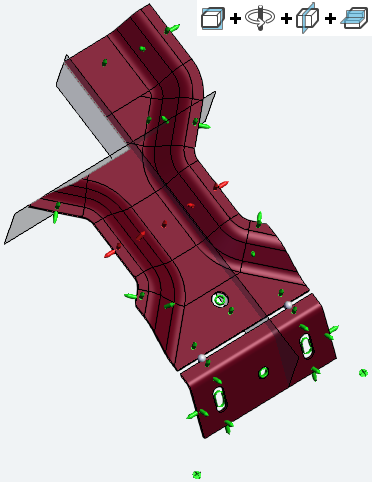
Plane X Inverted & Plane Y + Toggle Quadrants |
Cutting Plane Tools
| Name | Icon | Description |
| Toggle X Plane |  |
Toggles the cutting plane along the X axis on/off. |
| Invert X Plane |  |
Enabled when the X plane is active. Flips the cutting plane to cut the geometry in the opposite direction along the X axis. |
| Toggle Y Plane |  |
Toggles the cutting plane along the Y axis on/off. |
| Invert Y Plane | |
Enabled when the Y plane is active. Flips the cutting plane to cut the geometry in the opposite direction along the Y axis. |
| Toggle Z Plane |  |
Toggles the cutting plane along the Z axis on/off. |
| Invert Z Plane | |
Enabled when the Z plane is active. Flips the cutting plane to cut the geometry in the opposite direction along the Z axis. |
| Show/Hide Planes |  |
Enabled when at least one cutting plane is active. Toggles the visibility of the cutting plane bounding box. By default, the cutting plane reference box is visible. While the plane is hidden, it cannot be moved. |
| Toggle Quadrants |  |
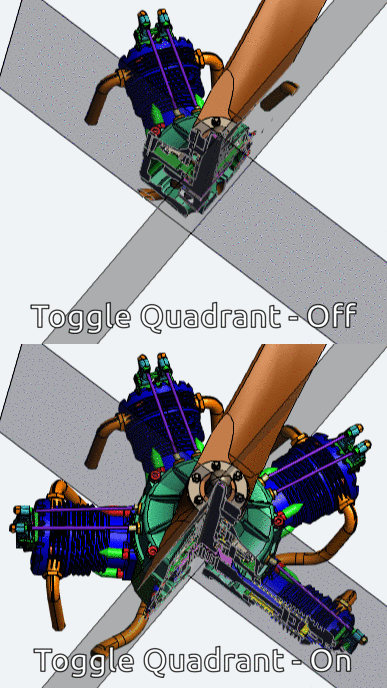
Enabled when two or more planes are active. Toggles the cutting planes from a single cutting section to separate cutting sections.
|
| Reset |  |
Enabled when at least one cutting plane is active. Sets all cutting plane locations to default and turns off all cutting planes. |
Toggle Quadrants
|
The toggle quadrants button moves all the active cutting planes to the same cutting section. This option is only available if there are at least two cutting planes active.
|
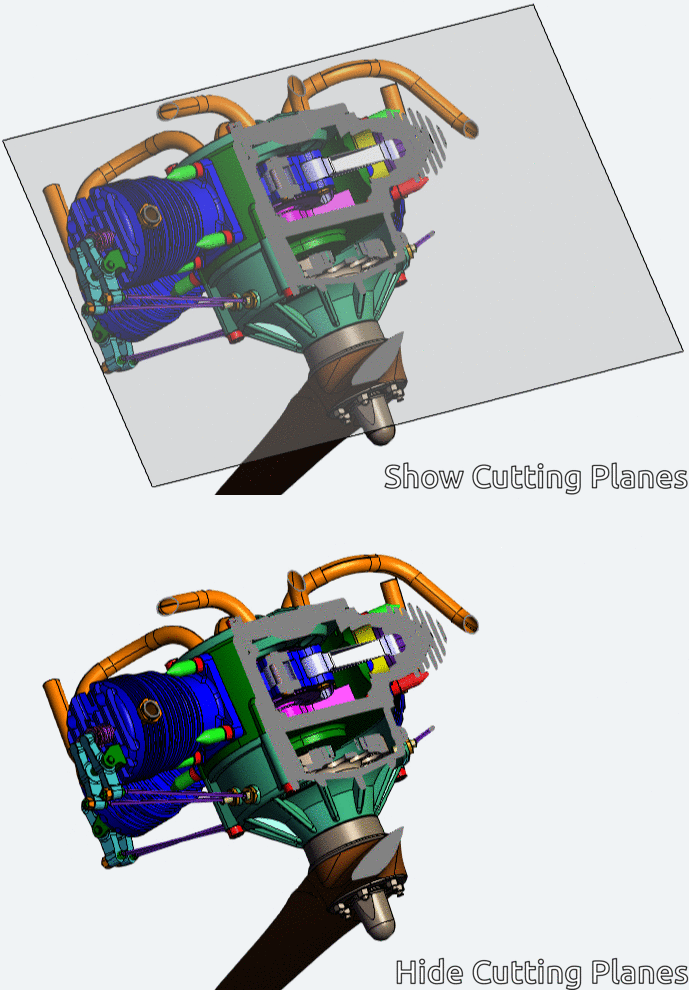
Show/Hide Cutting Plane
|
The transparent plane with a bold border represents the active cutting plane. The bounding box is displayed while the cutting plane is active, but can be hidden when you are done setting the cut plane. While the plane is hidden, it cannot be moved.
|
Can we improve this topic? Click Send Feedback in the upper right of the screen to share your comments!