
In this Topic Hide
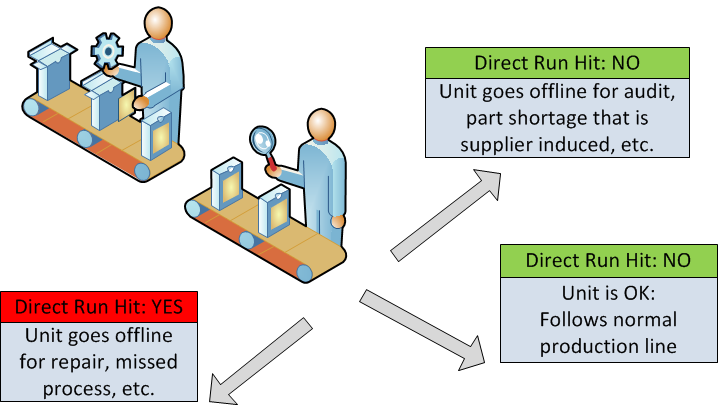
Direct Run reports (configured in Reporting > Advanced > Direct Run) are driven by routing decisions made at key "gating" points in the plant. The intent of such reporting is to measure production efficiency to capture the number of units that go "offline" due to defects versus units that go offline for reasons other than defects or simply continue on the normal production path. Units that go offline are called "hits" to the direct run percentage:
Each Data Collect gating station will have a different set of destinations and the operator can select the appropriate one. A destination could be an actual station or area within the system or simply a description of where it needs to go (eg. "Send for repair").
These destinations are considered to be either "hits" or "no hits". A "hit" indicates a bad unit. This could be because the unit has been taken offline for repair or because of a missed process. If a unit is taken offline but there is no "hit" to the direct run it is because the unit has been taken away for auditing, because of parts shortages or for other reasons where there was no error in the product itself.
Destination selection is only for reporting purposes. The destination selected is not tied to specific stations or areas within the database.
Plant administrators may decide that certain routing decisions need to be overridden (i.e. there shouldn't have been a hit). Advanced Reporting Services provides an interface for making such changes. Any changes must be accompanied by a reason for the change, comments (optional), and the user ID and date/time the change was applied.
These are used when changing the "hit" status of a Direct Run routing record. A reason is required whenever the status of a Direct Run record is modified.
1. Select Reporting > Advanced > Direct Run > Change Reasons.
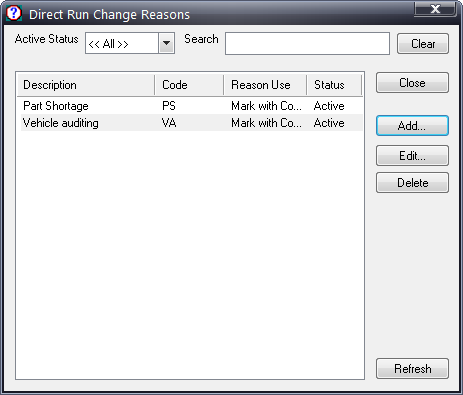
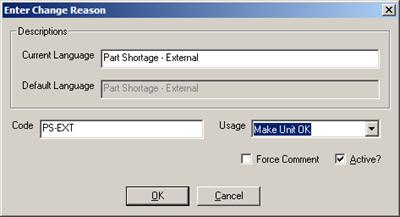
2. Click Add to enter a new Change Reason or Edit to modify an existing one.
3. Enter a description and code (optional).
4. Select a usage. The options are:
o Make Unit OK: The unit is not registered as a "hit".
o Make Unit Not OK: The unit is registered as a "hit".
o Mark with Comment: The "hit" status is not changed but a comment can be added.
5. Select or deselect Force Comment. This decides whether a comment must be added with the Change Reason.
These are the available locations where units can be routed from a gating station.
The assignment of destinations to a specific station is handled via the Direct Run tab when editing a Station. See here.
1. Select Reporting > Advanced > Direct Run > Destinations.
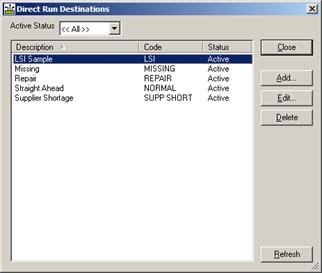
2. Click Add to enter a new Direct Run Destination or Edit to modify an existing one.
3. Enter a description and code (optional).
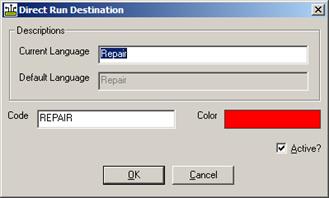
4. Once destinations are created they must be associated to a station. This is done in the Direct Run tab of the station settings. See here.
Direct run Groups are the basic building block of the Direct Run reporting capability. Groups are attached to one or more Configurations. Each Groups associated with a configuration will have a separate set of totals calculated for it.
Shown below is a Direct Run Group listing:
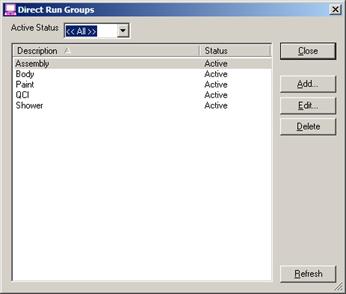
5. Click Add to enter a new Direct Run Group or Edit to modify an existing one.
When adding or editing a Group, the Direct Run Group dialog will be displayed. There are four different tabs: General, Direct Run Stations, Repair Stations and Targets.
6. Enter the description for the group. The description will appear on the Direct Run reports.
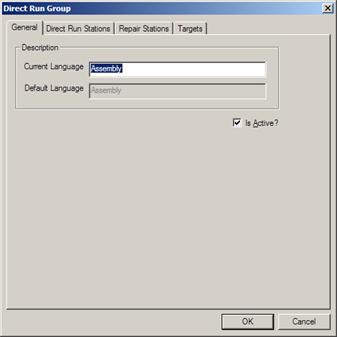
7. Enable the Direct Run routing stations to associate them with the group
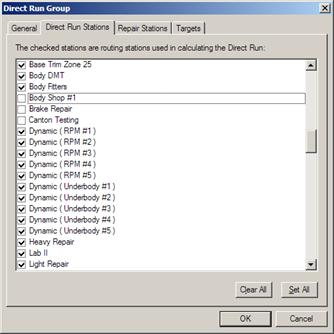
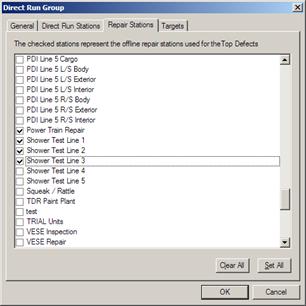
8. Enable repair stations to associate them to the group.
An important part of the Direct Run Summary (301) report is the Top Defects by Group. This section of the report calculates top defects by looking at only those defects that required an offline repair at one of the selected Repair Stations for that group.
9. Click Add.
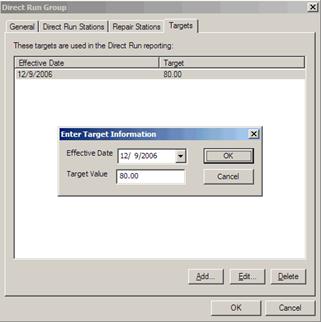
10. Enter a start (effective) date and target value.
Targets may be changed at any time. When a Direct Run report is run, it will use the most recent effective date before the ending date of the report.
An important part of Direct Run is the capability to create custom configurations. This allows for different groupings (and master tracking point) based upon need. For example a user might want a complete plant breakdown with groups such as Body, Paint, Assembly, and Inspection. They might also want a single department breakdown for Paint such as E-coat, Enamel, Inspection, and Repair. By allowing multiple configurations, such scenarios are easily supported.
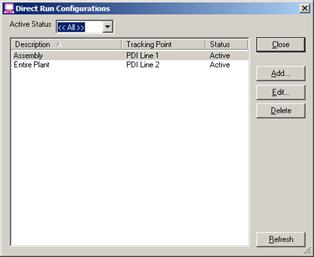
11. Click Add.
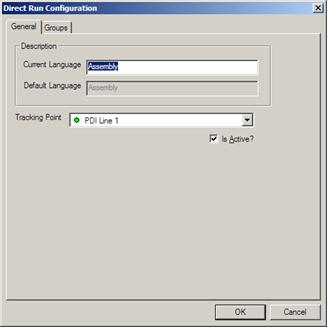
12. Enter a Description for the Configuration.
13. Select a Tracking Point.
The Direct Run Summary Report (301) has total units by shift. Those numbers are calculated at the selected Tracking Point..
14. Select the Groups tab.
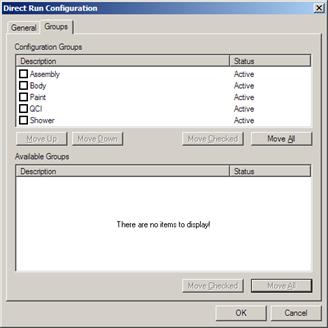
15. Select the groups required in the Available Groups pane.
16. Click Move Checked.
The groups are associated to the configuration.
17. Click OK to save the configuration.