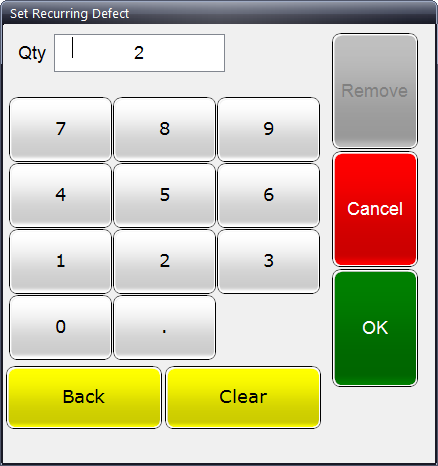
Recurring defects are used when an inspector wishes to copy the same defect, in the same location, on the same component, to the next "x" units of the same product.
For example, let's say that you're building steel and aluminium frames and you discover that there is the same defect on 3 consecutive steel frames.
1. Enter the defect on the first unit where you found the defect. For this example let's call it unit number 0311.
The Defect screen appears.
2. Enter the concern details.
3. Click Recurring Defects.
The following screen appears.
4. Enter 2 for the quantity. This means that the same defect will be added to the next two units of the same product.
5. Click OK.
6. Click OK to save the defect.
The defect will be applied as follows:
| Unit | Product | Defect applied? |
| 0311 |
Steel frame |
 |
| 0312 |
Alu frame |
|
| 0313 |
Steel frame |
|
| 0314 |
Steel frame |
|
| 0315 | Alu frame | |
| 0316 | Steel frame |
If you apply a recurring defect to a unit in the middle of the queue it will still apply the defect to the units directly after it in the queue, not to new units that have just been added.
The Defect - Setup Recurring screen can be accessed by clicking the Recurring Defects button on the Defect screen.
The Defect - Manage Recurring screen can be accessed by clicking the Manage Recurring button on the Options screen.