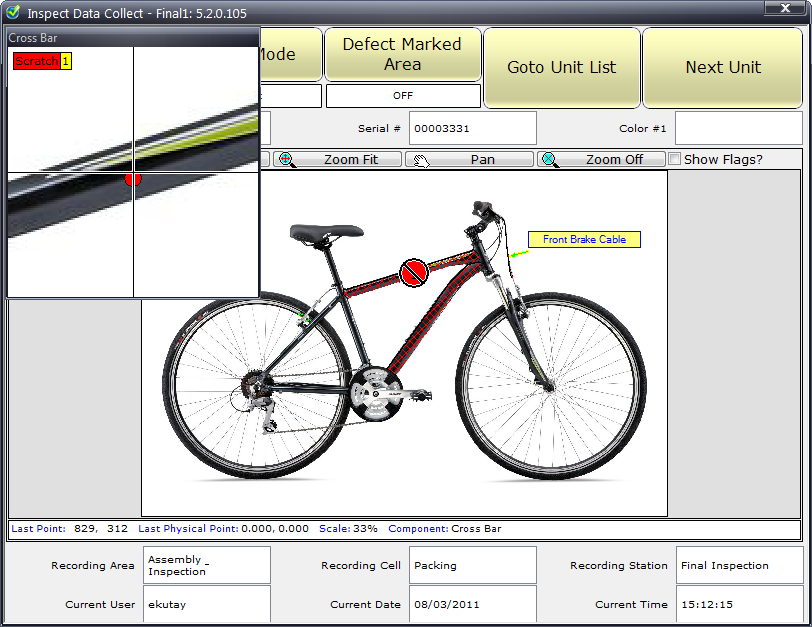
When you first see the image it is scaled to fit in the viewing area. However, if it is a large or detailed item you may wish to zoom in.
There are 3 options for this as described below:
These buttons are of the most use when using a touch screen.
● Click the Zoom In button and then click on the image and you will zoom in. Zoom Out works in the same way.
● Click Zoom Off to stop zooming.
● Click the Pan button and then click and drag the image to move around it.
● Click Zoom Fit to display the entire image again.
The mouse scroll button can be used to zoom in and out of the image. You will then need to use the Pan button to move around the image.
When you click and hold the pointer on the image an enlarged inspection area is displayed in a popup window.
You can then move over the image. If you move over a component and release it will add a defect and open the defect selection screen.
If you move over a defect the flag for that defect will be shown in the corner of the popup window.