In this Topic Hide
Unit Questions are based on Basic questions which must be created first. See here.
Unit questions are displayed to the operator in a checklist in Data Collect. However, a checklist is not created by simply assigning questions to a checklist. Instead, the following steps must be performed.
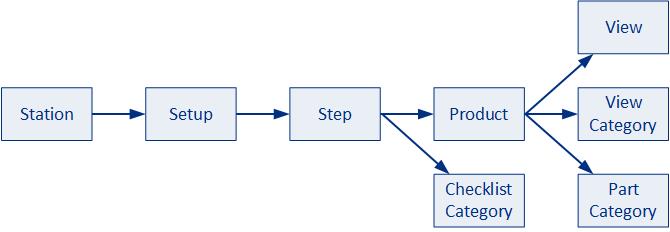
a. Unit question is assigned to a checklist category (e.g. "Engine Compartment", "Electrical")
b. Checklist category is assigned to a step within a setup.
c. Setup is assigned to one or more stations.
You need to create at least one category before you can add a question.
1. Select the Attribute tab.
2. Click Unit Questions.
All available questions are displayed in the upper pane. The list of questions can be filtered by Category and Question Type.
3. Click the add icon ( ).
).
A dialog with two tabs opens, allowing you to define the question and its various settings.
4. Select the question that will be assigned to the defect.
The Code, Result Type and Question Type of the question are shown.
5. Select a part, or a part and location (component), to associate to the question (optional).
6. Use the checkboxes at the bottom of the popup as follows:
o Mandatory - Enable if question must be answered before step can be completed.
o Disable Defects - Enable to prevent the question from generating any defects if the wrong answer is entered.
It's possible for checklist questions to be reset automatically when a repair is carried out. This means that when a specified repair is carried out on a specific part of a specific product the answers associated to the checklist questions are cleared and the operator must check those items again.
For example, let's say that an operator has a checklist question stating that they must check that the left and right wing mirrors are matching. They check that they are matching and enter the answer "Yes" in the checklist. However, later in the production process one of the wing mirrors is scratched and has to be replaced. This "repair" automatically triggers an event that clears the answer from the checklist question and the operator must check that the wing mirrors are matching again.
7. Select the Repair Resets tab.
8. Click the add icon ().
The repair reset creation window opens.
9. Select a Repair Type, Product and Part from the drop-down lists.
10. Click OK.
When the selected repair is carried out on the associated part/product combination, the question will be reset and will need to be re-answered.
11. Click OK.
The unit checklist question is created.
A unit checklist question must be assigned to a category for it to appear in a checklist. It doesn't need to be in a category if it is only being assigned to a defect. For information on assigning questions to categories see here.