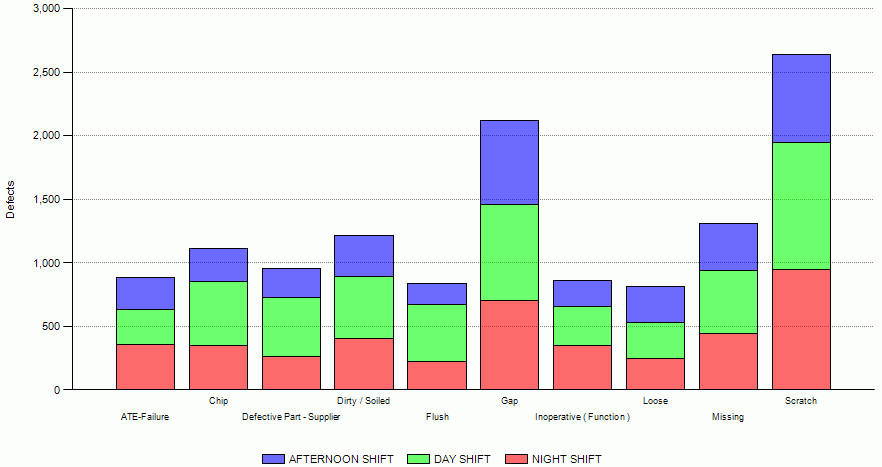
This report displays defects divided by shift and concern.
Each column represents a concern. Each column is also divided by shift.
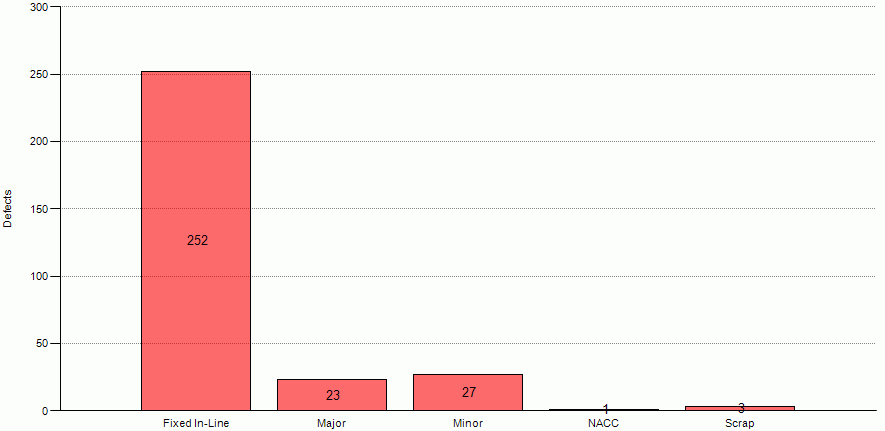
Click on a shift within a concern column to open a bar chart that divides the selected results by rank.
In the chart the results are initially displayed by the total number of defects found for each concern. This can be changed by modifying the Result parameter as follows.
● Defects: The total number of defects found for that concern in the sample.
● Bad Units: The number of units in the sample that had the concern.
● Points: The total ranking points of defects with the given concern. A single defect that was very serious could be listed above a defect that occurred several times but wasn't so serious.
● D/1, D/100, D1000 and D/1000000: Average number of defects per unit (D/1), per 100 units (D/100), and so on, in the sample. The calculation includes all units in the sample, including those that didn't have any defects.
| Parameter | Description |
Desired Language |
The language the report results will be shown in. |
Pick Date Range |
Either select a date range from the drop-down list or select a Begin Date and End Date using the two parameters below it. |
Begin Date |
The start date for the report. |
End Date |
The end date for the report. |
Defect Area/Group/Station |
The production area, station group or station where the defects were assigned. |
Responsible Area |
The area responsible for the defects occurring. |
Responsible Cell |
The cell responsible for the defects occurring. |
Product/Group |
The product(s) and product group(s) to be included in the report. |
Build Group |
The build group(s) to include in the report. |
Defect Status |
The defect status to include in the report. |
Ranks |
The rank(s) to include in the report. |
Recording User |
The user that entered the defect. |
Tracking Point/Group |
Selecting the appropriate tracking point or group will provide the sample
size for the report. That is, the number of units that crossed through
that point or group matching with the rest of the filters selected in
the report.
|
Date Interval |
Creates a timeline using the selected interval so that comparisons can be made over time. |
Show Detail |
Displays a table breaking down defects by concern, product and date. This
may be on the second page of the report.
|
Result |
How the results should be shown. For example, D/100 will show the number of defects per 100 units. |
Chart Result |
How should chart results be ranked? By defects, bad units, points, results or percentage ok? |
Min Y-Axis Value |
The minimum value for the Y-axis. |
Max Y-Axis Value |
The maximum value for the Y-axis. |
Limit To |
Only show the x highest ranked results. |