In this Topic Hide
ATS Security provides centralized login logic and workflow for multiple client applications which are registered to use ATS Security as their identity provider. ATS Security authentication and authorization engine is based on IdentityServer4 that provides claims based security following the OpenID Connect and OAuth 2.0 standards.
The user interface of ATS Security is accessible as a "plug-in" from the ATS Configuration Manager. When interacting with the plug-ins in ATS Configuration manager the users work most of the time with cards, blades and grids. They get feedback for the outcome of their actions with success or failure push notifications.
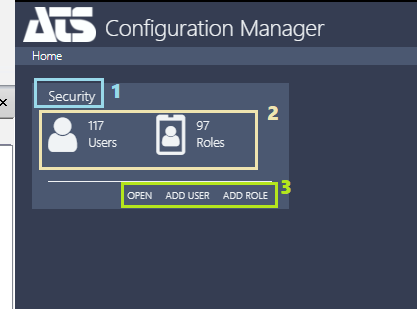
After login to ATS Configuration Manager the user lands on the Home page of ATS Configuration manager which contains "cards" for each of the installed plug-ins which are available for the logged in user. Each card has title(1), content area(2) and shortcut links(2) which, when clicked, load different modules or blades of the respective plug-in.
The basic concept of user interaction in ATS Configuration Manager are the "blades". A blade is a modular component of the user interface that enables elementary operations for the user. Using blades complex configurations can be made. For example, one can assign roles to a user while creating the user, and if the desired role does not exist in the system it can be created "on-the-fly" using the "Add new role" blade which can be opened from the "Adding roles to user" blade.
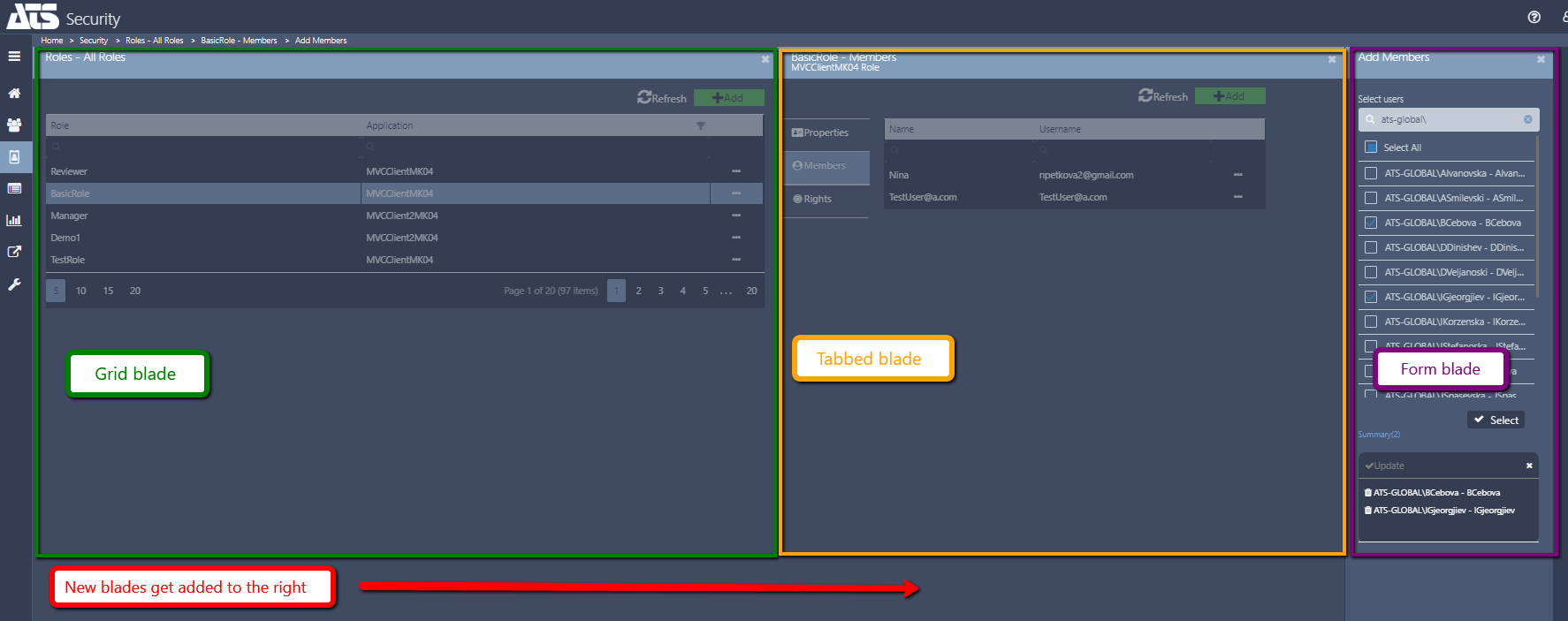
Each new blade is loaded on the right-hand side of the previous blade. Once the last (right-most) blade is finalized, saved and closed the previous blades i.e. "parent" blades get accordingly updated to reflect the new situation. In case one of the "parent" blades is closed the pending changes in the child blades are not preserved (are cancelled).
In ATS Security there are three major types of blades:
1. Grid blade - A blade that shows some records in a grid (i.e. table). Example Users - All users grid.
2. Form blade - A blade for adding new items that contains multiple fields for providing details for the new item. Sometimes such a blade can be used also for viewing and/or editing details of simple items such as External identity providers.
3. Tabbed blade - This is a blade that shows different aspects of a complex item. For example the User details blade has three "tabs" or three entries in the in-blade menu showing the user Profile, Roles and Application info. When saving the data in a tabbed blade each tab needs to be saved separately (the Save option is on tab level).
The tab content of the tabbed blade can itself be of "type" grid or form fields or mixed content: form fields + grid.
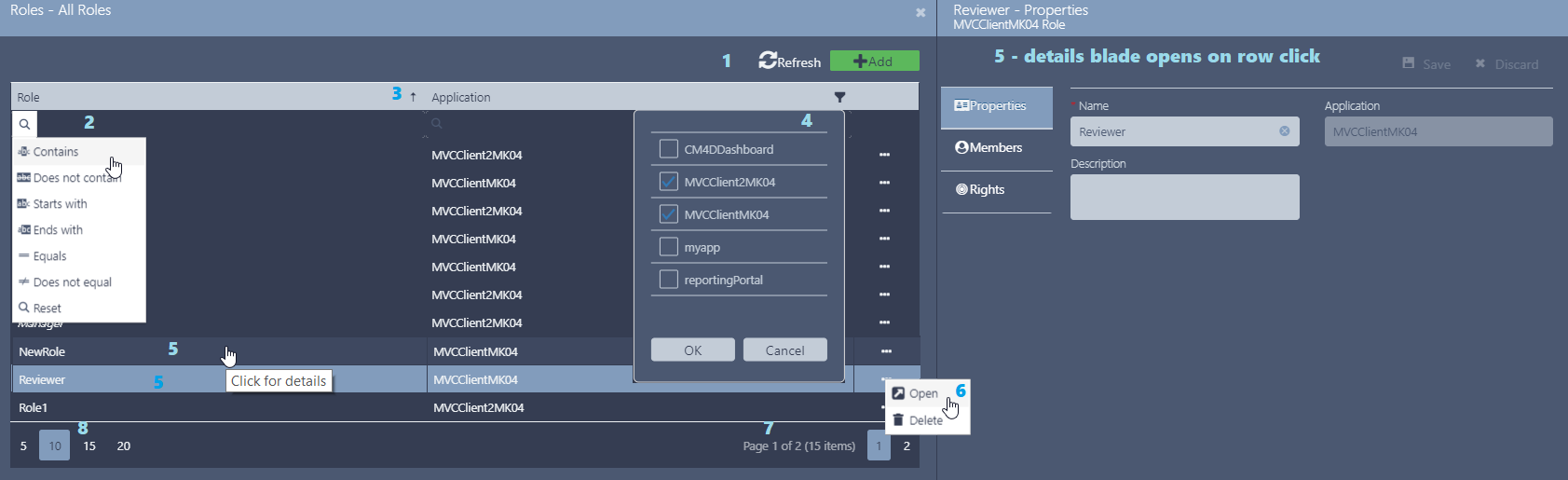
In each of the grids present in the ATS Security user interface you can:
Push notifications appear after an action in one of the blades, grids or a pop-up window. The push notification remains visible for several seconds then disappears without user action. If the outcome of the action is successful then a green - success notification appears. When errors appear the push notification is red - failure notification.


Each user authorized to work in the ATS Security can be assigned one, all or any combination of the following rights:
The rights assigned to you, will give you access to the functionality as described in the table below:
| ViewUsersRoles | EditUsersRoles | ViewApplications | EditApplications | ViewProviders | EditProviders | ViewSettings | EditSettings | ViewActivity | BulkImport | |
| Users module | ||||||||||
| View users grid | Yes |
Yes |
|
|
|
|
|
|
|
|
| Edit users in the grid (delete,disable,unlock) |
|
Yes |
|
|
|
|
|
|
|
|
| Add user |
|
Yes |
|
|
|
|
|
|
|
|
| View user details | Yes |
Yes |
|
|
|
|
|
|
|
|
| Edit user details |
|
Yes |
|
|
|
|
|
|
|
|
| Import users (bulk import) |
|
|
|
|
|
|
|
|
|
Yes |
|
|
|
|
|
|
|
|
|
|
|
| Roles module |
|
|
|
|
|
|
|
|
|
|
| View roles grid | Yes |
Yes |
|
|
|
|
|
|
|
|
| Edit roles in the grid (delete) |
|
Yes |
|
|
|
|
|
|
|
|
| Add role |
|
Yes |
|
|
|
|
|
|
|
|
| View role details | Yes |
Yes |
|
|
|
|
|
|
|
|
| Edit role details |
|
Yes |
|
|
|
|
|
|
|
|
|
|
|
|
|
|
|
|
|
|
|
| Applications module |
|
|
|
|
|
|
|
|
|
|
| View applications grid |
|
|
Yes |
Yes |
|
|
|
|
|
|
| Edit applications in the grid (delete) |
|
|
|
Yes |
|
|
|
|
|
|
| Register (add) application |
|
|
|
Yes |
|
|
|
|
|
|
| View application details |
|
|
Yes |
Yes |
|
|
|
|
|
|
| Edit application details |
|
|
|
Yes |
|
|
|
|
|
|
|
|
|
|
|
|
|
|
|
|
|
| Identity providers module |
|
|
|
|
|
|
|
|
|
|
| View providers grid |
|
|
|
|
Yes |
Yes |
|
|
|
|
| Edit providers in the grid (delete,disable) |
|
|
|
|
|
Yes |
|
|
|
|
| Add provider |
|
|
|
|
|
Yes |
|
|
|
|
| View provider details |
|
|
|
|
Yes |
Yes |
|
|
|
|
| Edit provider details |
|
|
|
|
|
Yes |
|
|
|
|
|
|
|
|
|
|
|
|
|
|
|
| Settings |
|
|
|
|
|
|
|
|
|
|
| View settings |
|
|
|
|
|
|
Yes |
Yes |
|
|
| Edit settings |
|
|
|
|
|
|
|
Yes |
|
|
|
|
|
|
|
|
|
|
|
|
|
| Activity |
|
|
|
|
|
|
|
|
|
|
| View user activity (history and statistics) |
|
|
|
|
|
|
|
|
Yes |
|
The BulkImport rights only works in combination with the EditUsersRoles right. The right alone will not give access to the Import of users feature.