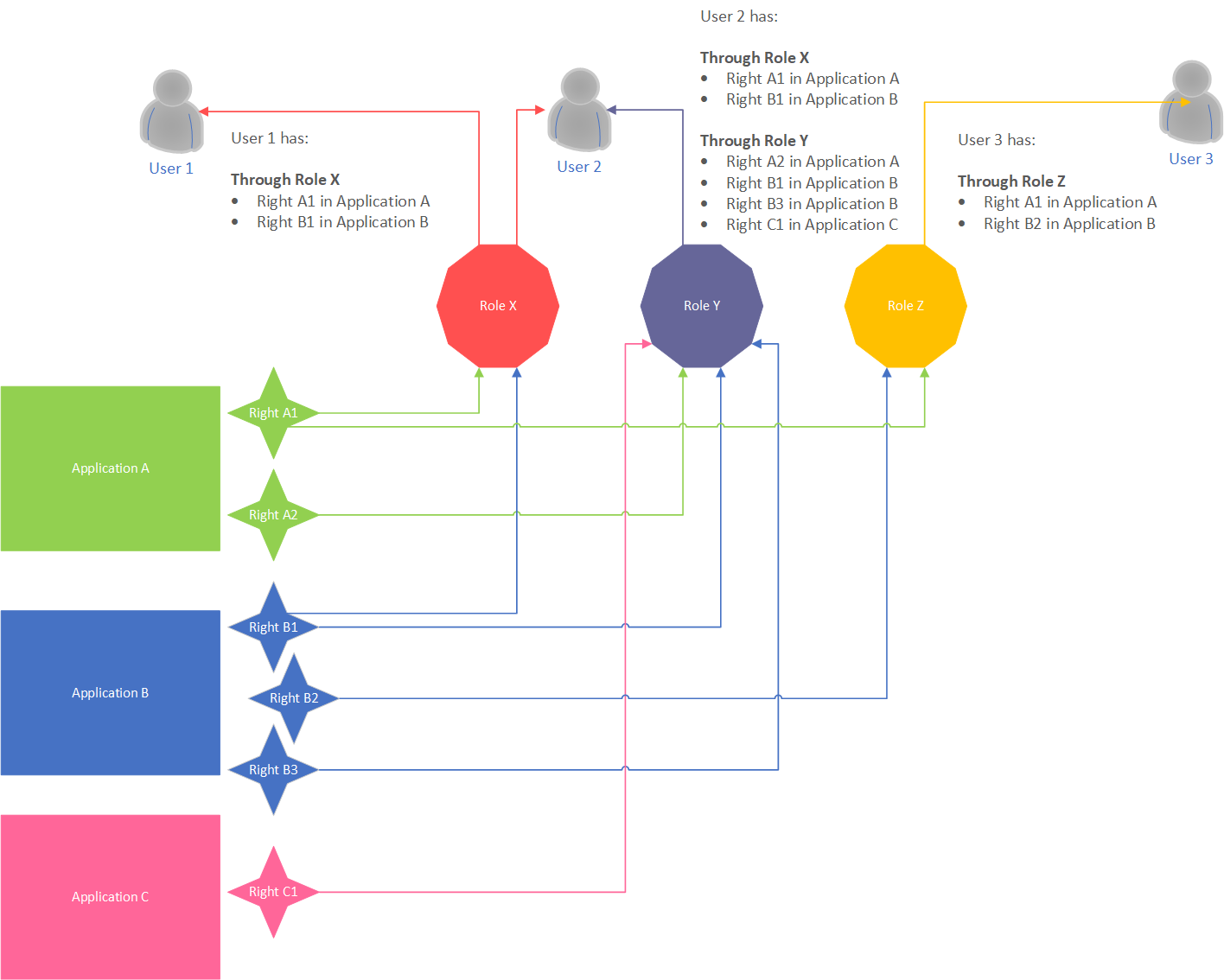
Roles are used to assign rights to users, like depicted in the diagram below. When a role is deleted the rights for all users that were mapped through that particular role are removed from the users. They can be re-assigned through another role if needed:
Through an existing role: by assigning the rights to an existing role.
Through a new role: by creating a new role, assigning the desired rights to the new role, then assigning the role to the users as required.
View User Roles in the Roles grid
The Roles grid can be loaded by clicking on the Roles icon on the Security Card. The Roles grid shows information for the configured User Roles in two columns; Role and Description.
Each row in the Roles grid has a context menu, which can opened by clicking on the context menu icon (...). There are two context menu options available; Open and Delete.
View role details in the Role details blade
Selecting the Open option from the context menu loads the Role details blade on the right of the window. The Roles details blade displays details about the User Role such as its name and description.
Edit roles in the Roles grid
Each row in the Roles grid has a context menu, which can opened by clicking on the context menu icon (...). There are two context menu options available; Open and Delete.
Delete a User Role
A User Role can be deleted by selecting the Delete option in the context menu of the User Role. Once confirmed, a success notification is displayed and the Role is no longer visible in the grid.
Edit User Role from Roles details blade
A User Role can be edited by selecting the Open option in the context menu of the User Role. The Roles details blade is loaded on the right of the window. The Roles details blade displays details about the User Role such as its name and description, the members of the role and the Rights it has been assigned.
Two options, Save and Discard, are disabled until the contents of the fields are modified. The Save option commits the changes made to the security class, while the Discard option restores the original values in the modified fields. In addition, the Discard option disables the Save and Discard options
Remove a member from a role
From User-Role details blade
Select the Open option from the role member context menu.
A User-Role details blade is opened on the right describing the user-role relation and which rights the user gets by being assigned this particular role.
Select the Remove option in the User-Role details blade.
Click on the Yes button in the confirmation pop-up window.
The User-Role details blade is closed. A success notification appears for successfully removed role. The removed user/member is gone from the Role-members grid in the Members tab of the Role details blade.
Using the context menu Delete option
Select the Delete option from the role member context menu.
Click on the Yes button in the confirmation pop-up window.
A success notification appears for successfully removed role. The removed member is gone from the Role-members grid in the Members tab of the Role details blade.
Add single user
Click on the Add button in the top right corner of the Role-members grid.
An Add members blade opens on the right with a list of users and a search box.
Find the desired user and check its check-box.
Click on the Select button.
The Add members blade is closed. A success notification appears for successfully added member. The added user is visible in the Role-members grid in the Members tab of the Role details blade.
Add multiple users
Click on the Add button in the top right corner of the Role-member grid.
An Add members blade opens on the right with a list of users and a search box.
Find the desired users and tick their check-boxes.
The number of selected users appears in the Summary link below the users list (Summary(x) where x is the number of selected users in step 3).
Click on the Summary link to see the users you have selected.
Click on the Delete icon for a user in the Summary list.
Select the Update option in the Summary list.
The Summary count decreases by 1 (x-1).
Click on the Select button.
The Select roles blade is closed. A success notification appears for successfully added members. The added x-1 users are visible in the Role-members grid in the Members tab of the Role details blade.
Remove right from a role
From Role-Right details blade
Select the Open option from the role right context menu.
A Role-Right details blade is opened on the right describing the role-right relation and which application the right references.
Select the Remove option in the Role-Right details blade.
Click on the Yes button in the confirmation pop-up window.
The Role-Right details blade is closed. A success notification appears for successfully removed right. The removed right is gone from the Role-rights grid in the Rights tab of the Role details blade.
Using the context menu Delete option
Select the Delete option from the role right context menu.
Click on the Yes button in the confirmation pop-up window.
A success notification appears for successfully removed right. The removed right is gone from the Role-rights grid in the Rights tab of the Role details blade.
Add rights to a role
Add single right
Click on the Add button in the top right corner of the Role-rights grid.
An Add rights to role blade opens on the right with a field for selection of Application.
Select application from the Select application field.
The list of rights from the selected application is loaded with a search box on top.
Find the desired right and tocl its check box.
Click on the Select button.
The Add rights to role blade is closed. A success notification appears for successfully added right. The added right is visible in the Role-rights grid in the Rights tab of the Role details blade.
Add multiple rights from one application
Click on the Add button in the top right corner of the Role-rights grid.
An Add rights to role blade opens on the right with a field for selection of Application.
Select application from the Select application field.
The list of rights from the selected application is loaded with a search box on top.
Find the desired rights and tick their check boxes.
The number of selected rights appears in the Summary link below the rights list (Summary(x) where x is the number of selected rights in step 5).
Click on the Summary link to see the rights you have selected.
Click on the Delete icon for a right in the Summary list.
Select the Update option in the Summary list.
The Summary count decreases by 1 (x-1).
Click on the Select button.
The Add rights to role blade is closed. A success notification appears for successfully added rights. The added x-1 rights are visible in the Role-rights grid in the Rights tab of the Role details blade.
Add multiple rights from multiple applications
Click on the Add button in the top right corner of the Role-rights grid.
An Add rights to role blade opens on the right with a field for selection of Application.
Select application from the Select application field.
The list of rights from the selected application is loaded with a search box on top.
Find the desired rights and tick their check boxes.
The number of selected rights appears in the Summary link below the rights list (Summary(x) where x is the number of selected rights in step 5).
Select another application from the Select application field.
The list of rights from the selected application is loaded with a search box on top.
Find the desired rights and check their check-boxes.
The number of selected rights in the Summary link below the rights list changes from x to x+y where y is the number of selected rights in step 9.
Click on the Summary link to see the rights you have selected. The entries in the summary list contain also the Application name in brackets for distinction.
Click on the Select button.
The Add rights to role blade is closed. A success notification appears for successfully added rights. The added x+y rights are visible in the Role-rights grid in the Rights tab of the Role details blade.
Add new role
A user role can be created by selecting the Add Roles button on the Roles card in Security. The Add role blade is displayed and prompts for the following information:
Provide a Name for the role. This name must be unique.
Provide Description for the role (optional).
Click on the Save button.
The Add role blade is closed and an appropriate push notification will appear depending on the outcome. A successfully created role will appear in the top position of the Roles - All roles grid.
Associate with Active Directory Groups
ATS Configuration Manager offers the option to associate Windows Active Directory groups with Roles. In order for this to be set the ATS Security Manager needs to be deployed on a Windows Operating system and on the Identity Providers module the Windows provider must be set with host and port information.
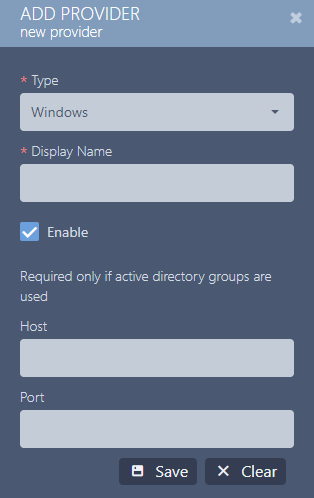
The host and port information are used when searching for Active Directory groups.
Add/Remove Active Directory groups
To edit the Active Directory groups of a role navigate to the Roles module and edit a role. Then open the AD groups tab in the Role details blade. The Active Directory groups are displayed in a Role-Active Directory groups grid. This grid has two columns: Active Directory groups and Action. For each Active Directory group there is a context menu which is opened by clicking on the context menu icon (...). In the context menu there is an option for Delete.
Add Active Directory groups to a role
Add single Active Directory group
Click on the Add button in the top right corner of the Role-Active Directory groups grid.
An Add AD Groups to Role blade opens on the right with required fields for User name and Password and an optional field for Filter.
Enter a User name and Password. The account information is a valid user from the Active Directory. Additionally you can insert a value in the Filter field to be applied for filtering the results.
The list of Active Directory groups is loaded with a search box on top.
Find the desired Active Directory group and check its check-box.
Click on the Select button.
The Add AD Groups to Role blade is closed. A success notification appears for successfully added Active Directory group. The added Active Directory group is visible in the Role-Active Directory groups grid in the AD groups tab of the Role details blade.
Add multiple Active Directory groups
Click on the Add button in the top right corner of the Role-Active Directory groups grid.
An Add AD Groups to Role blade opens on the right with required fields for User name and Password and an optional field for Filter.
Enter a valid Username and Password. Additionally you can insert a value in the Filter field to be applied for filtering the results.
The list of Active Directory groups is loaded with a search box on top.
Find the desired Active Directory groups and tick their check boxes.
The number of selected Active Directory groups appears in the Summary link below the Active Directory groups list (Summary(x) where x is the number of selected Active Directory groups in step 5).
Click on the Summary link to see the Active Directory groups you have selected.
Click on the Delete icon for an Active Directory group in the Summary list
Select the Update option in the Summary list
The Summary count decreases by 1 (x-1)
Click on the Select button.
The Add AD Groups to Role blade is closed. A success notification appears for successfully added Active Directory groups. The added x-1 Active Directory groups are visible in the Role-Active Directory groups grid in the AD groups tab of the Role details blade.
Remove Active Directory group from a role
Using the context menu Delete option
1. Select the Delete option from the Active Directory groups context menu.
2. Click on the Yes button in the confirmation pop-up window.
3. A success notification appears for successfully removed Active Directory group. The removed Active Directory group is gone from the Role-Active Directory groups grid in the AD groups tab of the Role details blade.
Troubleshooting
In order to check if LDAP is accessible you can use the following powershell script to determine the ports.
function Test-LDAPPorts {
[CmdletBinding()]
param(
[string] $ServerName,
[int] $Port
)
if ($ServerName -and $Port -ne 0) {
try {
$LDAP = "LDAP://" + $ServerName + ':' + $Port
$Connection = [ADSI]($LDAP)
$Connection.Close()
return $true
} catch {
if ($_.Exception.ToString() -match "The server is not operational") {
Write-Warning "Can't open $ServerName`:$Port."
} elseif ($_.Exception.ToString() -match "The user name or password is incorrect") {
Write-Warning "Current user ($Env:USERNAME) doesn't seem to have access to to LDAP on port $Server`:$Port"
} else {
Write-Warning -Message $_
}
}
return $False
}
}
Function Test-LDAP {
[CmdletBinding()]
param (
[alias('Server', 'IpAddress')][Parameter(Mandatory = $True)][string[]]$ComputerName,
[int] $GCPortLDAP = 3268,
[int] $GCPortLDAPSSL = 3269,
[int] $PortLDAP = 389,
[int] $PortLDAPS = 636
)
# Checks for ServerName - Makes sure to convert IPAddress to DNS
foreach ($Computer in $ComputerName) {
[Array] $ADServerFQDN = (Resolve-DnsName -Name $Computer -ErrorAction SilentlyContinue)
if ($ADServerFQDN) {
if ($ADServerFQDN.NameHost) {
$ServerName = $ADServerFQDN[0].NameHost
} else {
[Array] $ADServerFQDN = (Resolve-DnsName -Name $Computer -ErrorAction SilentlyContinue)
$FilterName = $ADServerFQDN | Where-Object { $_.QueryType -eq 'A' }
$ServerName = $FilterName[0].Name
}
} else {
$ServerName = ''
}
$GlobalCatalogSSL = Test-LDAPPorts -ServerName $ServerName -Port $GCPortLDAPSSL
$GlobalCatalogNonSSL = Test-LDAPPorts -ServerName $ServerName -Port $GCPortLDAP
$ConnectionLDAPS = Test-LDAPPorts -ServerName $ServerName -Port $PortLDAPS
$ConnectionLDAP = Test-LDAPPorts -ServerName $ServerName -Port $PortLDAP
$PortsThatWork = @(
if ($GlobalCatalogNonSSL) { $GCPortLDAP }
if ($GlobalCatalogSSL) { $GCPortLDAPSSL }
if ($ConnectionLDAP) { $PortLDAP }
if ($ConnectionLDAPS) { $PortLDAPS }
) | Sort-Object
[pscustomobject]@{
Computer = $Computer
ComputerFQDN = $ServerName
GlobalCatalogLDAP = $GlobalCatalogNonSSL
GlobalCatalogLDAPS = $GlobalCatalogSSL
LDAP = $ConnectionLDAP
LDAPS = $ConnectionLDAPS
AvailablePorts = $PortsThatWork -join ','
}
}
}
Save the code above in file with extension .ps1 . Open powershell and navigate to the folder where the file has been saved and execute the following command:
Test-LDAP -ComputerName 'AD1','AD2' | Format-Table
Where ComputerName is the Host specified in the record for Windows Identity Provider.
Here is one example how this should be executed:
