Install ATS Reporting Portal - Setup Wizard
This section describes the installation of the ATS Reporting Portal. This installs both the ATS Reporting Portal web application and the Reporting Port API.
- Please ensure that the steps described in Installation Prerequisites are followed before proceeding with the steps below.
- ATS Reporting Portal uses ports 6200 and 13228 by default. These ports need to be open on any client that requires access to ATS Reporting.
- Reporting Portal must be installed on the same instance of Security & Configuration Manager as where ATS Licensing is registered.
Once the software has been downloaded and unpacked, please follow the steps below:
Run the ATS.ReportingApiAndPortalWs.1.3.x.x.exe.
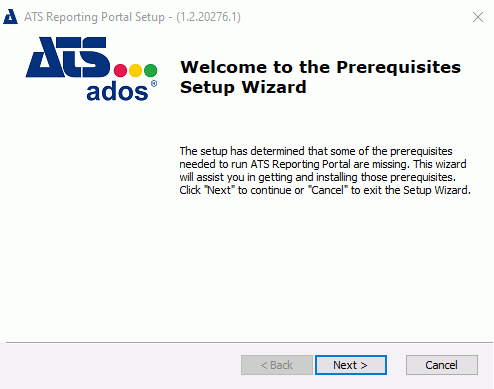
If the prerequisite application, .NET Core 2.1 Runtime & Hosting Bundle, is not installed the screen below will be displayed. If all prerequisites are installed, please proceed to step 6.
Press Next.
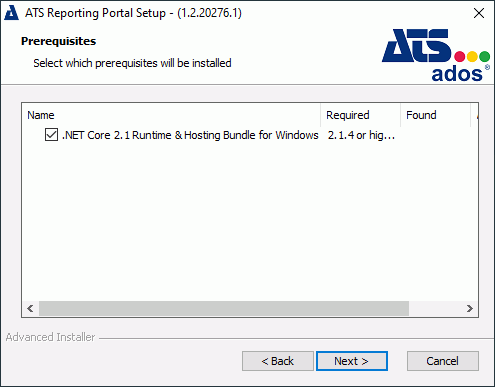
Ensure a tick is placed next to the .NET Core 2.1 package and press Next.
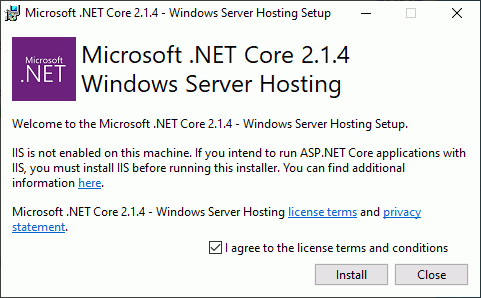
Accept the license terms and conditions and press Install.
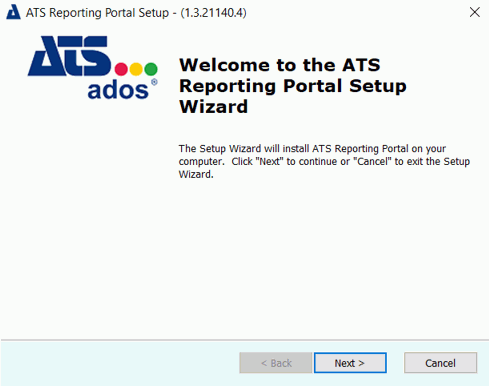
Press Next.
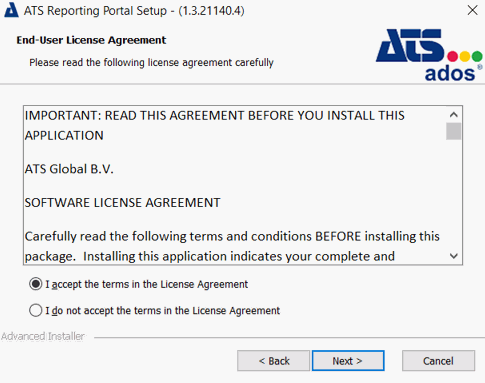
Accept the license agreement and press Next.
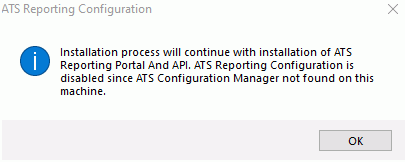
If ATS Configuration Manager is not installed on the machine the following dialog box is displayed. Press OK.
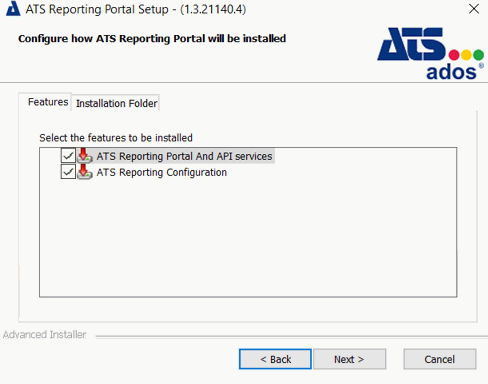
Both the ATS Reporting Portal And API services and ATS Reporting Configuration check boxes are ticked by default on the Features tab. These features can be installed on separate machines.
-
If the ATS Configuration Manager is not installed on the machine, the ATS Reporting Configuration option will be disabled.
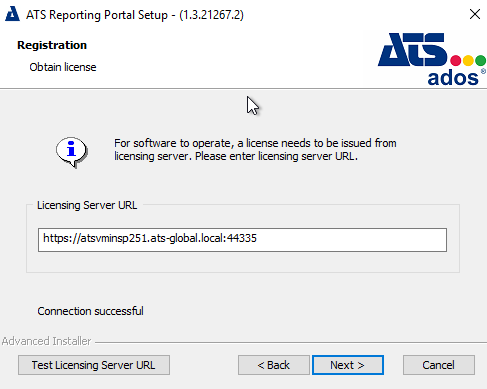
Enter the Licensing Server URL.
-
For information on setting up ATS Licensing, please click here.
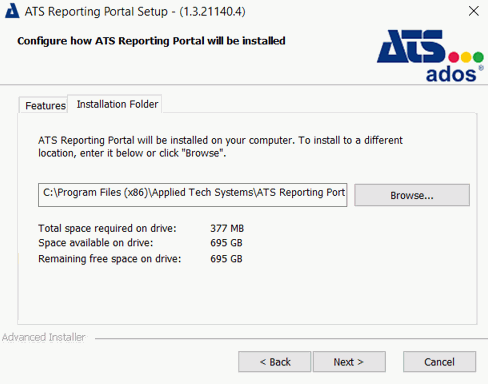
Select the Installation Folder tab and browse to a different installation location if required. Press Next.
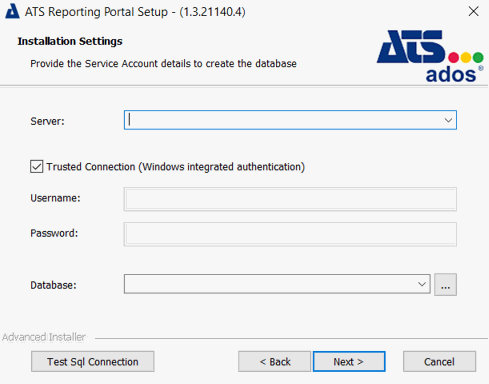
Specify a server name along with a user that has permission to create databases. Finally, provide a name for the database. Press Next.
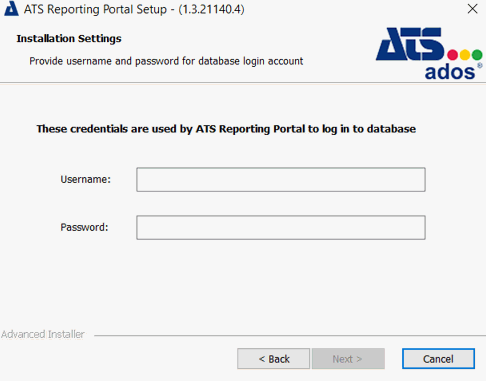
Enter a username and password to be used for the ATS Reporting Portal database. If the credentials specified do not currently exist, they will be created by using the credentials from the previous step and assigned as Scheme Owner. Press Next.
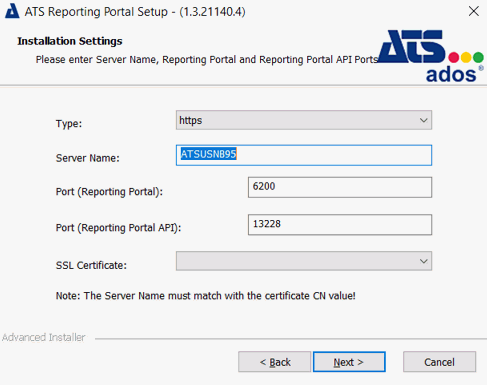
Enter the following configuration details:
Type: Select either HTTP or HTTPS (recommended).
Server Name: Enter the name of the machine that hosts the ATS Reporting Portal.
Port (Reporting Portal): Enter the port number to be used for the Reporting Portal. The default is 6200.
Port (Reporting Portal API): Enter the port number to be used for the Reporting Portal API. The default is 13228.
SSL Certificate (HTTPS only): Specify the SSL Certificate.
-
The server name specified must match with the certificates' CN value.
Press Next.
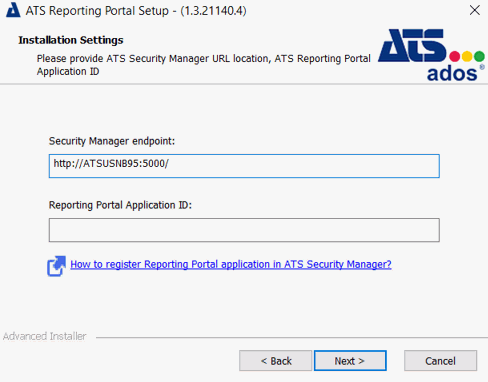
Provide the URL including the port for ATS Security in the Security Manager endpoint field. I.e. (http://servername:port/)
Provide the Application ID that was acquired by following the steps in Installation Prerequisites in the Application ID field.
Click Next.
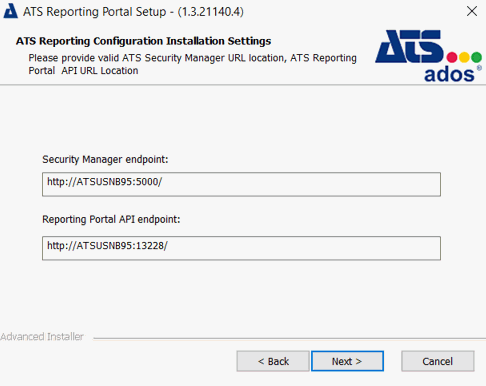
The default endpoints are provided based on information provided in previous installation steps:
Security Manager endpoint - Enter the endpoint URL for the ATS Security Manager, including the port (http://servername:port/).
Reporting Portal API endpoint - Enter the endpoint URL for the Reporting Portal, including the port (http://servername:port/).
Click Next.
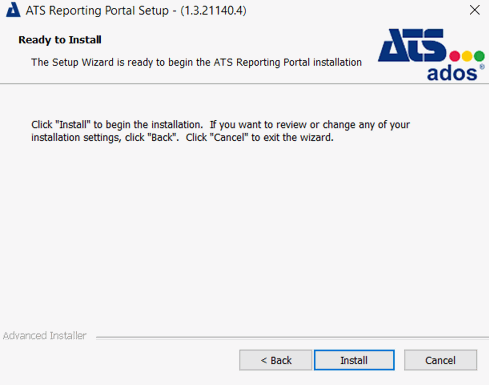
Click Install.
Once the installation is complete, press Finish.