In this Topic Hide
The Parameters panel for CM4D type of reports contains search parameters which are used to find subset of pre-generated PDF files (reports) that match the search conditions. Files can be searched based on:
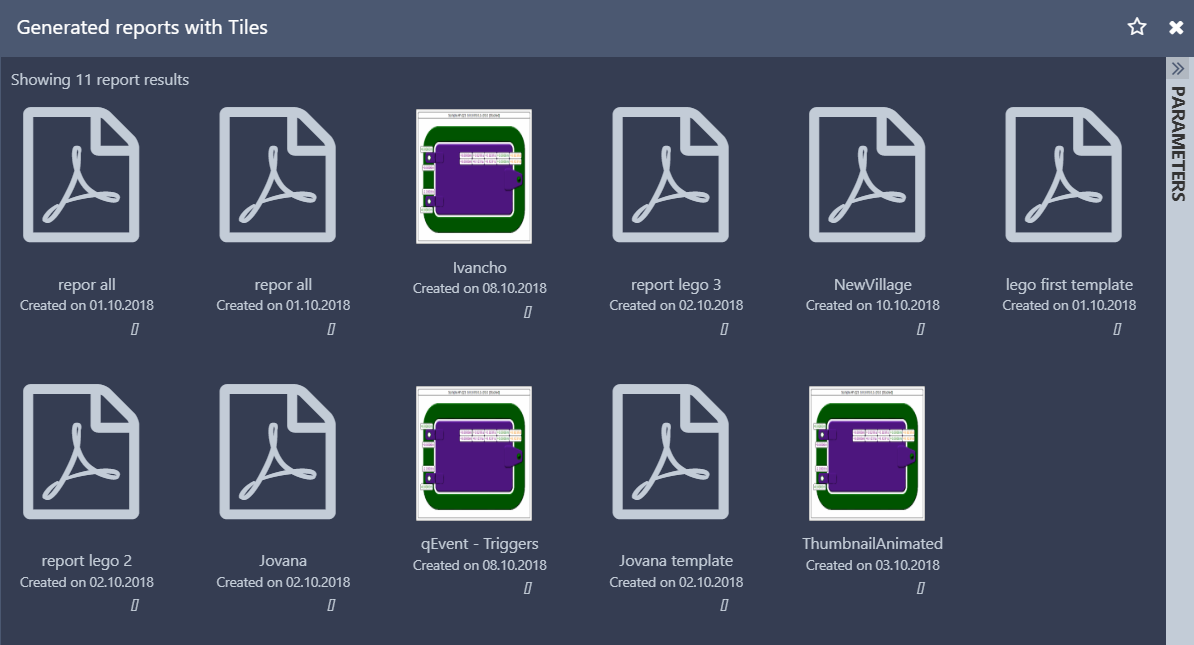
The search results are displayed using Tiles.
1. Enter search conditions and click on Search.
2. The results are displayed with tiles.
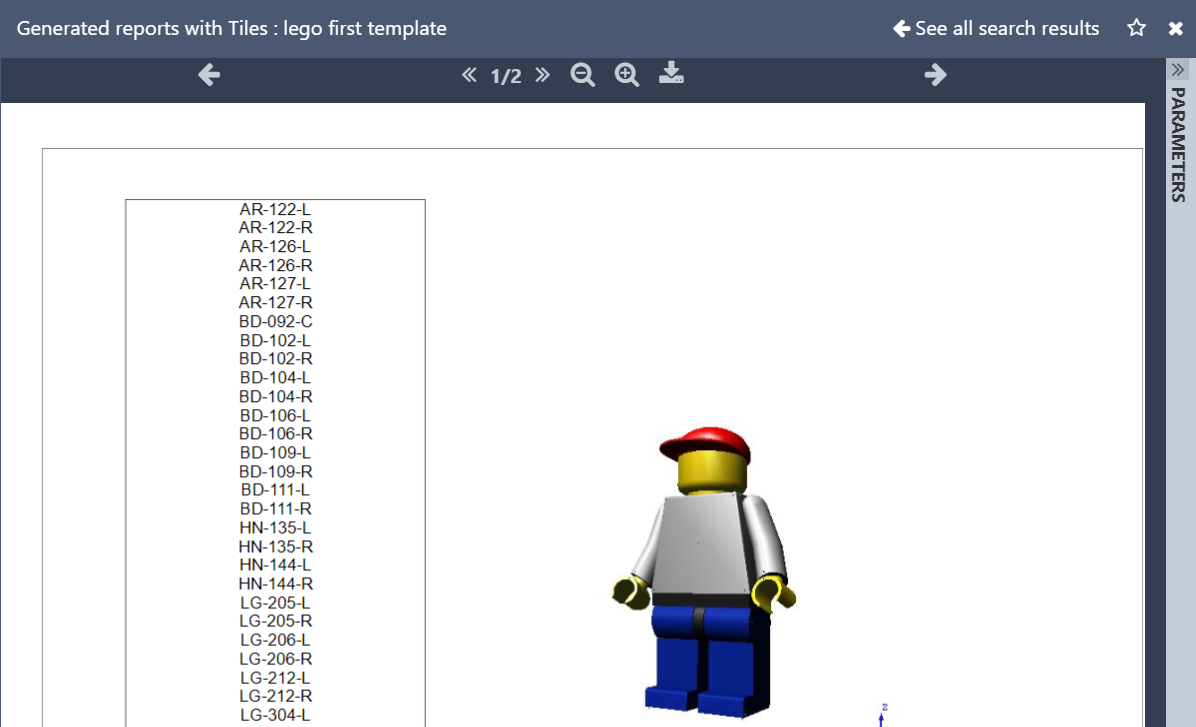
3. Click on a tile to load the report (PDF file).
4. Use the Next and Previous arrows to next/previous report (for CM4D reports).
5. Click on the "See all search results" to go back to the search results (tiles).
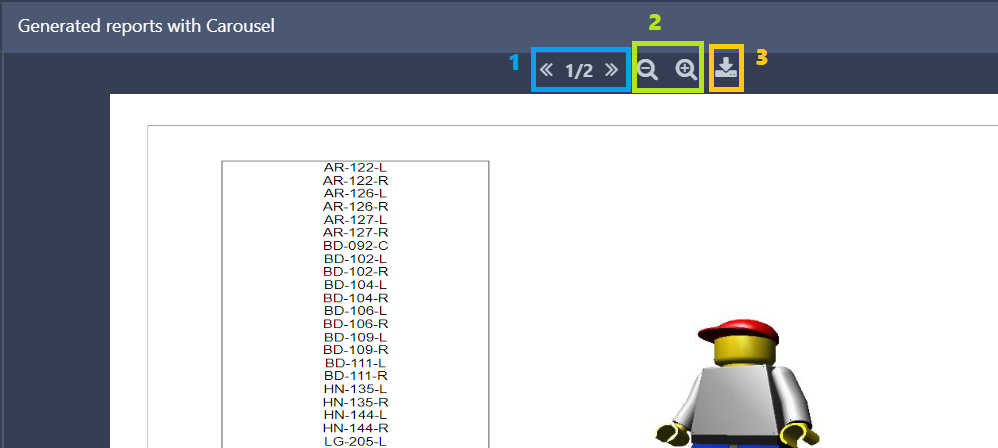
When a report (PDF file) selected from the search results is loaded in the viewer you can:
1. Go to different page of the report (loaded PDF file)
2. Zoom in and zoom out
3. Download the report (file)
For managed CM4D type of reports there is an option to Run the report, which will start the generation of the CM4D report.
A new job to run the report is created and is visible in CM4D scheduler. The job is executed by the CM4D scheduler and the report is created in the user depository.