In this Topic Hide
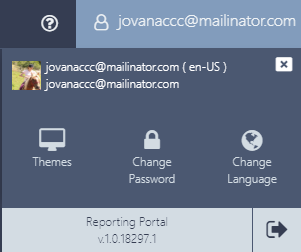
Users of ATS Reporting Portal have the following user options:
These user options are available from the User options menu which loads when you click on your user name in the top right corner of the page.
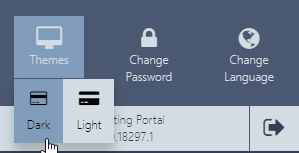
Two themes are available in ATS Reporting Portal: Dark and Light.
To change the theme:
1. Move the mouse over or click on the Themes option in the user options menu.
2. Select the theme (by clicking on it).
3. The new theme is loaded.
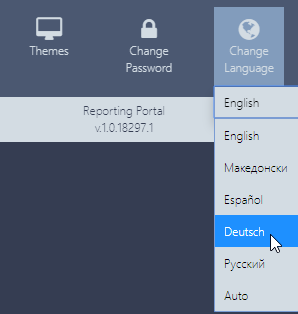
To change the language:
1. Move the mouse over or click on the Change Language option in the user options menu.
2. Click on the Language option (drop-down list).
3. The available languages menu list appears.
4. Select the language (by clicking on it).
5. The new language is loaded.
This option will be available only to users that are registered in ATS Security (local users).
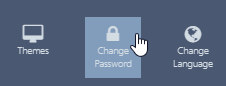
To change your password:
1. Click on the Change password option in the user options menu.
2. The Change Password page/form loads with your user name pre-filled.
3. Provide your current password, the new password and confirm the new password.
4. Click Change to change the password or Cancel to cancel the password change.
5. After successful password change the Password change confirmation screen appears with a Log in link.
6. Click the Log in link.
7. The ATS Security login page is loaded.
8. Provide your credentials using the new/changed password and click Sign in.
9. You are logged in with the new password.
To logout from ATS Reporting Portal:
1. Open the user options menu.
2. Click on the logout  button.
3. After successful logout you are redirected to the ATS Security login page.