Database User Privileges
CM4D has the option to control which Databases users can access and what each user is allowed to do within those Databases. Consider the following situations. A user starts CM4D and wants to connect to a new Database or use the Feature Editor to add a new feature to an existing Database. A second user opens CM4D Peruse in a browser window and wants to look at data on a 3D model. A third user wants to use DataSmith to output data to a Managed DataSource.
How can you control whether or not each one of these users can or should accomplish these tasks?
An administrator can define Roles for users and then assign database access and data rights to each role. Access rights determine whether or not a user is allowed to connect to, use, or make changes to a specific Managed Datasource. Data rights determine if a user is allowed to perform specific tasks, such as editing documents or outputting data to a Database. Users become members of one or more roles, and thereby gain the rights assigned to that role.
- Rights only apply for the Managed DataSource(s) the role is given access to within that role
- Rights for a given user are an accumulation of the rights of all roles to which the user is assigned
- Not all users will need to be able to make changes to Databases and documents
Access Privileges
All groups must be assigned to the Site(s) and/or Database(s) to which its users will need access.
Site Access
The Site Access level grants all users in the Group access to information that is stored within the Site Database.
For example, if a group has been given access to a Site but has not been given access to a DataSource within it, the users in that group will still be able to view any Managed Documents that connect to that DataSource but will not be able to load any data from that Database.
DataSource Access
The DataSource Access level allows the users in the group to the selected managed Database. Granting access to a DataSource automatically grants access to the Site that is managing that DataSource.
Routine Access
In most cases, the first Routine Access option ‘Any Routine’ will be used for all selected Databases, granting access to all Routines (part data) within that Database.
Although very uncommon, additional control at the Routine level may be added by implementing Routine Access Codes.
See here for more information on Access Codes.
Data Privileges
Each group must be assigned the privileges that will be granted to the users of that Group. The available privileges are listed below (in Alphabetical order).
A user can see what privileges they have been assigned by checking the Session Properties dialog in CM4D, DataSmith, or DataUtility.
Analyst
Allows a user to open and view managed and unmanaged CM4D documents, but they cannot create or modify any CM4D documents.
This option is very restrictive and can sometimes interfere with some of the higher-level privileges, so it should not be assigned to users that with privileges such as Developer, Document Manager, Data Manager, etc.
API
Allows a user to use external scripting to automate certain functions of CM4D through Visual Basic. Access to the API via external scripts requires a special ATS CM4D License. Internal Scripts are controlled by the various Script privileges described below.
Batch Manager
Allows a user to run the DataSmithBatch Manager application to create and modify Batch Jobs.
This privilege does not allow a user to run the DataSmithBatch Service, so if you would like a specific user to run Batch Manager and the Batch Service, then both the Batch User and the Batch Manager privileges must be assigned.
Batch User
Allows a user to run the DataSmith Batch service and/or Batch Jobs. Users with this privilege must also be assigned the appropriate Data Manager privileges in order to add new data or make changes to existing data in the database. The most common privileges given to Batch users is the ‘Create Sample’ and/or ‘Modify Sample’. See the Data Manager section below for more information.
Change Log Manager
Allows a user to delete Process Change Log entries, modify any user comments, and turn logging on and off for a session of CM4D.
The ‘Disable Change Log’ child privilege allows the user to turn the Process Change Log function on or off during a session of CM4D.
Data Archiver
Allows a user to run the DataArchiver application. Few users should be assigned the Data Archiver privilege, as the application allows for removing data from the Database.
A user with the Data Archiver privilege must also have the Data Manager ‘Delete Samples’ and ‘Delete Actuals’ privileges (the parent Data Manager privilege is not necessary).
Data Manager
Allows a user to make changes to the data stored in the Database.
For example, a user with the parent Data Manager privilege can use DataSmith to output data to DataSources, CM4D's feature editor to make changes to DataSources, or DataUtility to make changes to DataSources. Having all of the child Data Manager privileges is not equivalent to having the parent Data Manager privilege.
The Data Manager privilege has a parent level that grants all data modification privileges, and then child privilege levels under the parent privilege. These child privileges grant users a specific subset of the parent Data Manager abilities.
Child Data Manager Privileges
There are separate child privilege options to grant a user Create, Modify, or Delete privileges on specific types of data. For example, if a user had the privilege ‘Create Samples’, they could create new Samples and Actual values. The Create Samples privilege implies the Create Actuals privilege. If a user had only the Create Actuals privilege they would only be able to create Actuals. In order to modify existing samples, a user would have to have the 'Modify Samples' privilege.
How these privileges impact access in DataUtilityHow these privileges impact access in DataUtility
| Permission | Description | Effected Area in Data Utility | Impact When Enabled |
| Create Features | Allows creating new features | This permission is not applicable in DataUtility. | N/A |
| Modify Features | Allows editing existing features | Data Manager → Features tab | User can edit Features Users can edit certain fields by clicking directly on the cell in the editable column. |
| Delete Features | Allows deleting features | Data Manager → Features tab | The Mark Feature(s) for Deletion option is available when right-clicking on a feature. |
| Create Nominals | Allows adding new nominal values | Data Manager → Nominals tab | User can create nominals In Data Utility, users can right-click on an item in the list and select Create new Nominal Value, which adds a new nominal entry. |
| Modify Nominals | Allows editing nominal values | Data Manager → Nominals tab | Users can edit certain fields of nominal entries by clicking directly on the cell in the editable column. |
| Delete Nominals | Allows deleting nominal values | Data Manager → Nominals tab | In Data Utility, users can right-click on a nominal entry in the list and select Mark Nominal for Deletion (or Mark Nominal and Limits for Deletion), which only marks the selected entry for deletion. |
| Create Spec Limits | Allows creating specification limits | Data Manager → Spec Limits | User can create spec limits |
| Modify Spec Limits | Allows editing spec limits | Data Manager → Spec Limits | User can modify limits |
| Delete Spec Limits | Allows deleting spec limits | Data Manager → Spec Limits | User can delete limits |
| Create Control Limits | Allows creating control limits | Data Manager → Control Limits | |
| Modify Control Limits | Allows modifying control limits | Data Manager → Control Limits | |
| Delete Control Limits | Allows deleting control limits | Data Manager → Control Limits | |
| Create Samples | Allows creating samples | Data Manager → Samples tab | |
| Modify Samples | Allows editing samples | Data Manager → Samples tab | Users can edit certain fields of sample entries by clicking directly on the cell in the editable column. |
| Delete Samples | Allows deleting samples | Data Manager → Samples tab | User can delete samples The Mark Sample(s) for Deletion option is available when right-clicking on a sample. |
| Create Causes | Allows creating causes | Data Manager → Causes tab | User can create causes |
| Modify Causes | Allows editing causes | Data Manager → Causes tab | User can edit causes |
| Delete Causes | Allows deleting causes | Data Manager → Causes tab | User can delete causes |
| Create Routines | Allows creating a replicate routine | Data Manager → Routines tab | User can Replicate routines In Data Utility, users can right-click on a routine in the list and select Replicate Routine, which creates a copy of the selected routine |
| Modify Routines | Allows editing routines | Data Manager → Routines tab | User can edit routines |
| Delete Routines | Allows deleting routines | Data Manager → Routines tab | User can delete routines in Data Utility. The Mark Routine(s) for Deletion option is available when right-clicking on a routine. |
| Create Subroutines | Allows creating subroutines | Data Manager → Subroutines tab | User can create subroutines |
| Modify Subroutines | Allows editing subroutines | Data Manager → Subroutines tab | User can edit subroutines |
| Delete Subroutines | Allows deleting subroutines | Data Manager → Subroutines tab | User can delete subroutines |
| Create Alignments | Allows creating alignments | Data Manager → Alignments tab | |
| Modify Alignments | Allows editing alignments | Data Manager → Alignments tab | |
| Delete Alignments | Allows deleting alignments | Data Manager → Alignments tab | |
| Create MSAs | Allows creating Measurement System Analyses | Data Manager → MSAs tab | |
| Modify MSAs | Allows editing MSAs | Data Manager → MSAs tab | |
| Delete MSAs | Allows deleting MSAs | Data Manager → MSAs tab | |
| Create Process Transforms | Allows creating process transforms | Data Manager → Process Transforms | User can create transforms |
| Modify Process Transforms | Allows editing process transforms | Data Manager → Process Transforms | User can edit transforms |
| Delete Process Transforms | Allows deleting process transforms | Data Manager → Process Transforms | User can delete transforms |
| Create Process Baselines | Allows creating process baselines | Data Manager → Process Baselines | User can create baselines |
| Modify Process Baselines | Allows editing process baselines | Data Manager → Process Baselines | User can edit baselines |
| Delete Process Baselines | Allows deleting process baselines | Data Manager → Process Baselines | User can delete baselines |
| Create Images | Allows uploading/creating images | Data Manager → Images | User can add images |
| Modify Images | Allows editing images | Data Manager → Images | User can edit images |
| Delete Images | Allows deleting images | Data Manager → Images | User can delete images |
| Create Cameras | Allows creating cameras | Data Manager → Cameras | |
| Modify Cameras | Allows editing cameras | Data Manager → Cameras | |
| Delete Cameras | Allows deleting cameras | Data Manager → Cameras |
DataSmithBatch Job User Requirement
The Data Manager privilege is a requirement for DataSmithBatch job users, but the parent Data Manager privilege is not always needed in order for a user to process a Batch Job.
In most cases, Batch Job users are assigned the child privileges ‘Create Sample’ and/or ‘Modify Sample’. However, keep in mind that if your Batch job will be doing more than processing new Samples into the Database, additional Data Manager child privileges may need to be assigned accordingly.
Assign or Remove Causes Requirement
To assign or remove Causes in CM4D, a user must have the ‘Modify Actual’ child privilege. When a Cause is assigned to data, the reference to that Cause is saved on the Actual. Causes are stored in the database as a separate entity, the Cause-specific child privileges are only used for those Cause entities.
Developer
Allows a user to create and make changes to unmanaged CM4D documents. The user can also open Managed Documents, but cannot make changes to them.
Document Manager
Allows a user to create or modify Managed Documents, create or modify unmanaged CM4D documents, and perform the Managed Report Administration functionality in CM4D Web.
Event Administrator
Allows a user to subscribe to EventSmith Alarm notifications on behalf of other users. Must also have the Event Manager privilege.
Filter Manager
Allows a user to create and modify Database Filters using DataUtility. If a user has the parent privilege, Filter Manager, all six child privileges are implied by default (even when the six are not checked).
If a user has only a child Definition privilege, the child Element privilege is included. If the child Element is the only privilege selected, the user will not automatically have the child Definition privilege.
Scheduler Manager
Allows a user to create and modify Scheduler Jobs within the Scheduler Manager application, as well as view Scheduled jobs for all users.
Having the Scheduler Manager privilege does not automatically grant the user to have Scheduler User privileges. In order to run jobs, a user must have the Scheduler User privilege in addition to the Scheduler Manager privilege.
Scheduler User
Allows a user to runs the Scheduler and Launcher Services and/or Scheduler Jobs. A Scheduler User can then be used to run jobs without being granted the Scheduler Manager privilege.
If a Scheduler User does not also have the Scheduler Manager privilege, they will only be able to view (but not edit) their own scheduled and processing jobs in the Scheduler Manager application.
Script Administrator
Allows a user to configure which .Net Assemblies (global or private) are available for use with internal scripting in CM4D via the Script Config dialog.
Script Executor Group
Allows a user to run any scripts created for the group(s) that the user belongs to.
Script Executor Public
Allows a user to run any scripts created for Public use.
Script Executor User
Allows a user to run any scripts a user has created themselves.
Script Manager Group
Allows a user to create, modify, or remove scripts for all users that belong to the group selected in the script.
Script Manager Public
Allows a user to create, modify, or remove scripts that are available to all users in the Site.
Script Manager User
Allows a user to create, modify, or remove their own scripts.
Site Database Admin
Allows a user to run the SiteManager application to create Sites, DataSources, Users, Groups, and assign access and privileges to those groups.
If the Enterprise Email Configuration is set up, users with this privilege and a valid email address will also receive CM4D Web User Registration notifications.
Workcell Data Manager
Allows a user to commit data to the Database using CM4D Workcell. A user with the Workcell Data Manager privilege will not be able to load data into a Database using any other applications (such as DataSmith), unless they also have the Data Manager privilege.
The Workcell Data Manager privilege can be assigned to a user without any other privileges if the user will only be running CM4D Workcell.
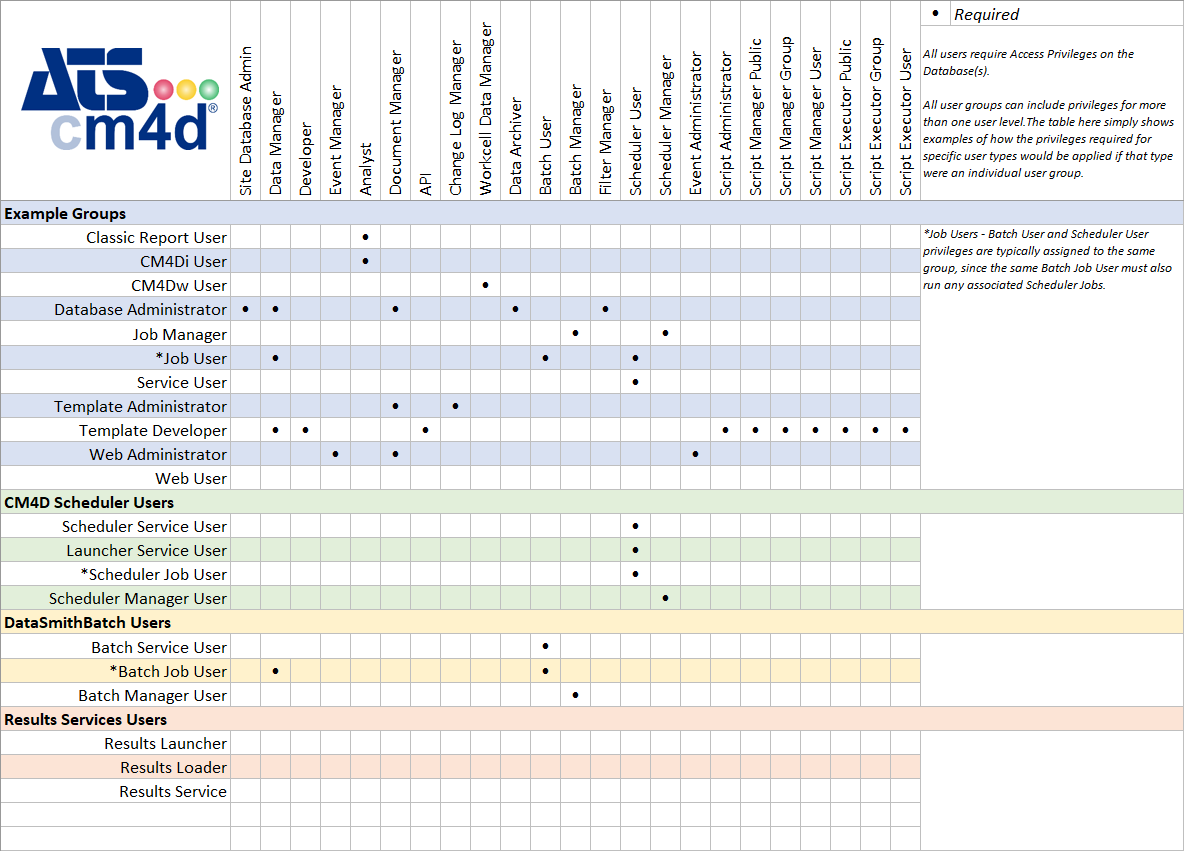
Group Privilege Examples
Can we improve this topic? Click Send Feedback in the upper right of the screen to share your comments!