Overview
This document describes the installation of the ATS Licensing application.
ATS Configuration and the ATS Security plugin must be installed and configured prior to installing the ATS Licensing Configuration plugin. ATS Configuration is a web application, which contains various ATS plugins designed to configure and manage ATS products such as ATS Security and ATS Licensing.
For further information on these applications, please click the links below:
ATS Configuration
ATS Security
ATS Licensing v4.2 is compatible with ATS Security and Configuration v1.10.
Register ATS Licensing application in ATS Security
Before starting the installation, the ATS Licensing application needs to be registered in ATS Security.
Browse to the ATS Security URL and login with a user that has rights to edit applications.
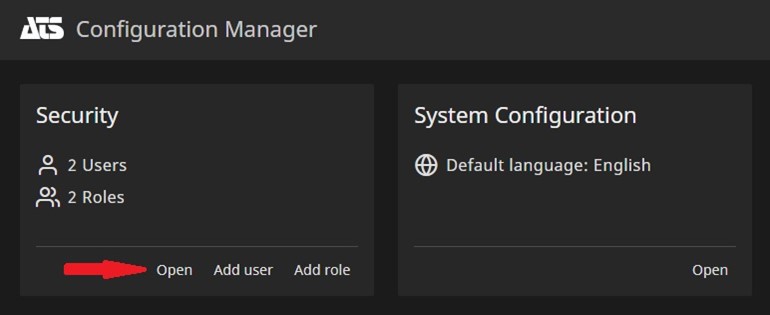
Click the Security card and press Open.
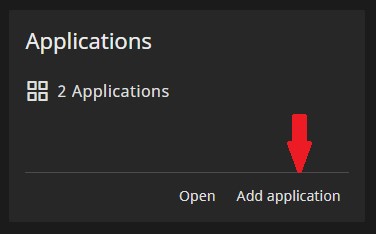
Click the Applications card and press Add Application.
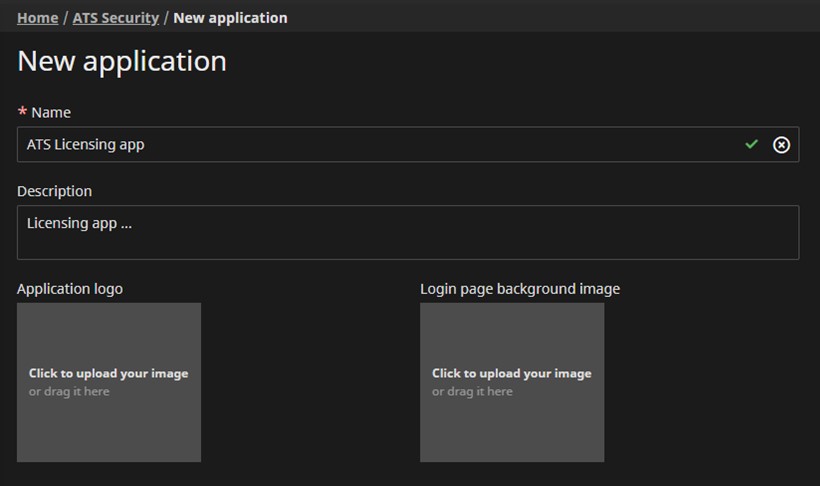
Enter the following information about the new application:
Name: Enter a name for the application, for example ATS Licensing.
The name assigned to the application must be unique within ATS Security.
Description (optional): Enter a description for the application that can be seen in the applications grid card.
Application logo and/or background image (optional): Upload a logo image and/or background image for the application.
Press Save.
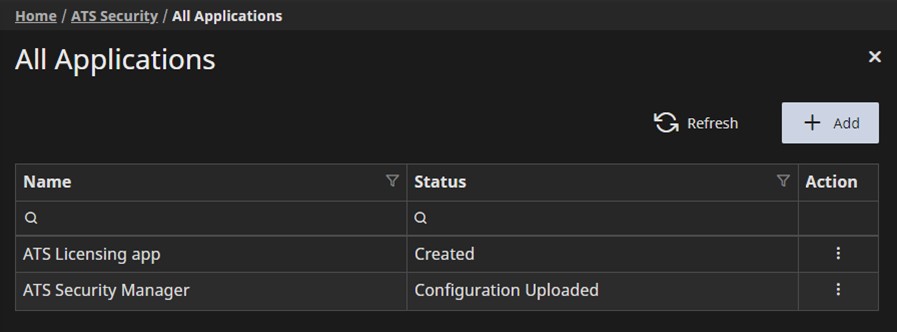
If the application was added successfully, the new row of the Applications grid should have the Status Created.
Acquire Application ID for ATS Licensing application
During the installation of the ATS Licensing Server services, an Application ID is required. To obtain the Application ID, please follow the steps below:
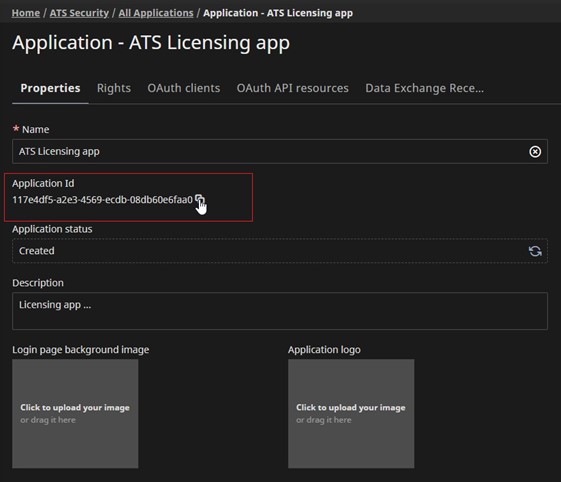
Click on the grid row of the application created for ATS Licensing to open the applications properties.
In the Application Id field, hover over the the string and left click. The Application Id will be copied to the clipboard.
Installation of ATS Licensing Server
The installer for ATS Licensing Server includes a module that contains services responsible for managing ATS software licenses:
ATS Licensing Server Services: Installs the ATS Licensing Server services. This machine must be able to connect to ATS Security and ATS Configuration Manager.
Run ATS Licensing Server installer
This section describes the installation of the ATS Licensing Server:
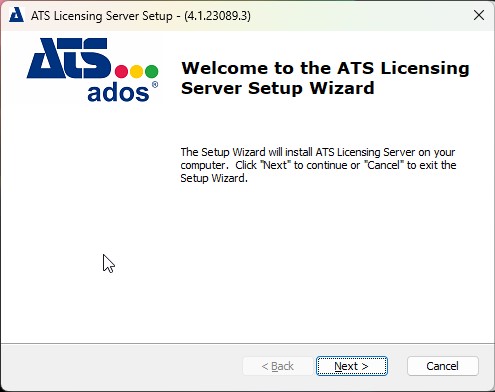
Run the ATS.LicensingConfigurationAndServer.4.2.x.x.exe.
Press Next.
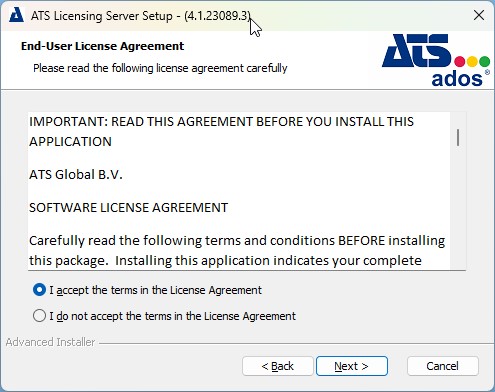
Accept the license agreement and press Next.
Only one feature is shown and can’t be unchecked.
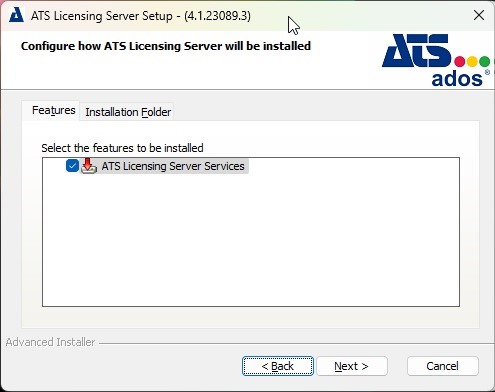
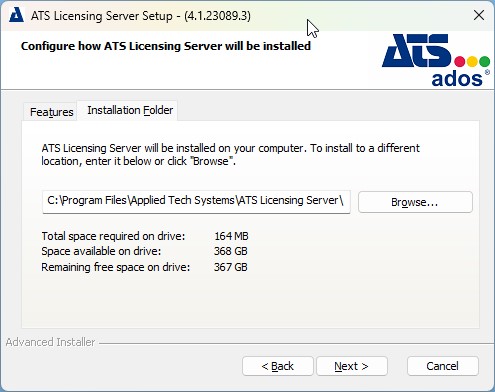
Select the Installation Folder tab and browse to a different installation location if required. Press Next.
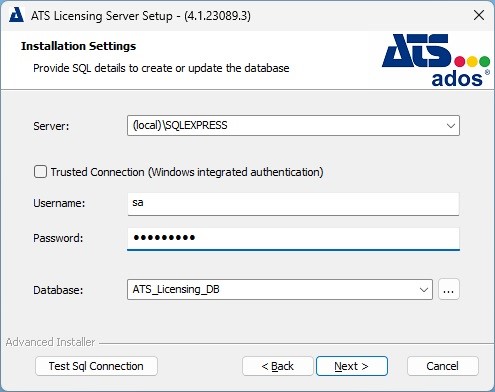
Specify a server name along with a user that has permission to create databases. Finally, provide a name for the database. Press Next.
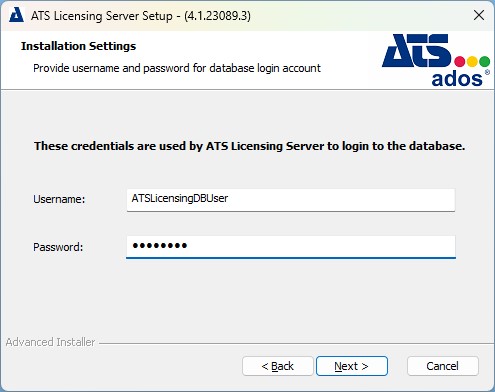
Enter a username and password to be used for the ATS Licensing Server database. If the credentials specified do not currently exist, they will be created by using the credentials from the previous step and assigned as Scheme Owner. Press Next.
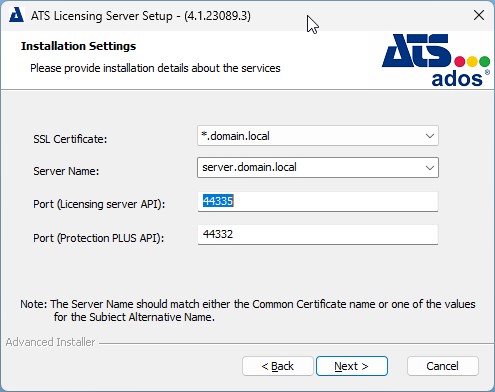
Enter the following configuration details:
Server Name: Enter the FQDN of the machine that hosts the ATS Licensing Server.
Port (Licensing server API): Enter the port number to be used for the ATS Licensing Server API. The default is 44335.
Port (Protection PLUS API): Enter the port number to be used for the Protection PLUS API. The default is 44332.
SSL Certificate (HTTPS only): Specify the SSL Certificate by using the drop down box.
The server name specified must match with the certificates' CN value.
Press Next.
If the application is published via reversed proxy, then go to step 11, otherwise proceed to step 12.
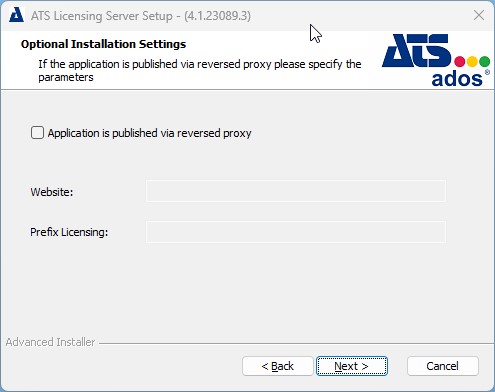
Place a tick in the Application is published via reversed proxy check box and fill out the following fields:
Website: Define the domain from your reverse proxy. The website should not end with slash (/).
Prefix Licensing: Define the prefix for Licensing. The prefix should begin with a slash (/).
Press Next.
Provide the URL including the port for ATS Security in the Security Manager endpoint field. I.e. (https://server.domain.com:port/)
Provide the Application ID that was acquired by following the steps in Acquire Application ID for ATS Licensing application in the Application ID field.
Click Next.
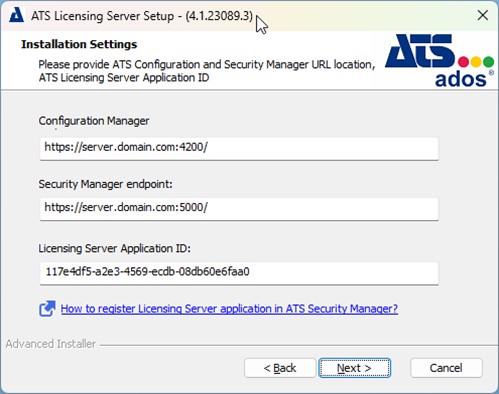
The default endpoints are provided based on information provided in previous installation steps.
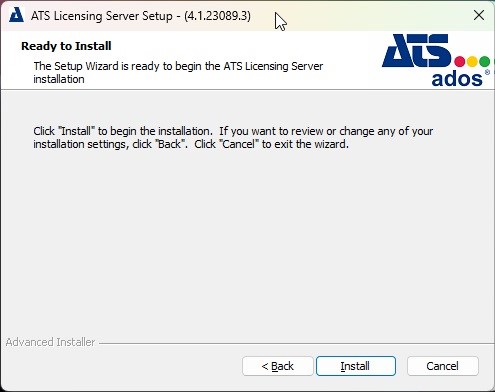
Click Install.
Once the installation is complete, press Finish.
Click Finish to finalize the installation.
Unattended installation
The installation package for ATS licensing can be run as an unattended installation.
An unattended installation or silent/quiet install is where the installation of a software program can be completed without any user interaction. The installer runs from start to finish without interrupting the user.
To achieve this, several parameters are required when executing the installation using the command prompt. The examples below indicate the values to be replaced in bold.
Installation with SQL user
<LAST_INSTALLATION_PACKAGE_NAME>.exe /exenoui /qn /L*V "Log.txt" SERVER_PROP="SERVER.DOMAIN.COM" USERNAME_PROP="dbuser" PASSWORD_PROP="P@ssw0rd" DATABASE_PROP="my_database" EDIT_DB_USERNAME_PROP="sqldbuser" EDIT_DB_PASSWORD_PROP="P@ssw0rd" EDIT_SERVER_NAME_PROP="SERVER.DOMAIN.COM" TEMP_CBSSL_TEXT_PROP="SERVER.DOMAIN.COM" EDIT_LICENSING_SERVER_PORT_PROP="44335" EDIT_PROTECTION_PLUS_PORT_PROP="44332" EDIT_SECURIY_ENDPOINT_PROP="https://SERVER.DOMAIN.COM:5000/" EDIT_CONFIGURATION_ENDPOINT_PROP="https://SERVER.DOMAIN.COM:4200/" EDIT_LICENSING_SERVER_APP_ID_PROP="767c3c6a-2904-4846-1975-08db036fd481" SQL_TRUSTED_CONNECTION="" SILENT_INSTALL="TRUE"
Installation with proxy and sql user:
<LAST_INSTALLATION_PACKAGE_NAME>.exe /exenoui /qn /L*V "Log.txt" SERVER_PROP="SERVER.DOMAIN.COM" USERNAME_PROP="test123" PASSWORD_PROP="test123" DATABASE_PROP="my_database" EDIT_DB_USERNAME_PROP="restricted_user" EDIT_DB_PASSWORD_PROP="test123" EDIT_SERVER_NAME_PROP="SERVER.DOMAIN.COM" TEMP_CBSSL_TEXT_PROP="SERVER.DOMAIN.COM" EDIT_LICENSING_SERVER_PORT_PROP="44335" EDIT_PROTECTION_PLUS_PORT_PROP="44332" EDIT_SECURIY_ENDPOINT_PROP="https://SERVER.DOMAIN.COM:5000/" EDIT_CONFIGURATION_ENDPOINT_PROP="https://SERVER.DOMAIN.COM:4200/" EDIT_LICENSING_SERVER_APP_ID_PROP="767c3c6a-2904-4846-1975-08db036fd481" SQL_TRUSTED_CONNECTION="" CHECKBOX_PROXY_CONFIG_PROP="1" EDIT_PROXY_WEBSITE_PROP="https://SERVER.DOMAIN.COM" EDIT_PREFIX_LICENSING_PROP="/ats/licening" SILENT_INSTALL="TRUE"
The following parameters can be used for silent installations:
SERVER_PROP: The name of the server where the database will be created.
USERNAME_PROP: The user that has rights to create a database. Used in conjunction with SQL_TRUSTED_CONNECTION.
PASSWORD_PROP: Password for the user that is able to create databases.
DATABASE_PROP: Name of database that will be crated.EDIT_DB_USERNAME_PROP: Restricted user that have granted rights only to connect to database and perfume read/write operation
EDIT_DB_PASSWORD_PROP: Password for the restricted user.
EDIT_SERVER_NAME_PROP or CBOX__NEW_DLG_HOST_NAME_PROP: Domain name/server name that is secured by the certificate.
TEMP_CBSSL_TEXT_PROP: The name of the certificate.
EDIT_LICENSING_SERVER_PORT_PROP: The port value that will be used for running licensing service. Default is: 44335.
EDIT_PROTECTION_PLUS_PORT_PROP: The port value that will be used for running protection plus service. Default is: 44332.
EDIT_SECURIY_ENDPOINT_PROP: URL address where security is installed.
EDIT_CONFIGURATION_ENDPOINT_PROP: URL address where configuration is installed.
EDIT_LICENSING_SERVER_APP_ID_PROP: GUID, application ID provided from Security Manager
SQL_TRUSTED_CONNECTION: Specifies the authentication method to use. If the property is set to "1" then Trusted SQL Authentication is selected, and it will use the windows account under which the installer is started. If "" is set then it will use SQL Authentication. The default value is 1.
CHECKBOX_PROXY_CONFIG_PROP: indicate if application is published via proxy. If application is published via proxy then value need to be set to “1”, and need to be provided information for EDIT_PROXY_WEBSITE_PROP and
EDIT_PREFIX_LICENSING_PROP. Used when published with reverse proxy and indicates redirection path for Licensing e.g. /company/licensing. Default value is “”, which indicates that the application is not installed via proxy.
EDIT_PROXY_WEBSITE_PROP: Web site used when application is published via reverse proxy e.g. https://server.domain.com.
EDIT_PREFIX_LICENSING_PROP: Used when application is published via reverse proxy indicating redirection path for licensing e.g. /company/licensing
SILENT_INSTALL: The default value is FALSE and indicates to the installer if some scripts need to be executed if installation is run in silent mode.
Error Log
It is recommended to enable logging so that any issues that may occur during an unattended installation can be identified. Ensure the location of the text file, indicated in bold in the below example, is valid.
<NAME-OF-INSTALLATION-PACKAGE>.exe /exenoui /qn /L*V "C:\silent\Install.log"
SERVER_PROP="SERVER.DOMAIN.COM" USERNAME_PROP="dbuser" PASSWORD_PROP="P@ssw0rd" DATABASE_PROP="my_database" EDIT_DB_USERNAME_PROP="sqldbuser" EDIT_DB_PASSWORD_PROP="P@ssw0rd" EDIT_SERVER_NAME_PROP="SERVER.DOMAIN.COM" TEMP_CBSSL_TEXT_PROP="SERVER.DOMAIN.COM" EDIT_LICENSING_SERVER_PORT_PROP="44335" EDIT_PROTECTION_PLUS_PORT_PROP="44332" EDIT_SECURIY_ENDPOINT_PROP="https://SERVER.DOMAIN.COM:5000/" EDIT_CONFIGURATION_ENDPOINT_PROP="https://SERVER.DOMAIN.COM:4200/" EDIT_LICENSING_SERVER_APP_ID_PROP="767c3c6a-2904-4846-1975-08db036fd481" SQL_TRUSTED_CONNECTION="" SILENT_INSTALL="TRUE"
Install ATS Licensing plugin
The ATS Licensing plugin is required to enable users to configure ATS Licensing.
For information on how to install plugins in ATS Configuration, please click here.
Configuration of roles for ATS Licensing Configuration plug-in
After the successful installation of the ATS Licensing Configuration the status of the registered ATS Licensing application in ATS Security should be set to Configuration Uploaded. This indicates that the ATS Licensing application rights have been uploaded to ATS Security and can be assigned to ATS Security roles, which in turn can be assigned to users.
ATS Licensing Configuration includes the View Licenses application permission.
Create a role for viewing licenses
Create a new role in ATS Security. For further information on creating user roles, click here.
Assign the View Licenses permission to the new role. For further information on editing roles, click here.
Assign the new role to a user that can authenticate through ATS Security. For further information on editing users, click here.
Users assigned with the new permission are required to log out and sign in again for the changes to take effect.
Configure Cross-Origin Requests (CORS)
Configuring CORS policies allows ATS Licensing to be accessed on other domains.
For further information, please click here.