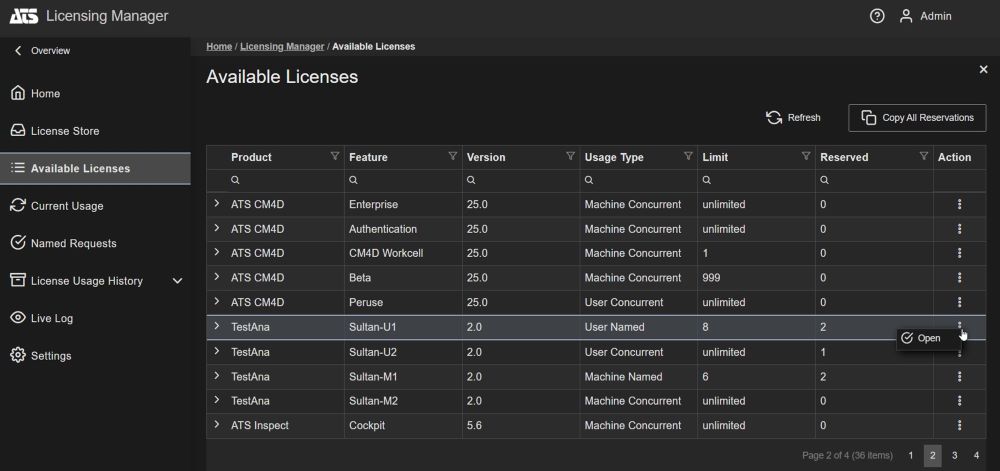
The Available licenses tab shows the total number of connections (named or concurrent) and reservations for each of the grouped licenses from all imported licenses available per product, version, feature and usage type.
The total number includes both used and unused licenses. In addition, only licenses from valid license sets are listed. Licenses from expired, or other invalidated license sets, will not be counted as available licenses.
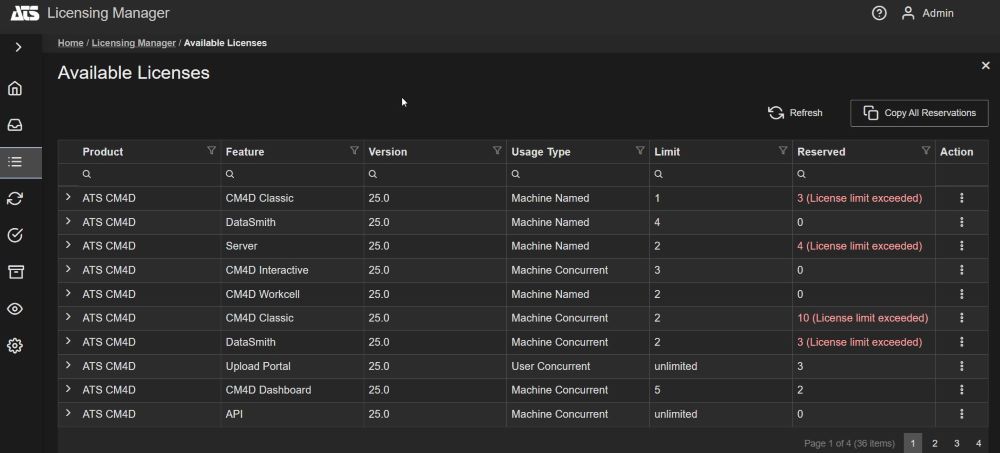
When expanded using the plus ( ) icon the summarized entry will show all separate licenses that sum up to give the total number of available connections for the given product-version-feature combination.
Filter License List
All lists can be filtered by clicking on the filter icon in each column header.
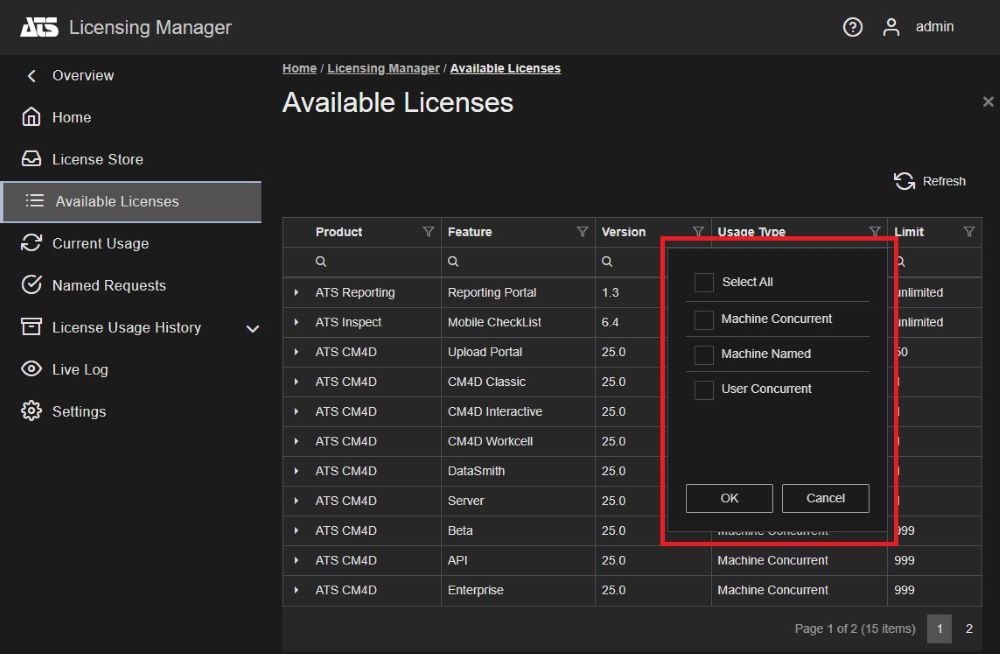
For example, filtering by the User Concurrent Usage Type will only display concurrent licenses.
Search for a License Set
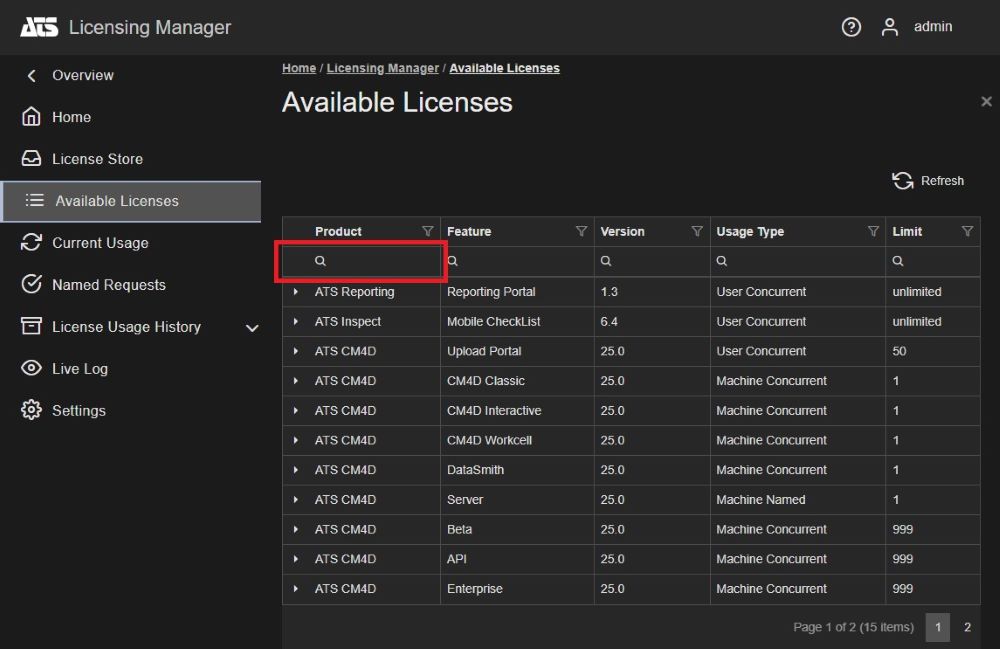
Users can search for licenses by clicking on the magnifying glass in each column and entering a search term. Only license sets matching the search terms entered will be displayed.
The search function is available for the Product, Feature, Version, Usage Type and Limit columns.
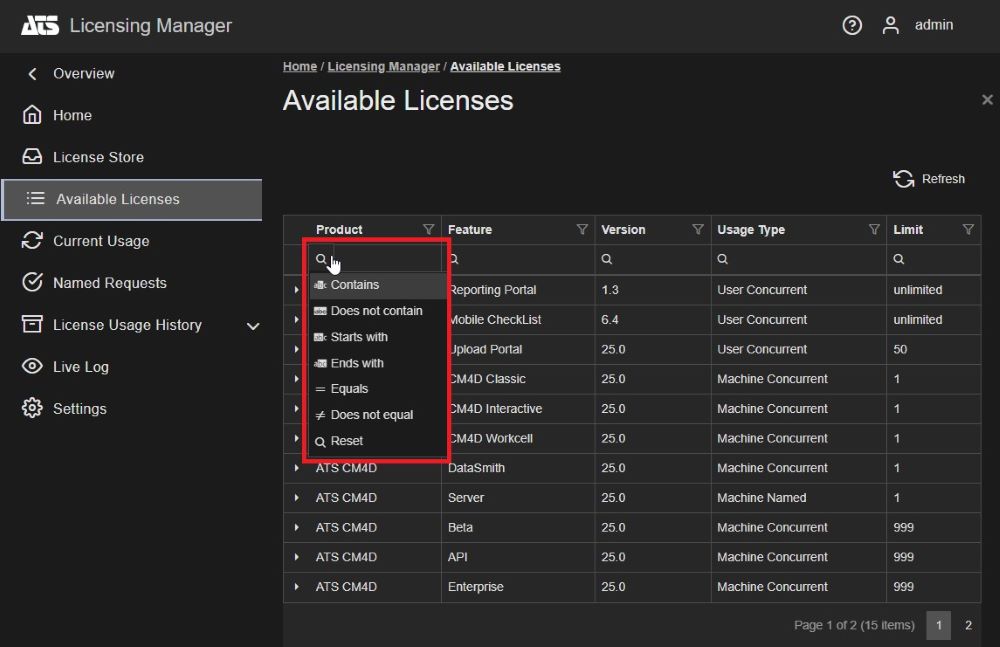
Users can also apply additional search parameters by hovering over the magnifier icon.
The search parameters include Contain, Does not contain, Starts with, Ends with, Equals, Does not equal and Reset.
Sort License List
Each column can be sorted in ascending or descending order by clicking on the column header. The direction of the sort order is indicated by an arrow adjacent to the filter icon.
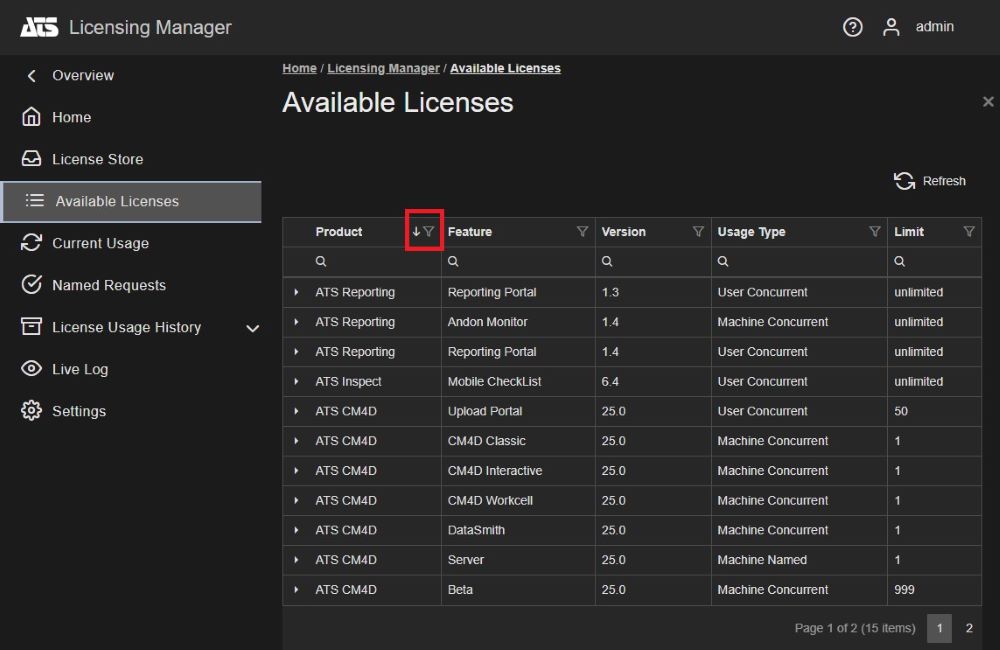
In the example above, items are sorted by Product in ascending order. By clicking on the column again, the column will be sorted in descending order.
Machine concurrent license reservations
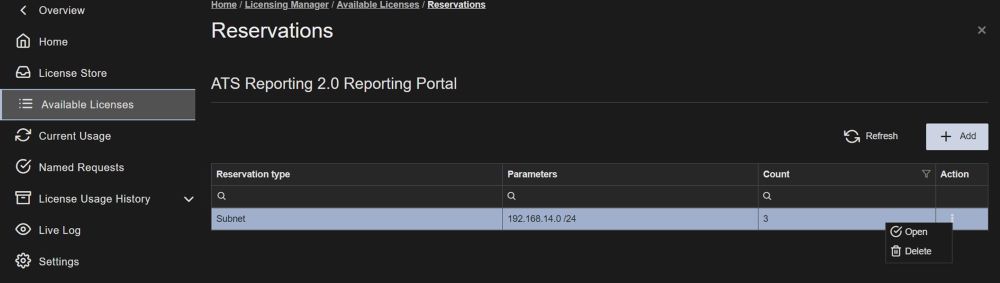
By selecting an individual license of the Machine Concurrent Usage Type, the reservations for the selected license are listed in a new blade.
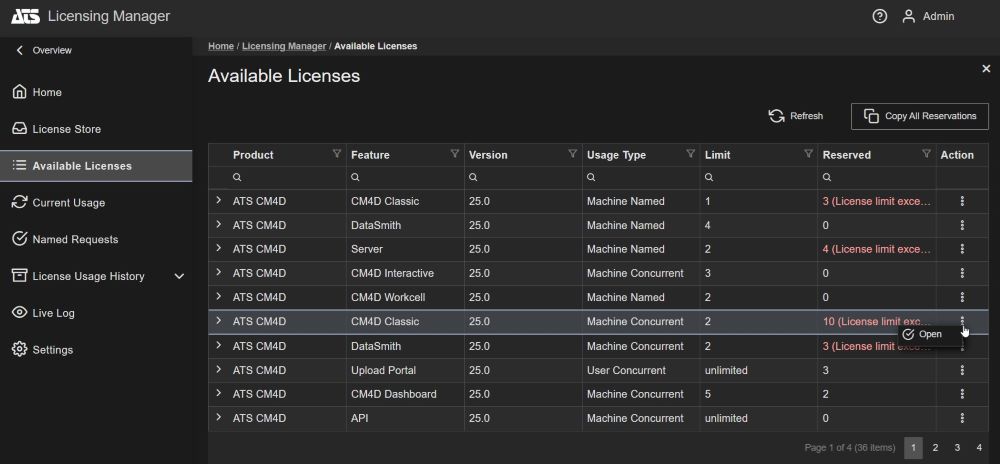
The reservations for the selected license group are listed in a new blade displaying its Reservation type, parameters and total number of reservations of each type, respectfully.
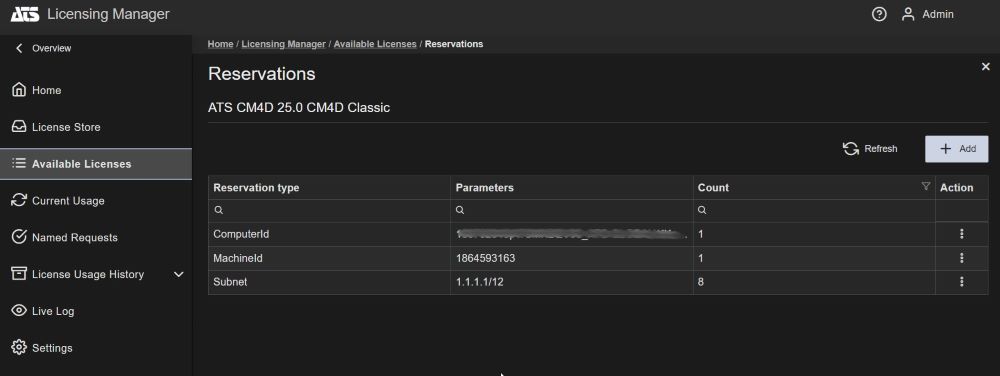
Add reservation
To make a reservation for a selected license:
Click the Add button.
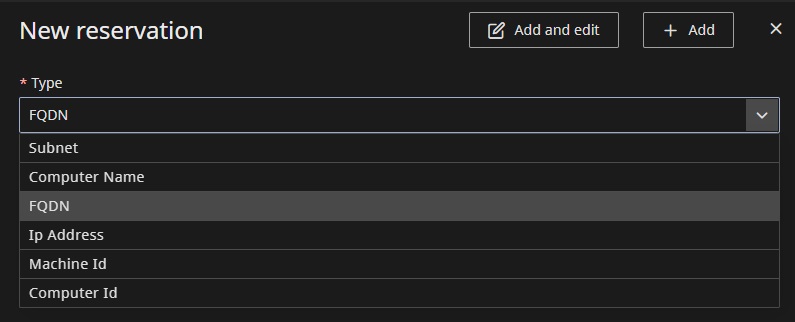
A new blade for adding a new reservation will be opened and a type of reservation needs to be chosen.
Press the down-arrow icon ( ).
).
The types of reservations will be listed.
Select one of the following reservation types:
Subnet
Computer Name
FQDN
Ip Address
Machine Id
Computer Id
The Value parameter will accept values that correspond to the selected reservation type:
Subnet: Enter a subnet in the Value parameter. For example 192.168.1.1/24.
Computer Name: Enter a valid computer name. The value entered can include wildcards.
FQDN: Enter a fully qualified domain name. For example computer.domain.com. The value entered can include wildcards.
Ip Address: Enter a valid IP address. The value entered can include wildcards.
Machine Id: Enter a valid machine id.
Computer Id: Enter a valid computer id.
Enter the number of concurrent licenses for the reservation in the Count parameter.
Press Add or Add and edit to continue editing.
Wildcard values can include * or ?. I.e. ComputerName* or ComputerName?
Edit reservation
To edit a reservation for a machine concurrent license:
Select a reservation or use the Open option from the action menu.
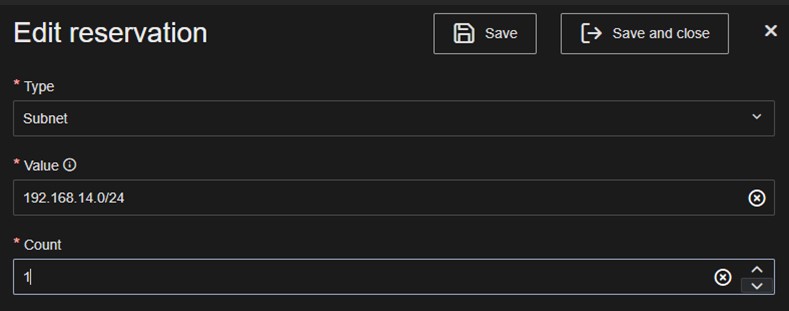
A new Edit reservation blade will be opened.
The following parameters can be edited:
Type: Change the reservation type if required.
Value: Enter a value that corresponds to the selected reservation type.
Count: Enter the number of concurrent licenses for the reservation.
Press Save and Close or Save to continue editing.
Delete reservation
To delete a reservation for a selected machine concurrent license, select the Delete option from the action menu.
User concurrent license reservations
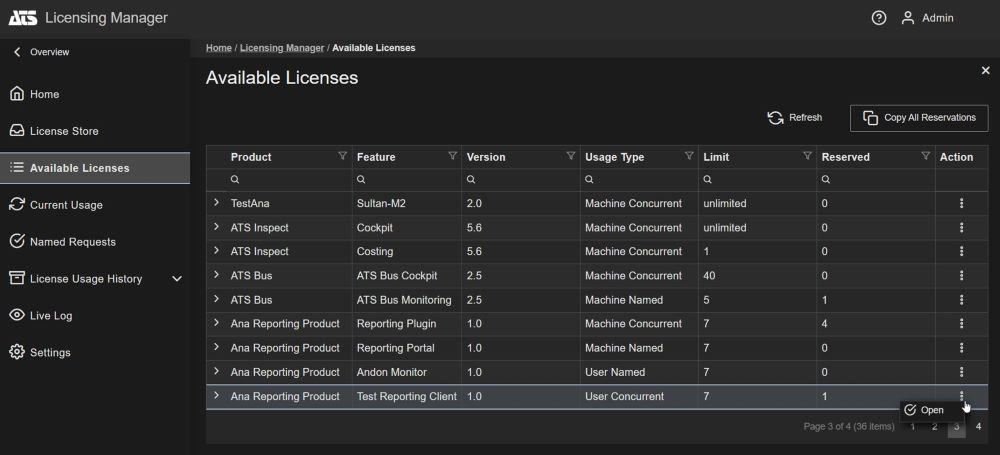
By selecting an individual license of the User Concurrent Usage Type, the reservations for the selected license are listed in a new blade.
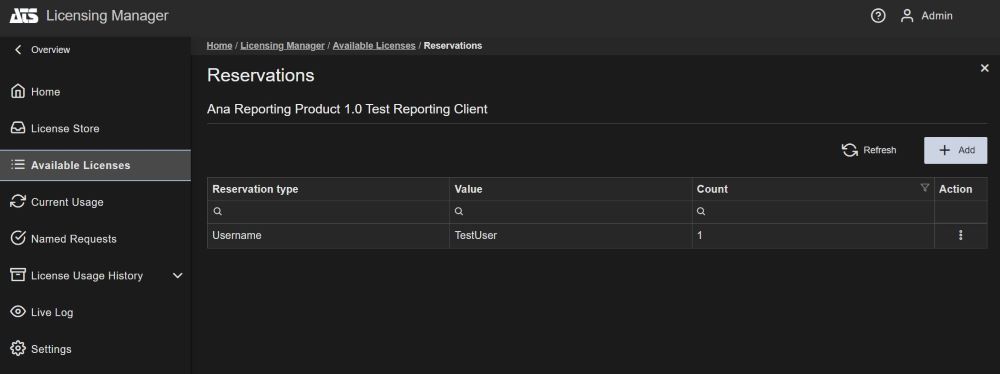
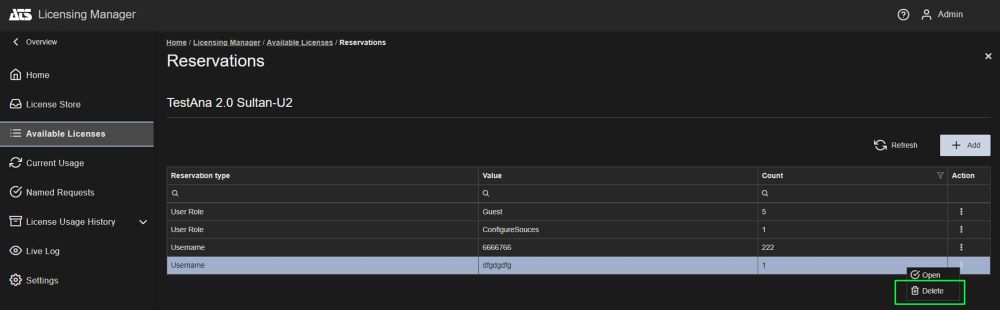
The reservations for the selected license are listed in a new blade displaying its Reservation type, Values and total number of reservations of each type, respectfully.
Add reservation
To make a reservation for a selected license group:
Click the Add button.
A new blade for adding a new reservation will be opened and a type of reservation needs to be chosen.
Press the down-arrow icon ().
The types of reservations will be listed.
Select one of the following reservation types:
User.
User role.
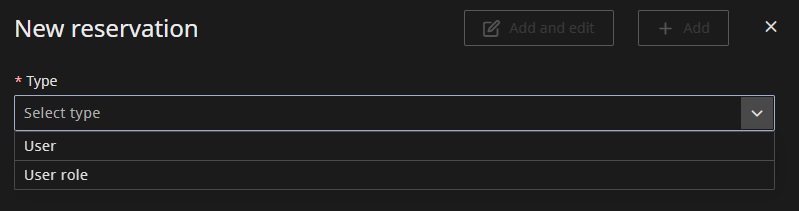
After selecting the desired Reservation type enter the following parameters:
Role: Visible when the reservation type is set to User role. Select a role from the drop down box.
User: Visible when the reservation type is set to User. Select a user from the drop down box.
Count: Enter the number of concurrent licenses for the reservation.
Press Add or Add and edit to continue editing.
Edit reservation
To edit a reservation for a user concurrent license group:
Select a reservation or use the Open option from the action menu.
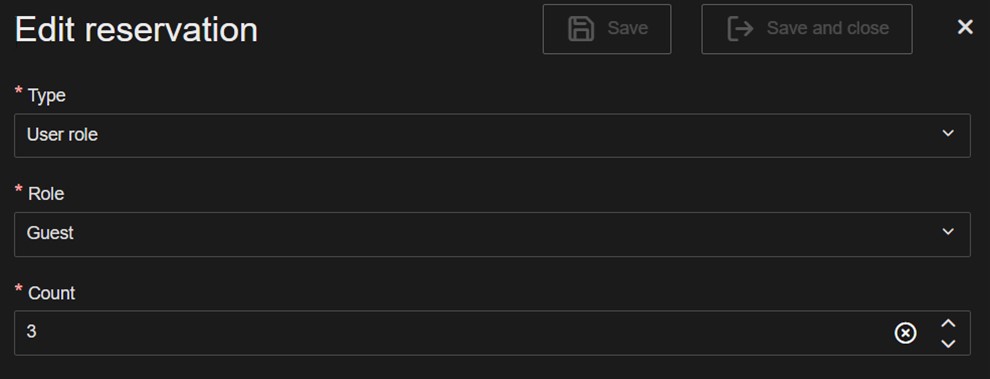
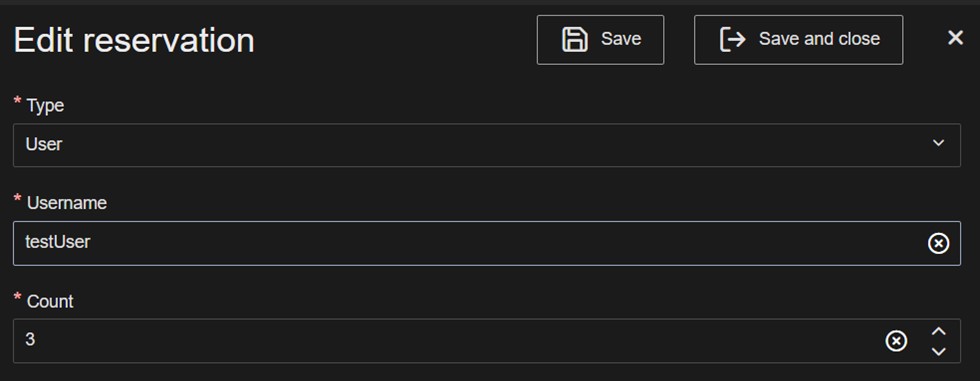
A new Edit reservation blade will be opened.
The following parameters can be edited:
Type: Select either User role or User.
Role: Visible when the reservation type is set to User role. Select a role from the drop down box.
User: Visible when the reservation type is set to User. Select a user from the drop down box.
Count: Enter the number of concurrent licenses for the reservation.
Press Save and Close or Save to continue editing.
Example: Edit User role.
Example: Edit User.
Delete reservation
To delete a reservation for a selected concurrent license group, select the Delete option from the action menu.
User named license reservations
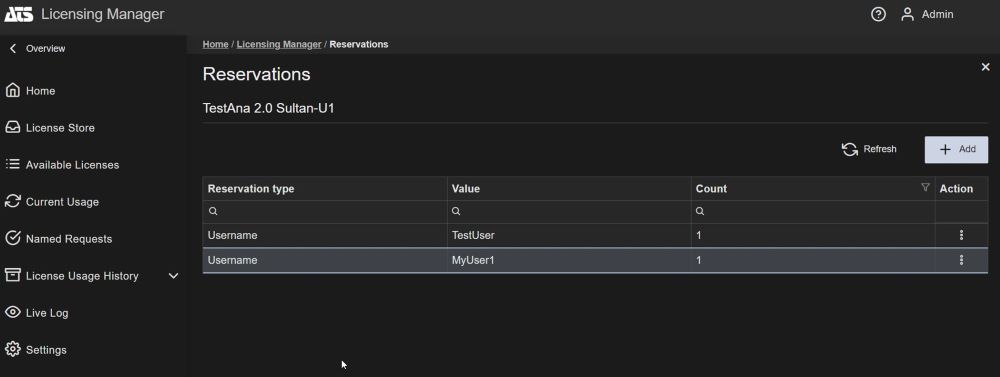
By selecting a group of licenses of the User Named Usage Type, the reservations for the selected license are listed in a new blade.
The reservations for the selected licenses are listed in a new blade displaying its Reservation type, Values and total number of reservations of each type, respectfully.
Add reservation
To make a reservation for a selected license group:
Click the Add button.
A new blade for adding a new reservation will be opened and a type of reservation needs to be chosen.
Press the down-arrow icon ().
The types of reservations will be listed.
Select one of the following reservation types:
User.
User role.
After selecting the desired Reservation type enter the following parameters:
Role: Visible when the reservation type is set to User role. Select a role from the drop down box.
User: Visible when the reservation type is set to User. Select a user from the drop down box.
Count: Enter the number of concurrent licenses for the reservation.
Press Add or Add and edit to continue editing.
Edit reservation
To edit a reservation for a user named license group:
Select a reservation or use the Open option from the action menu.
A new Edit reservation blade will be opened.
The following parameters can be edited:
Type: Select either User role or User.
Role: Visible when the reservation type is set to User role. Select a role from the drop down box.
User: Visible when the reservation type is set to User. Select a user from the drop down box.
Count: Enter the number of concurrent licenses for the reservation.
Press Save and Close or Save to continue editing.
Example: Edit User role.
Example: Edit User.
Delete reservation
To delete a reservation for a selected user named license group, select the Delete option from the action menu.
Copy all reservations
To copy all reservations:
Go to Available Licenses on the left menu and click on Copy All Reservations.
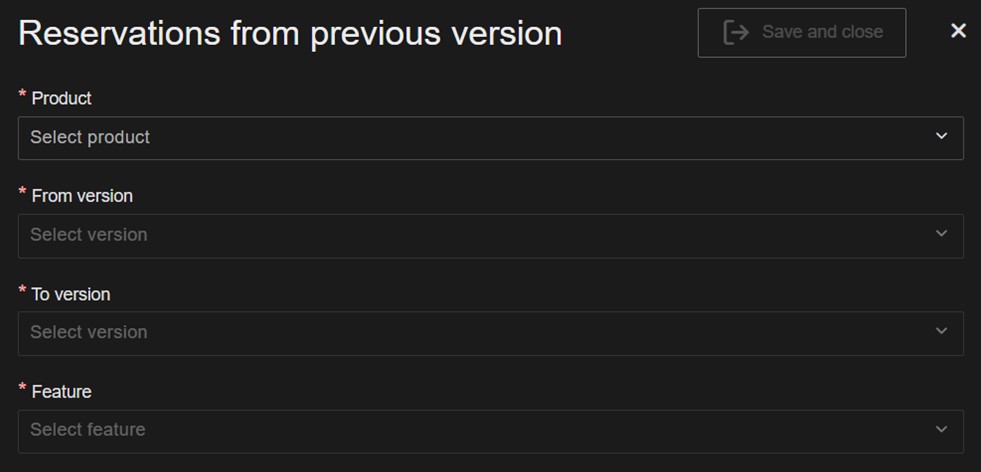
A new blade will be opened.
Enter the following information:
Product.
From version.
To version.
Feature. Select one of the following:
All features: This option enables users to copy all reservations for all features with all occurring usage types in the system from selected Product-From version to Product-To version. The copy process is carried out for all matching features and usage types in both versions.
Specific feature: Select a specific feature to copy. Selecting a specific option will expose the Usage Type Field.
Usage Type: Select Machine Concurrent, Machine Named or User Concurrent.
Click on the Save and close button.
A success notification will be displayed and the copied reservations will be added in the Available licenses grid.