 Tip
Tip This topic also applies if you choose 'Configure and Install' but leave any of the fields blank.
The Quick Install option for installing CM4D requires you to manually configure your settings once the installation is complete. The information provided here is only intended to guide you through the configuration options that are otherwise provided via the 'Configure and Install' installation type. Any typical post-installation setup/configuration is not covered in this topic.
Tip
This
topic also applies if you choose 'Configure and Install' but leave any
of the fields blank.
If there are any of the following CM4D services that are not included in your install type (Server or Client) or that you are not using, you do not need to complete the configuration for that component. For example, if you do not use EventSmith, you do not need to complete the DataConnect and EventSmith configurations.
1. Go to Administrative Tools > Services.
2. Right-click a service and select Properties.
a. Go to the Log On tab.
b. In the Log on as section, select This account.
c. Enter the User credentials for the user account that will run the CM4D service.
d. Click OK.
3. Repeat for each CM4D Service.
4. Once all CM4D services are configured, close Services.
Tip
Remember
that if your Domain users are required to change their passwords periodically,
you will also need to update the CM4D services Log On passwords manually.
These passwords to not get updated automatically through the Windows change
password operation.
Four of the CM4D services must have a service user manually set if this is not configured during the installation. Typically, the service user set in the config file is the same as the user assigned as the "Log On As" user that runs the CM4D services. The four services config files can be found in the CM4D install folder.
Edit the serviceUser for each of the following files (requires Administrative privileges):
· CM4DResultsLauncher.settings (Client and Server)
<CM4DResultsLauncherSettings serviceUser="cm4dservice" port="36058" resultsServiceHostname="localhost"
threadCount="5" clientResetDays="30.0"/>
· CM4DResultsService.settings (Client and Server)
<CM4DResultsServiceSettings serviceUser="cm4dservice" port="36058"/>
· CM4DScheduler.settings (Server
only)
<CM4DSchedulerSettings serviceUser="cm4dservice" port="36057">
· CM4DLauncher.settings (Server only)
<CM4DLauncherSettings serviceUser="cm4dservice" port="36057" schedulerHostname="atsserver98"
threadCount="2" webThreadCount="2" clientResetDays="30.0"/>
EventSmith notifications are handled by the EventSmith SMTP and DataConnect services. If you did not enter the configuration information during the installation, you need to enter the necessary information in the config files for each of these services. EventSmith is only included with CM4D Server installations.
The files for these services are in the EventSmith SMTP folder inside the CM4D install folder.
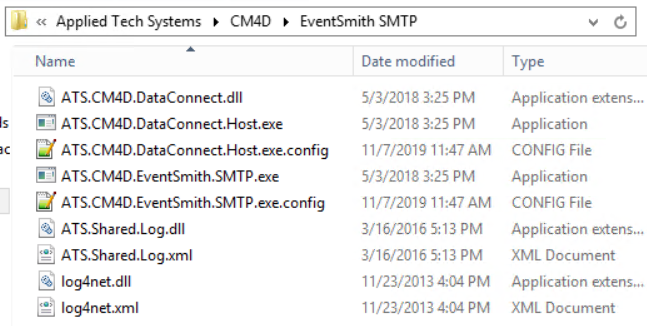
For detailed information on this service, see the topic EventSmith SMTP Service.
1. Edit the file ATS.CM4D.EventSmith.SMTP.exe.config.
2. Set the logging options:
a. Console Log Level
<consoleLog
level="OFF"/>
i. Log Level - Enter a logging level (OFF, ERROR, INFO, DEBUG).
b. Event Log Level
<eventLog
level="DEBUG"/>
i. Log Level - Enter a logging level (OFF, ERROR, INFO, DEBUG).
3. Set the EventSmith service
host information:
<endpoint address="net.tcp://server98:8523/CM4DDB_Service" binding="netTcpBinding"
bindingConfiguration="NetTcpBinding_ICM4DDB" contract="CM4DDB_ServiceRef.ICM4DDB"
name="NetTcpBinding_ICM4DDB">
a. Service Host - Enter the name of the server that is hosting the DataConnect service.
b. Service Port - Enter the port number used by the EventSmith SMTP client server to connect to the DataConnect host server (it must be the same as the port set in the DataConnect config).
4. Save the config file.
For detailed information on this service, see the topic DataConnect Service.
1. Edit the file ATS.CM4D.DataConnect.Host.exe.config.
2. Set the event email information:
<smtp
from="[email protected]">
a. SMTP From - Enter the user email address from which the event notifications are sent. This user appears in the "From" field in the email.
3. Set
the SMTP server information:
<network
host="your.smtp.server.name"
port="25"
userName="user"
password="password"
enableSsl="false"/>
a. Mail Server- Enter the server address of the SMTP mail server.
b. Mail Server Port - The port number used to connect to the SMTP mail server. It must match the SMTP port used on your mail server.
c. SMTP Authentication Type - Pick one of the two authentication types as corresponds to your mail server.
i. With Authentication
userName="user"
password="password"
(1) Mail User Name - The email of the user who will be used to log in to Authenticate on the mail server.
(2) Mail User Password - The password for the Authentication user name.
ii. Without Authentication (Anonymous
Relay)
userName="" password=""
(1) Mail User Name - Leave empty/blank.
(2) Mail User Password - Leave empty/blank.
4. Set the Database connection information. Pick one method, either SQL or Windows Authentication:
a. SQL Authentication
<add
name="CM4DSiteConnString" connectionString="Data Source=DB_ServerName\instance;Initial Catalog=SiteDBName;User Id=siteUser;Password=userPassword;multipleactiveresultsets=True;"
providerName="System.Data.SqlClient"/>
i. CM4D Db Server - Enter the name of the database server. If using a Named Instance, include this in the server name.
ii. CM4D Site Database - Enter the CM4D Site database name.
iii. SQL User ID - Enter the name of the SQL Authentication user for the CM4D Site database.
iv. SQL User Password - Enter the password for the SQL user.
b. Windows authentication
<add
name="CM4DSiteConnString" connectionString="Data Source=DB_ServerName\instance;Initial Catalog=SiteDBName;Persist Security Info=True;Integrated Security=True"
providerName="System.Data.SqlClient" />
i. CM4D Db Server - Enter the name of the database server. If using a Named Instance, include this in the server name.
ii. CM4D Site Database - Enter the CM4D Site database name.
5. Set
the DataConnect service host information:
<add
baseAddress="net.tcp://server98:8523/CM4DDB_Service"/>
a. Service Server - Enter the name of the server that is hosting the DataConnect service.
b. Service Port - Enter the port number used by the DataConnect host server to connect to the EventSmith host server (it must be the same as the port set in the EventSmith config).
6. Save the config file.