When images are loaded into CM4Di, they are loaded in the background. This means that if a large image is being loaded (requiring a longer load time), you may continue to view your report while the image are yet being loaded.
Editing a View
To edit a View annotation, select the view and then click the Edit View ( ) button on the 3D Toolbar. This allows the View to be edited continuously without resolving until you exit edit mode by clicking the Edit View button again or clicking outside of the View's border.
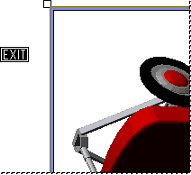
Selecting Features
While in Edit Mode, you can filter the features you want to see on the sheet and in the grids from the View.
- Put the View into Edit Mode by clicking () on the 3D Toolbar.
- Using either the Select Features (
 ) or Select Area (
 ) tools to choose features from the view. Selected Features are highlighted yellow.
 - Select a string of features by holding Alt and clicking the feature points. Selected feature points will be displayed with the pink wire box around their markers.
- Exit Edit Mode.
The grids will update to show only the selected Features. See also, Select Feature(s) on Model.
Rotating a View
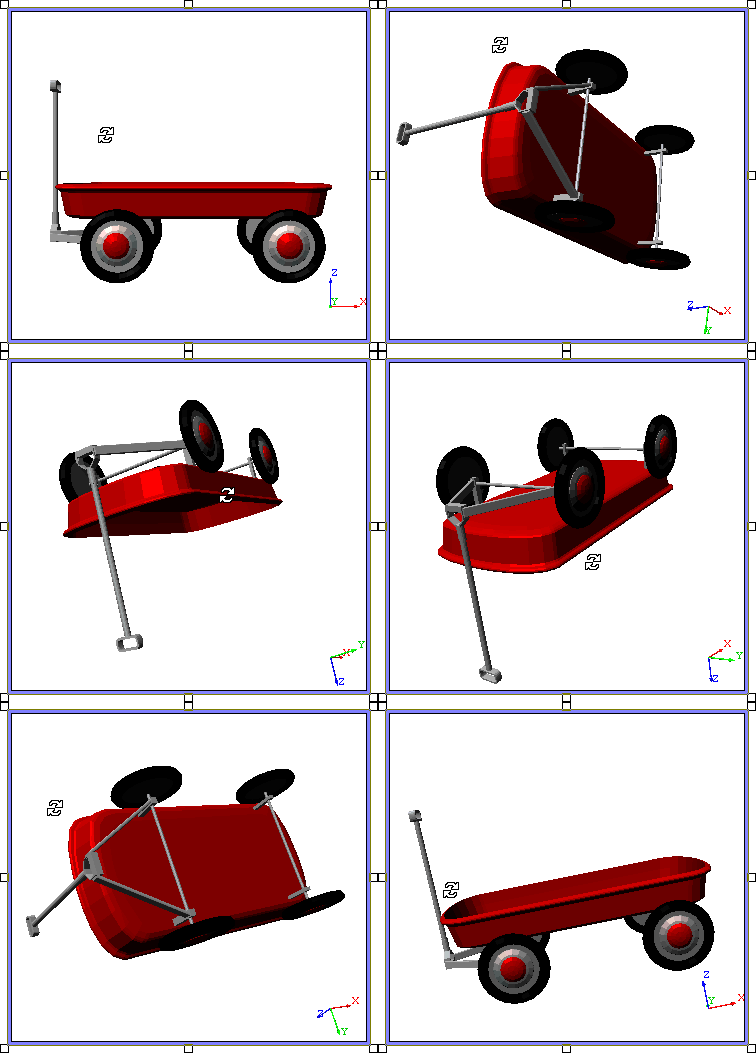
Any image within a View may be rotated to any custom orientation using the mouse. A View must be in Edit Mode in order to be rotated. Once a View has been rotated as desired, the orientation may then be saved as a Camera.
See also, 3D View Mouse Controls.
To Rotate a View with the Mouse
- Click the Edit View () button from the toolbar to enter Edit Mode.
- Click and drag the cursor in the desired direction.
Camera
A Camera is a stored orientation of a view. The Camera dialog contains options for storing a views orientation using six Scopes (i.e. places where a Camera may be stored) of system and user-defined cameras:
- Document: A Document camera is saved with the CM4D document it is created in. Each time that document is opened, regardless of the user, the document camera will be listed for use.
- Database: A Database camera will be saved within the Database to which the document the camera was created in was connected to. Any document connected to that Database will have access to that camera, regardless of the user.
- Routine: A Routine camera will be saved with the Routine to which the View's DataSource is connected to which was selected when the camera was created. Any document or user may access a Routine camera when connected to that specific Routine in a Database.
- Site Database: A Site Database camera will be saved to the Site level. Only users with access to that Site Database will have access to or be allowed to create a Site Database camera. If you are not using a Site Database, this option will not be enabled.
- User: A User camera will be saved with the logged on user information, i.e., a User camera created by JSmith may only be accessed by JSmith in any document.
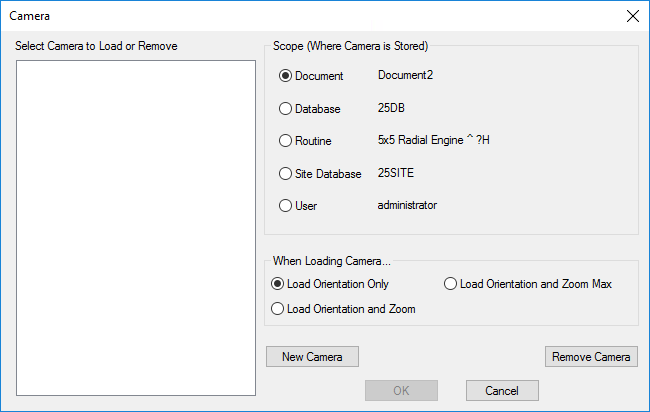
If you are using Authentication, your Database Privileges will affect which Camera Scopes will be enabled. For example, a user without Document Manager privileges will not be allowed to create or remove Cameras.
Saving Cameras
To save a Camera, orient your View as desired using the OpenGL 3D Toolbar, and then open the Camera ( ) dialog.
Select one of the radio buttons within the Scope section.
Click New and enter the label you wish to assign to your Camera in the New Label dialog.
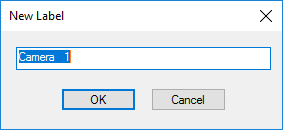
Click OK.
In order to save your new Camera, you must click Update. If you close the Camera dialog without clicking Update, your new Camera will not be saved.
Update your changes to the Database by right-clicking the DataSource icon in the Tree bar and selecting Update to Database from the context menu, or Save your document.
Deleting Cameras
To delete a Camera, open the Camera () dialog.
Highlight the label of the Camera you wish to delete, and click the Remove button.
In order to save your change, you must now click the Update button. If you close the Camera dialog without doing this, your Camera will not be deleted.
Update your changes to the Database by right-clicking the DataSource icon in the Tree bar and selecting Update to Database from the context menu, or Save your document.
Loading a Camera
- To Load a saved Camera to a current View, select the View on the Sheet and click the Camera button to open the dialog.
- Select the Scope where the desired Camera exists and highlight the Camera's label from the list box.
- Select one of the When Loading Camera... radio buttons:
- Load Orientation Only will retain the Zoom state which the View is currently in, while loading the selected orientation.
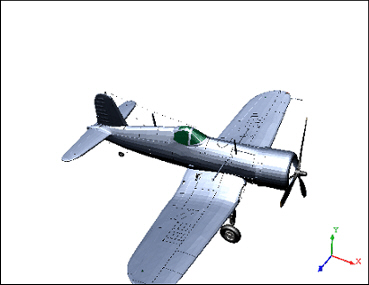
- Load Orientation and Zoom will load not only the saved orientation, but also the Zoomed state the View was in when the Camera was created. This option is only available with user-defined cameras.
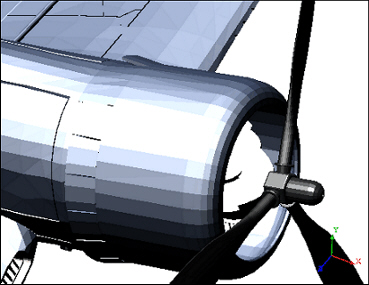
- Load Orientation and Zoom Max will load the saved orientation, the Zoomed stat the View was in when the Camera was created, and maximize the zoom.
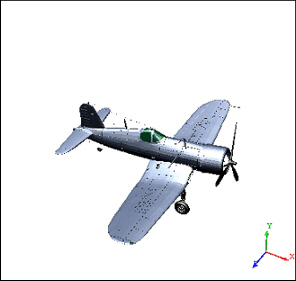
- Load Orientation Only will retain the Zoom state which the View is currently in, while loading the selected orientation.
- Click the Load to View button to return to your View and apply the selected Camera and Load options.
Zooming a View
To Zoom a View using the 3D tools, select the view you wish to zoom. To enable the continuous editing capability on the View (i.e it will only be resolved once when you Exit), select the View and put it into Edit mode by clicking the Edit View ( ) button on the toolbar.
The Zoom state of a View may be saved as a Camera along with the orientation.
Can we improve this topic? Click Send Feedback in the upper right of the screen to share your comments!