The DataSmith Batch service monitors folders and handles data files relating to DataSmith Batch processing. Connects DataSmith Batch to the CM4D database, assigns jobs to users, creates Batch folders and monitors the Batch folders for any activity.
Dependencies:
- SQL Server Service
User Requirements:
- General
- READ/WRITE Access to all Batch Folders
- READ Access to DataSmith translators used by Batch Jobs
- Batch User Site Database Privilege
Startup Requirements:
- DataSmith Batch settings file
- Server License (Named)
The instances of DataSmith run via automation to process jobs inherit permissions from the user running the DataSmith Batch Service.
DataSmith Batch Settings File
The DataSmith Batch settings (DataSmithBatch.Settings) file is the where the DataSmith Batch job settings are stored. This file must exist prior to starting the DataSmith Batch Service.
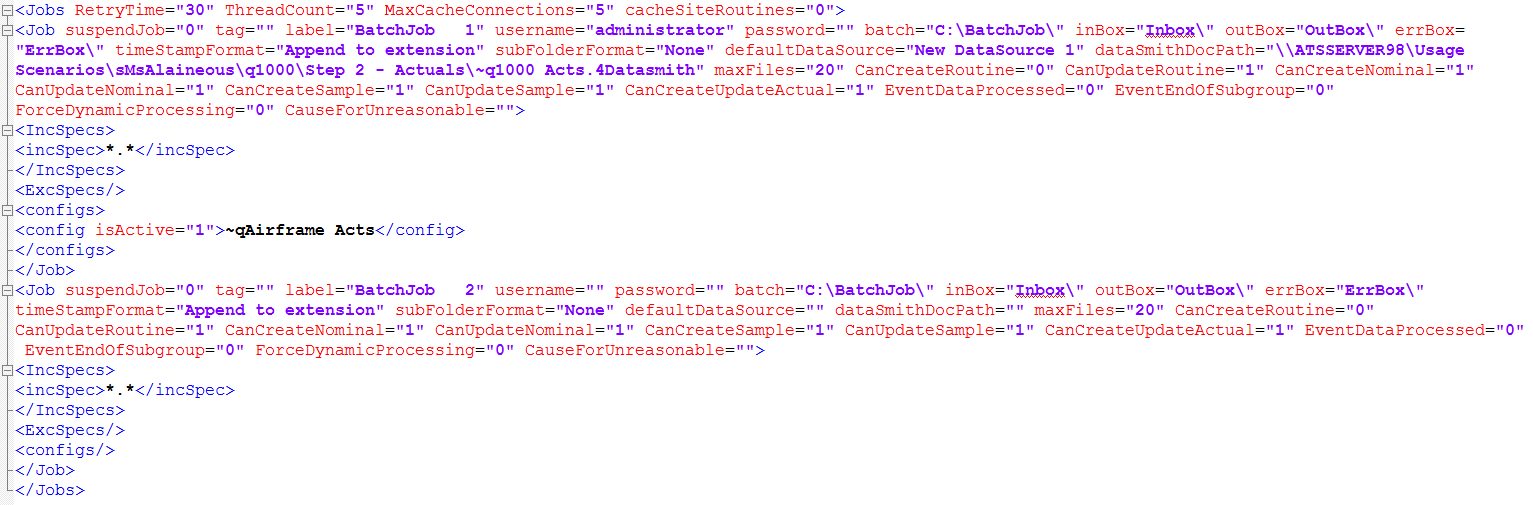
Unlike the Scheduler and Scheduler Launcher settings files, the DataSmith Batch files are managed via DataSmith Batch Manager interface. It does not require any changes to be made manually to the raw xml file. However, you may choose to edit the settings using the XML tags if you choose. See below for an example.
Create the DataSmith Batch Settings File
This file is not included with the installation of CM4D. So before you can start the DataSmith Batch service, you need to create this file by running the DataSmith Batch Manager application (as Admin).
Browse to the folder where CM4D is installed. By default, this is C:/Program Files/Applied Tech Systems/CM4D.
Right click on DataSmithBatchManager.exe and select Run as administrator.
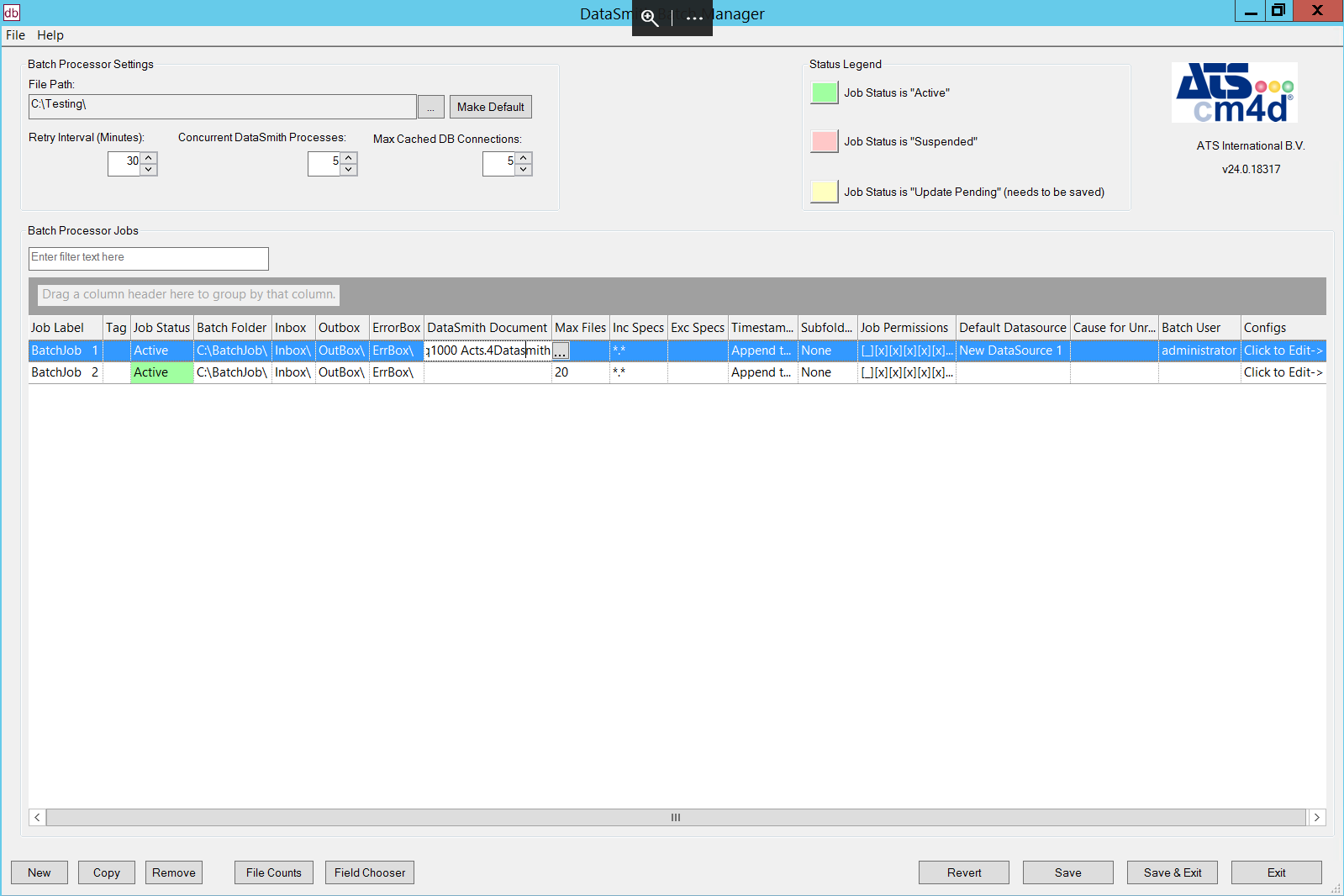
In the top left of the interface, find the Batch Processor Settings section.
Click the ellipses following the File Path.
Browse to a network folder that is accessible to Batch Users.
Select the folder and click OK.
Click Make Default.
Click New to create a job.
Click Save & Exit.
Browse to the file path select and note the DataSmithBatch.Settings is now present.
Once the file is created, you can start the CM4D DataSmithBatch service.
Select a DataSmith Batch Settings File
If you already have a DataSmithBatch.Settings file configured from a previous or existing installation:
Run DataSmithBatch Manager as Administrator.
In the top left of the interface, find the Batch Processor Settings section.
Click the ellipses following the File Path.
Browse to the existing DataSmith Batch settings file.
Select the folder and click OK.
Click Make Default.
Click Save & Exit.
DataSmith Batch Startup Troubleshooting
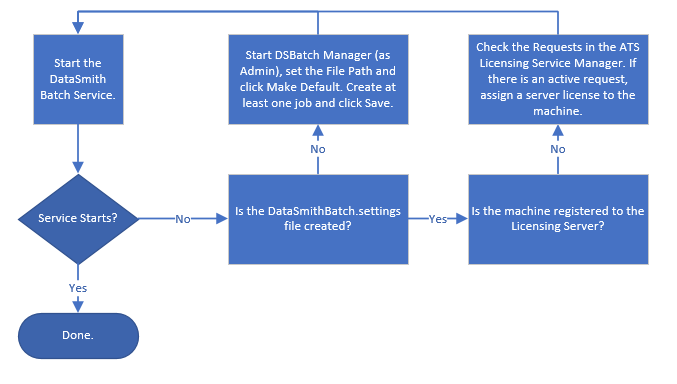
Example Configuration
Example in DataSmith Batch Manager
Can we improve this topic? Click Send Feedback in the upper right of the screen to share your comments!