To see how this item is associated to other items refer to the Item Relationship section here.
The next step in configuring concerns is to define ranks. A rank is the severity of a quality concern. You can provide a numeric value to ranks (such as "1" for a minor rank) as well as associate a certain color with a specific rank (such as red for a "critical" ranking).
Ranks must be assigned to at least one group.
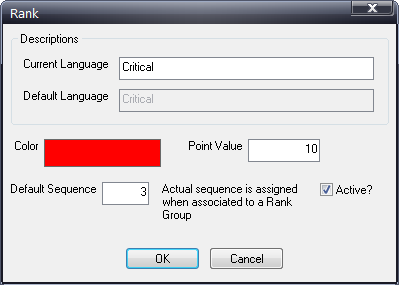
1. Click Defects > Rank > Ranks.
2. Click Add.
3. In the first field, type the unique rank name.
4. Click the color to select a color for this rank. This color will be shown as a strip on the right side of the defect flag after a defect is entered.
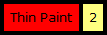
For example, on this flag, the color strip is yellow, indicating a low rank. The number simply indicates that it was the second defect to be added to the unit.
The color on the left indicates the status. Red indicates that it needs to be repaired and green indicates that it has been repaired. The example below has not been repaired.
5. In the Point Value field, type the point value you want to assign to this rank – for example, you might use a higher number to indicate a more important ranking.
Be sure that the text description (seriousness of the rank) accurately reflects the point value that you assign to it. This value provides critical data for Inspect Reporting, which uses rank filters to allow a report user to view reports for only specific ranks.
6. In the Default Sequence field, enter the sequence number to determine the order you want this rank to appear (optional).
Rank Groups are assigned to part/concern combinations and allow you to group ranks by area of use. For example, the Paint department may include ranks such as Spot Repair or Touch Up, while the Chassis department may use ranks such as Hoist Minor or Electrical.
Creating rank groups keeps an inspector from viewing unnecessary ranks at an inspection station – an inspector in the Paint department has no need to see ranks for the Chassis department. Therefore, if the paint ranks are places into a Paint Rank Group, that rank group can be assigned to paint concerns.
Rank Groups are assigned to different part/concern combinations in the Extended Information dialog. See here.
1. Click Defects > Rank > Rank Groups.
2. To add a new rank group, click Add.
3. Type the unique rank group name.
4. Click OK.
5. Click Close.
6. To assign ranks to a rank group, click Defects > Rank > Rank Group/Rank Relationships.
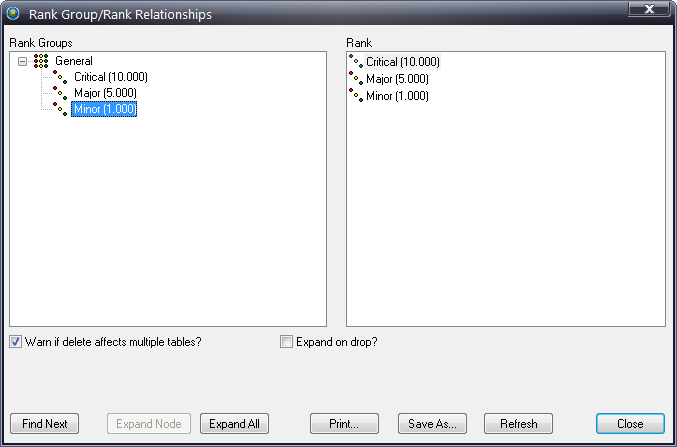
7. Use the various expand options, if desired, to expand the Rank Groups and see what has been assigned to each group.
8. From the Rank list on the right, select and drag ranks to the desired rank group on the left – the rank is now assigned to that rank group.
9. Click Close.
You can find the next instance of a selected rank in the Rank Groups pane by selecting it and then clicking Find Next.
You can hold down the Ctrl key and drag ranks to change the order.