View License Set Details
Select the License store tab.
A list of the license sets in the Licensing database is displayed.
If required, users can search for a license set using the text boxes in each column. For further details on locating information in tables in Licensing Manager, please see Available Licenses.
Select a license set.
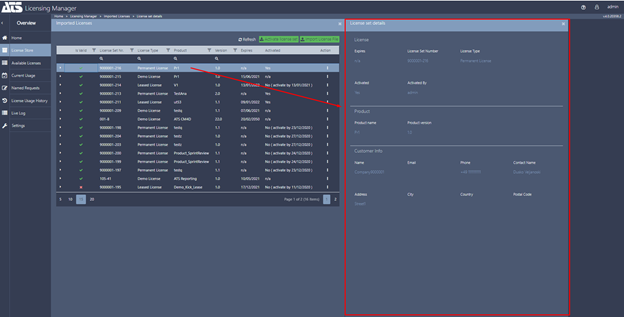
The license set details are listed in in new blade.
Expand and Collapse License Set List
The License store grid/list shows all license sets initially loaded in a collapsed manner. Each row (license set) begins with an arrow ( ) icon:
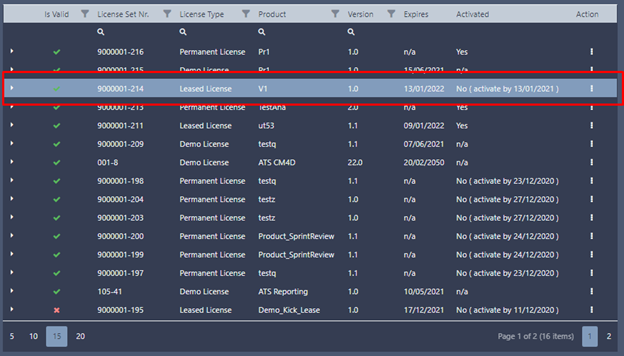
The collapsed list shows the following details for the license sets:
License Set Number
License type
Product
Product version
Expires (shows expiration date for Demo, Internal and Leased licenses)
Activated
Action menu button
The license set can be expanded by pressing the arrow icon. All licensed features (licenses) that belong to the license set will be displayed. The license set can be collapsed by pressing the down-arrow ( ) icon. W

The following details are shown for each license:
Serial number (of the licensed feature)
Feature name
Usage Type
Assigned to
Limit
Action menu button
View License Details
Select the License store tab.
A list of the license sets in the licensing database is displayed.
If required, users can search for a license set using the text boxes in each column. For further details on locating information in tables in Licensing Manager, please see Available Licenses.
Click the arrow (  ) icon to expand the required license set.
A list of licenses included in the license set are displayed.
Click on a license.
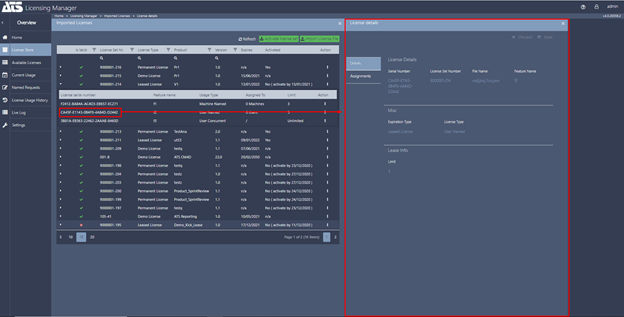
The license details are shown in the License details blade on right side.