About Inspect Web API Channels
ATS Inspect 7 includes a web API that allows restricted access to defects, inspections, repairs, checklist questions and tracking reports. The web API also allows the submission of defects, repairs, units, checklist question answers along with the ability to register webhooks that can be used to notify the client in case of an event.
The Inspect Web API channel interacts with the web API in 2 ways:
It registers webhooks via the web API and it consumes the following events:
defect-added: Whenever a defect is submitted, an event containing the defect, unit and inspection ID is emitted.
defect-modified: Whenever a defect is modified (like fixed, updated, etc…) an event containing the defect, unit and inspection ID is emitted.
unit-question-answered: Whenever a unit checklist question is answered, an event containing the unit, unit question and inspection ID is emitted.
unit-question-reset: Whenever a unit checklist question is reset, an event containing the unit, unit question and inspection ID is emitted.
Once Inspect has pushed the event, ATS Bus extracts the identifiers and uses them as query path parameters for the web API calls to retrieve unit, inspection, defect, and unit question from Inspect.
It invokes various web API methods using its embedded HTTP(S) client. This allows the ATS Bus channel to retrieve data from Inspect or update units, defects, inspections, or checklist questions.
Communication via the Inspect web API is safe and secure. All communication via the web API is encrypted and user access is controlled via ATS Security.
It provides two extra endpoints that allow monitoring applications to detect if the channel is up and running:
/health [GET]. Used to provide its health status.
/ [GET]. Provides the name of the channel.
Please note that the channel does not retry failed simple web API request messages via the retry mechanism but that these messages are moved to the error queue immediately from where it can be retried at a later moment. Other ATS Bus channels use the retry mechanism to resend a failed message, but the Inspect web API channel does not retry failed HTTP requests.
Create an Inspect Web API Channel
Perform the following steps to create/edit an Inspect Web API channel.
Select the ADOS Bus Stop tab.
Click Inspect Web API which will show a list of Inspect Web API channels.
Click Add to add a new channel (or Edit to modify an existing one).
A new window opens that configures the HTTPS endpoint, webhook and web API calls.
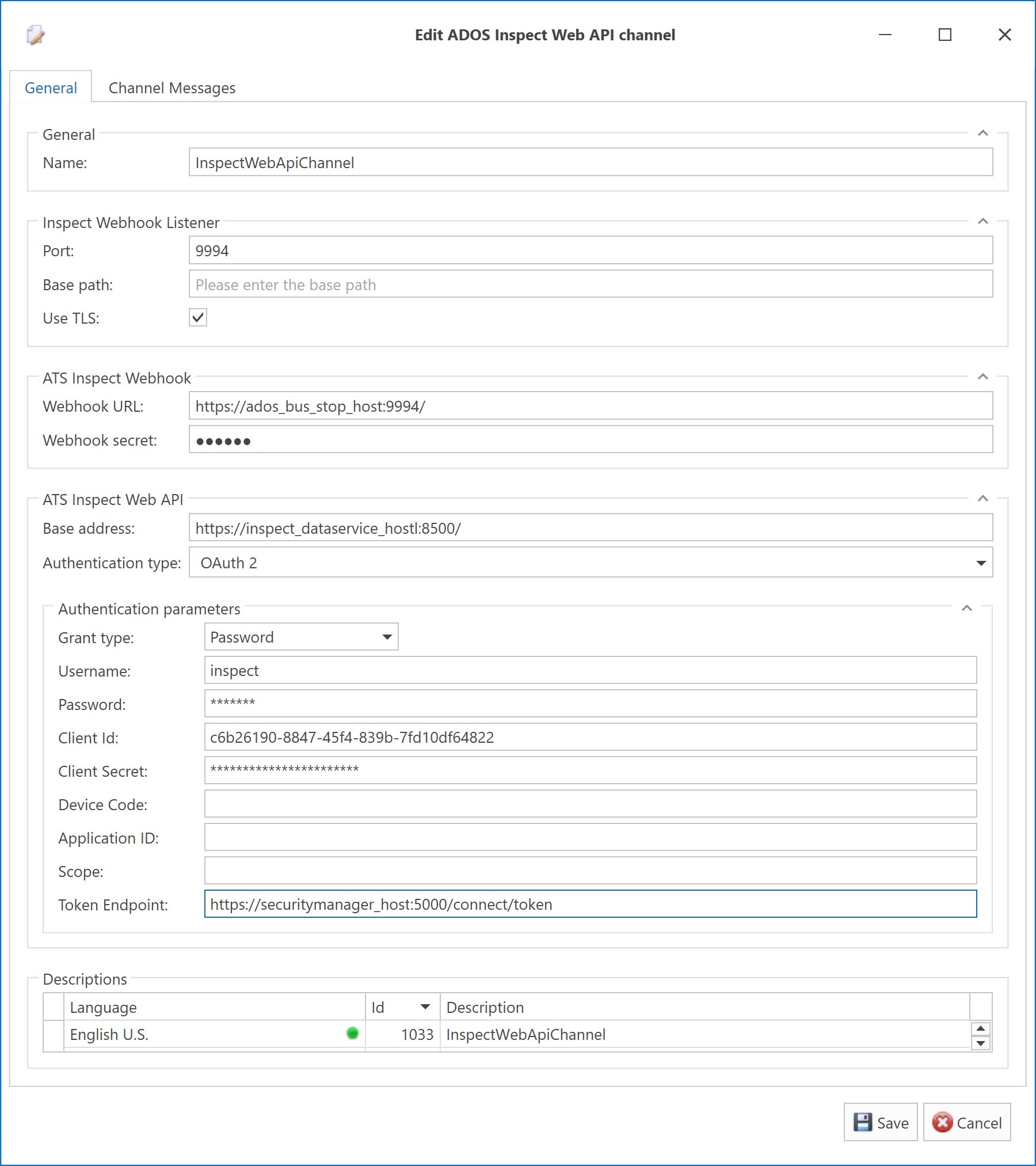
Enter the following information:
General:
Name: A unique name for the channel.
The Inspect Webhook Listener properties are used to configure the webhook listener that listens for incoming webhooks.
Inspect Webhook Listener:
Port: Enter a port number. The channel will bind to the configured port for all interfaces.
Base path: Enter a base path. The base path is the path prefix that is used for all API paths. This concept is used with hosted environments for example.
Use TLS: When ticked, the default bus stop certificate (configured in the Kestrel default certificate section in appsettings.json) will be used to encrypt the connection. The channel will create one of the following endpoints depending on the value of Use TLS:
http://{host}:{port}/api/v1/inspect/event when Use TLS is not ticked.
https://{host}:{port}/api/v1/inspect/event when Use TLS is ticked.
The Inspect Webhook properties are used to inform the Inspect data service which callback URL to invoke and what secret to use to generate a data signature.
ATS Inspect Webhook:
Webhook URL: This is the endpoint of the webhook listener without the route portion (/api/v1/inspect/event). The webhook posts data to this endpoint in case an event in Inspect has been triggered.
Webhook secret: Optional secret string used to secure the Inspect event communication. ATS Inspect hashes the Inspect event body data using the HMACSHA1 algorithm where the webhook secret is used as a key. The hash (signature) is then passed as a value for the header parameter named X-Webhook-Signature in the Inspect event request. The Web API channel also computes the signature and it should match the one received from ATS Inspect.
The properties below configure an HTTP client that interacts with the Inspect web API. The web API is used to register the webhooks, but it is also used to interact with Inspect to update checklist questions, obtain defect information or retrieve tracking point updates. The web API requires authentication which is configured via ATS Security.
ATS Inspect Web API:
Base address: The base address (URL) of the Inspect web API which is hosted by the Inspect Data Service. Please note that the configured value should end with a '/' if the base address contains a relative path that should be preserved. Be aware that the relative portion of the base address is overwritten when the method property of the channel message starts with a '/'. Swagger shows a forward slash which should be ignored when providing the method property in the channel message configuration.
Authentication type: The type of web service authentication. OAuth2 or PAT.
Add or Edit a Channel Message
The channel’s responsibility is to provide connection details to connect to the web API or webhook and the channel message’s responsibility is to handle the data that is exchanged via the Inspect web API. The web API is documented using Swagger which shows how to use the API and how to format the data that is being exchanged.
The Swagger interface is available at: <Inspect web API base address>/swagger/index.html
e.g. https://computer.domain.local:8500/swagger/index.html.
The screenshot below shows an API method that uses path parameters and returns a JSON response.
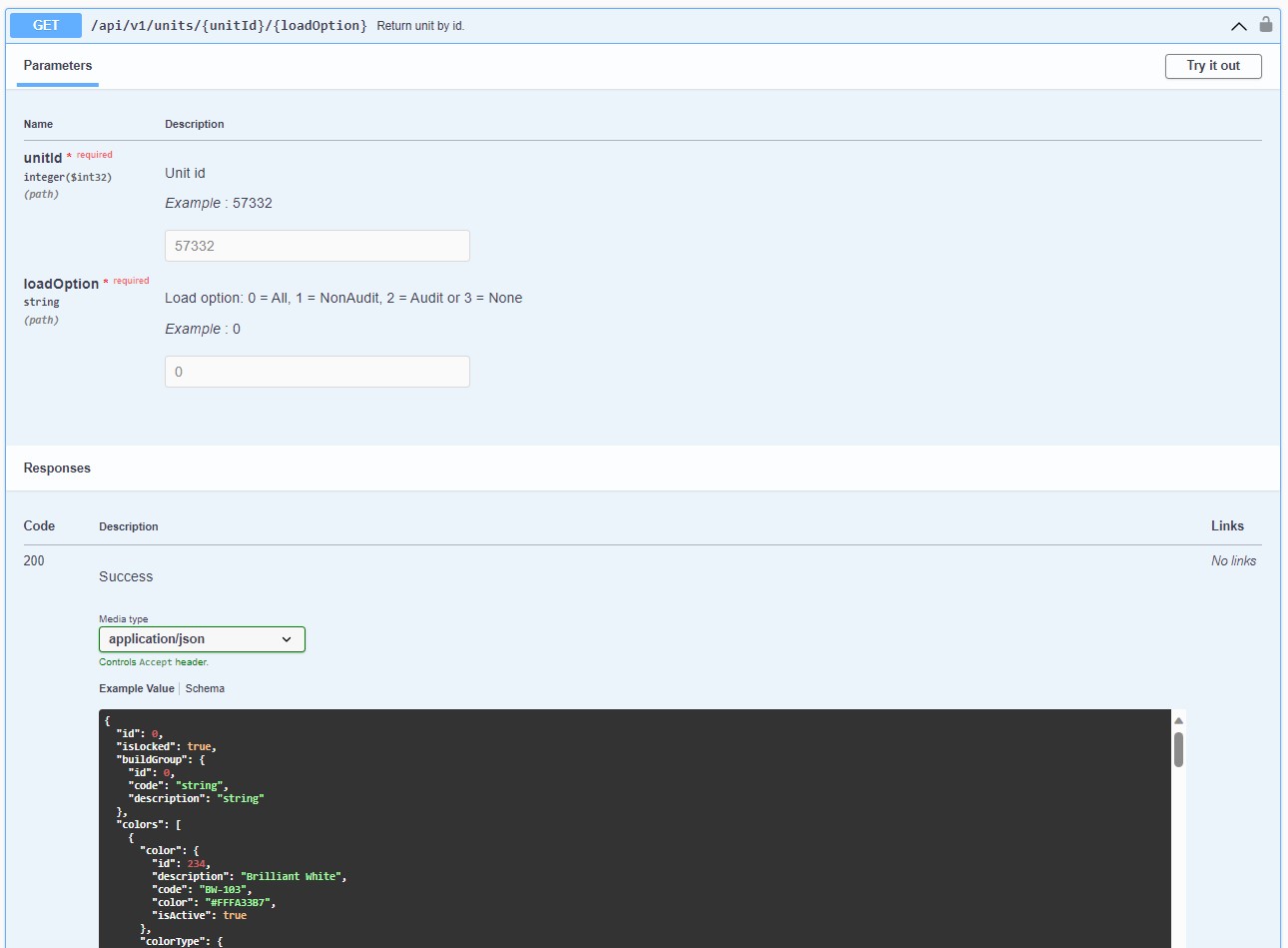
The ATS Inspect web API only supports the JSON data format and therefore the web API channel message converts all incoming JSON data to XML before processing it. The conversion is explained and demonstrated here. Outgoing data is converted to JSON using XSL transformation because the software libraries are unable to build the JSON that is expected by Inspect.
Channel messages can be created once an Inspect Web API channel has been configured. While editing an Inspect Web API channel select the Channel Messages tab.
All existing channel messages contained in the channel are listed. The table shows the name of the channel message, the direction in which the message is going and whether the message is currently active.
There are 2 types of channel messages:
Channel messages that can invoke a single Inspect API method and handle the JSON response.
Channels messages that handle Inspect events. These channel messages register a webhook with the Inspect Data Service. Inspect will execute the registered HTTP callback when it has data for ATS Bus.
Add or Edit a Channel Message that invokes a single web API method
Channel Message – Upload, retrieve data from ATS Inspect
Click Add.
Enter the following information:
General:
Name: Enter a unique name for the channel message.
Direction: Specify the direction for the message.
Upload: A file is read from the input location, processed and forwarded to another channel message or published on the bus.
Messages are Uploaded towards the Bus and Downloaded away from it.
Bus Message: Select a Bus Message. This is the B2MML message that this channel message is handling. All incoming (upload) messages should conform to the given B2MML message or be translated to conform. Outgoing messages will be formatted to this bus message unless they are translated.
Acquisition settings:
Acquisition type: Select one of the following options:
Receive Response: This channel message is triggered by another channel message that has its direction set to download. This channel message handles the response of the other channel message.
Interval acquisition: Acquisition defined in seconds. Invoke the HTTP method every x seconds and process the response.
Scheduled acquisition: Read at a specific time on a daily, weekly or monthly schedule.
For further information on Data Acquisition Types, please click here.
Interval: The interval in seconds at which the request is sent and the response is processed.
Scan by schedule: The schedule at which the request is sent and the response is processed, once every week, once every hour.
Service method: The route to the service method.
Method type: GET, POST, PUT or DELETE.
Request body transformation: This property will become visible when the HTTP method type is set to POST or PUT. This property contains an XSL Transformation that uses parameters of type ‘HTTP Request Body’ to add dynamic content to the request body that is posted to the web service. The transformation can output XML or JSON, depending on the content type required by the service.
Processing settings:
Default namespace prefixes: Each default namespace in the XML input should have a prefix assigned otherwise it is not possible to test or select specific XML nodes using XPath.
XPath filter: The channel message will not process the incoming message from the web service if the XPath does not return a valid node.
XPath data selector: This XPath will select a repetitive node and create a channel message for every XML node found in the collection.
Message validation: Optional. An XML schema to validate the incoming XML.
Message transformation: Optional. An XSL transformation that translates the incoming XML to a B2MML formatted XML.
Parameters:
The Parameters section is only available when the channel message invokes a web API call so this section is not available when the acquisition type is set to Receive response. The parameters are explained in the parameters section below.
Channel Message – Download, send data to Inspect
Click Add.
Enter the following information:
General:
Name: Enter a unique name for the channel message.
Direction: Specify the direction for the message.
Download: A message is received from another channel message or from the bus, processed and written as a file to the output location.
Messages are Uploaded towards the Bus and Downloaded away from it.
Bus Message: Select a Bus Message. This is the B2MML message that this channel message is handling. All incoming (upload) messages should conform to the given B2MML message or be translated to conform. Outgoing messages will be formatted to this bus message unless they are translated.
Delivery settings:
Service method: The route to the service method.
Method type: GET, POST, PUT or DELETE.
Processing settings:
XPath filter: The channel message will not process the incoming message from the web service if the XPath does not return a valid node.
XPath data selector: This XPath will select a repetitive node and create a channel message for every XML node found in the collection.
Message transformation: Mandatory. This property translates XML to JSON.
Message validation: Optional. A JSON template can be used to validate the data.
Process response: Determines whether to forward the response data to another channel message that has its direction set to Upload and the acquisition type to Receive response.
Response channel message: The upload channel message that has its direction set to Upload and the acquisition type to Receive response, which should handle the response of this channel message.
Parameters:
The channel can be configured to use a number of parameters such as path parameters, query string parameters, etc. See below for further information.
Add Parameters
There are 5 parameter types:
Query string parameters, which are used to create a query string.
Path parameters, which are substituted by parameter values. For example http://localhost/api/vi/method/{param1}/{param2} contains 2 path parameters named param1 and param2. These parameters are substituted with the values assigned to the parameters of type Path parameter.
HTTP request header parameters are HTTP headers to a HTTP request that provide information about the client or about the resource being obtained.
HTTP content header parameters are HTTP headers to a HTTP request that describes the content being passed with the HTTP request.
HTTP request body parameters are parameters passed as XSLT parameters to an XSL transformation that transforms the HTTP request body. The HTTP request body is available for both channel message directions and the HTTP method types POST and PUT:
Upload: The XSL transformation is stored in the request body transformation property, which can be found in the acquisition setting section and the XSLT parameter can be configured to get their values from constant values. Please note that the HTTP response message transformation does not take any XSL parameters.
Download: The XSL transformation is stored in the message transformation property, which can be found in the processing settings section and the XSLT parameters can be configured to get their values from constant values or from the bus message using an XPath statement.
How the absolute URL is formed using the Inspect web API base address and service name
The channel message creates a URI based on the endpoint address configured here and the service name configured in the channel message. The following rules apply:
If the service name (channel message property) contains an absolute URL e.g. https://www/myhostname2.mydomain2.com/services/svc1, then the service name overwrites the endpoint address.
Example:
Endpoint address: https://www/myhostname1.mydomain1.com/services/workorders
Service name: https://www/myhostname2.mydomain2.com/services/svc1
URI: https://www/myhostname2.mydomain2.com/services/svc1
If the endpoint name contains a relative path e.g. /workorders, then a ‘/’ must be provided to preserve the ‘/workorders/’ part in the final URI.
Example without '/' preserved:
Endpoint address: https://www/myhostname1.mydomain1.com/services/workorders
Service name: svc1
URI: https://www/myhostname1.mydomain1.com/services/svc1
Example with '/' preserved:
Endpoint address: https://www/myhostname1.mydomain1.com/services/workorders/
Service name: svc1
URI: https://www/myhostname1.mydomain1.com/services/workorders/svc1
The relative path of the endpoint address will be replaced by the service name if the service name starts with a forward slash ‘/’.
Example:
Endpoint address: https://www/myhostname1.mydomain1.com/services/workorders/
Service name: /svc1
URI: https://www/myhostname1.mydomain1.com/svc1
Add or Edit a Channel Message that receives events from Inspect
ATS Bus can receive events from Inspect by utilising webhooks. Webhooks are HTTP callbacks that are invoked when a service has data for a client app and remove the need to poll the service.
When started, the Inspect Web API channel ensures that there is at least one channel message that has its type set to Inspect events. If so, the channel then registers a HTTP callback with the Inspect data service using the Inspect Web API (api/v1/webhooks) and the following JSON payload:
{
"webHookUrl": "https://hostname.domain.local:9998/api/v1/inspect/event",
"secret": "SECRET",
"eventTypes": [
"defect-added",
"unit-question-answered",
"defect-modified",
"unit-question-reset"
],
"isActive": true
}
The webHookURL is the URL where Inspect will send the event to. This URL does not require authentication, but it may use the server certificate configured in the Default certificate section of the Kestrel configuration in the appsettings.json file when the schema is set to https.
Please note that the ‘api/v1/inspect/event’ part is hardcoded and the rest is configurable.
The secret that is configured is used to create the signature that is passed with every event. The Inspect Web API channel validates the signature using the same secret when receiving an event.
During the webhook registration processes, Inspect sends a challenge to the webHookUrl and it completes the registration on a successful challenge. Invoking the /api/v1/webhooks API using a GET request shows the registered webhooks.
Inspect will invoke the webHookUrl once data is available. The event contains little data but the webHookUrl handler has enough information to collect the proper unit, defect, inspection, or unit question by means of a web API call.
The channel message will convert the Inspect data to XML first because Inspect only sends JSON. After converting the data, an XSL transformation is used to convert the Inspect XML data to a B2MML formatted message. The XSL transformation is provided by the user.
Configuring a channel message to handle events requires the following steps:
Click Add (or Edit to modify an existing message).
Enter the following information:
General:
Name: Enter a unique name for the channel message.
Direction: The direction is hardcoded and set to upload.
Bus Message: Select a Bus Message. This is the B2MML message that this channel message is handling. All incoming (upload) messages should conform to the given B2MML message or be translated to conform. Outgoing messages will be formatted to this bus message unless they are translated.
Acquisition settings:
Inspect event type: Select one of the following inspect events that the channel message should handle. Each channel message can only handle one event:
defect-added: Whenever a defect is submitted, an event containing the defect, unit and inspection ID is emitted.
defect-modified: Whenever a defect is modified (like fixed, updated, etc…) an event containing the defect, unit and inspection ID is emitted.
unit-question-answered: Whenever a unit checklist question is answered, an event containing the unit, unit question and inspection ID is emitted.
unit-question-reset: Whenever a unit checklist question is reset, an event containing the unit, unit question and inspection ID is emitted.
Example: Webhook event data for a defect-added and defect-modified event (JSON formatted):
"event": {
"timestamp": "2023-10-10T08:26:42.6107224+00:00",
"defectId": 60445,
"unitId": 62171,
"inspectId": 63222,
"stationId": 27,
"username": "inspect"
}
Example: Webhook event data for a unit-question-answered event (JSON formatted):
"event": {
"unitQuestionId": 588973,
"unitId": 62171,
"questionId": 1432,
"inspectId": 63222,
"value": "PASS",
"timestamp": "2023-10-10T08:26:42.6107224+00:00"
}
Example: Webhook event data for a unit-question-reset event (JSON formatted):
"event": {
"unitQuestionId": 588973,
"unitId": 62171,
"inspectId": 63222,
"timestamp": "2023-10-10T08:26:42.6107224+00:00"
}
The following Xpath only processes the event if the questionId matches 432, 1432, 1433, 1434, 1435 and 9999. The format-number function is required because 432 is matched by 1432 and other 1, 2 or 3 digit values may also match one of the values shown in the contains statement below:
/event[contains('0432 1432 1433 1434 1435 9999', substring(string(10000 + questionId), 2))]
Note: Multiply 10000 by 10 if a 5 digit value is required and so on.
Collected data types: Each Inspect event allows to collect one or more data sets, these sets are known as “Collected data types”. The types that can be obtained depend on the event type being handled:
A defect-added event allows to collect: Units, Inspections and Defects
A defect-modified event allows to collect: Units, Inspections and Defects.
A unit-question-answered event allows to collect: Units, Inspections and UnitQuestions.
A unit-question-reset event allows to collect: Units, Inspections and UnitQuestions.
The web API channel uses the following web API methods to collect the 'collected data types' from Inspect:
- api/v1/units/{unitId}/3 to collect unit data
- api/v1/collector/inspection/{inspectId} to collect inspection data, this also includes defects
- api/v1/collector/defects/{defectId}/false/false to collect the last latest information for the provided defect.
- api/v1/checklist/unit/{unitQuestionId}/history/false to collect the unit question information for the provided unit question ID. This will also provide the question code.
The Path parameters, the parameters between the braces, are replaced by the event data.
XPath filter: This filter is applied on the Inspect event to decide whether to process the event.
Example:
Inspect event (JSON formatted):
"event": {
"timestamp": "2023-10-10T08:26:42.6107224+00:00",
"defectId": 60445,
"unitId": 62171,
"inspectId": 63222,
"stationId": 27,
"username": "inspect"
}
Inspect event (XML formatted):
<event>
<timestamp>2023-10-10T08:26:42.6107224+00:00</timestamp>
<defectId>60445</defectId>
<unitId>62171</unitId>
<inspectId>63222</inspectId>
<stationId>27</stationId>
<username>inspect</username>
</event>
The following XPath only processes the event when the unitId equals 62171
/event[(unitId = 62171)]
The following Xpath only processes the event if the stationId is in between 25 and 30
/event[(stationId >= 25) and (stationId <= 30)]
The following Xpath only processes the event if the questionId matches 1432, 1433, 1434, 1435 and 9999:
/event[contains('1432 1433 1434 1435 9999', questionId)]
The event above is a defect added event but the same principles apply for the other webhook event types.
Processing settings:
Message Transformation: This property is used to transform the Inspect event to B2MML where the event also contains all collected data types.
Example: Handling an “defect-added” event
This example demonstrates how to configure the Inspect Web API channel and channel message to process events that inform ATS Bus that a defect has been added to Inspect. This chapter also shows the webhook registration details and the data exchange between the channel and ATS Inspect. Handling other events is similar to what is shown in this example.
Configuration
The screenshots below show the channel and channel message configuration:
Webhook secret: SECRET
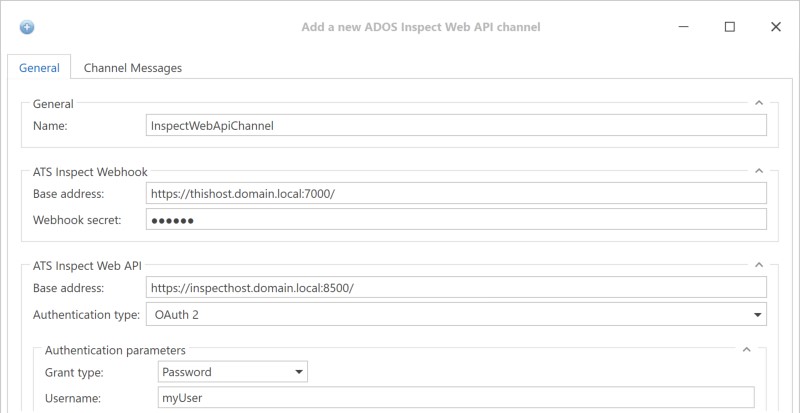
The channel has only one channel message.
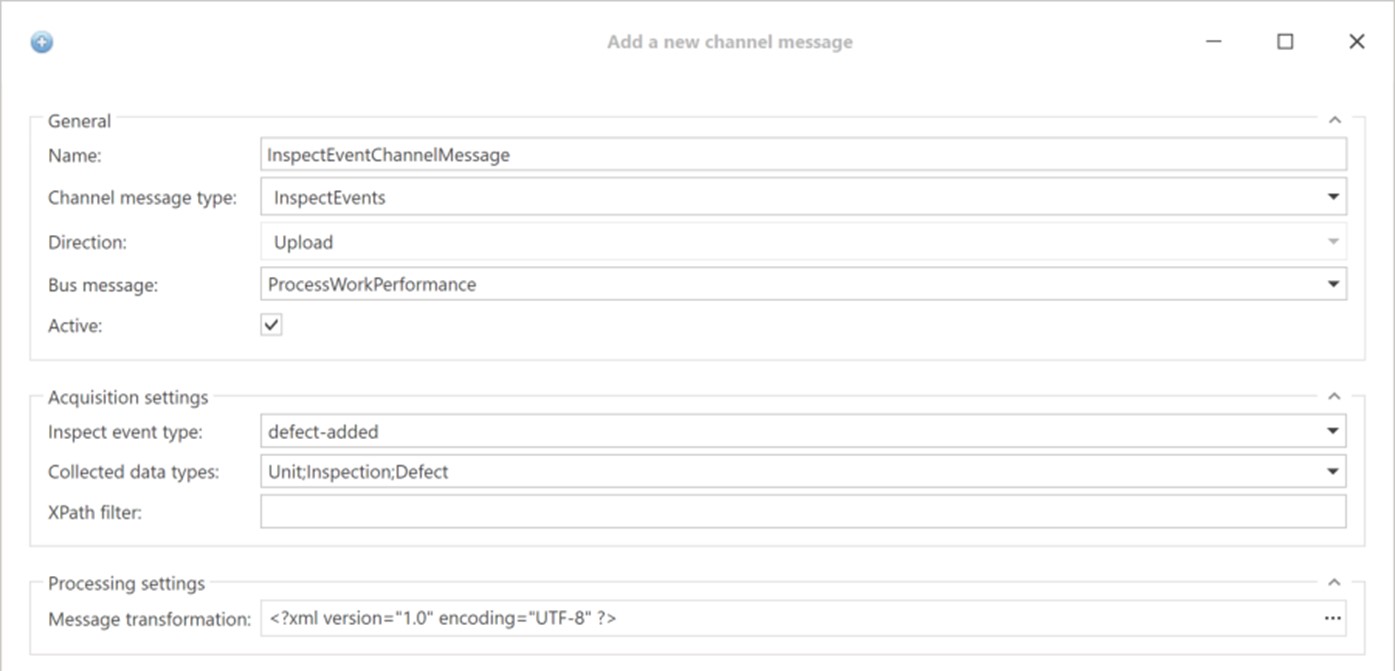
Registration request body
The JSON fragment below is the HTTP request body for the /api/v1/webhooks POST method.
{
"webHookUrl": "http://myhost.mydomain.local:9998/api/v1/inspect/event",
"secret": "SECRET",
"eventTypes": [
"defect-added","unit-question-answered","defect-modified","unit-question-reset"
],
"isActive": true
}
Processing the Inspect event and retrieve additional data from Inspect
A defect event is emitted to the Inspect Web API channel. The event data looks like:
{
"timestamp": "2023-10-10T08:26:42.6107224+00:00",
"defectId": 60445,
"unitId": 62171,
"inspectId": 63222,
"stationId": 27,
"username": "inspect"
}
The channel message collects the Unit, Inspection and Defect from Inspect and adds it to an XML container. Event data is added too. The content of the XML container looks like:
<root>
<event>
<timestamp>2023-10-10T10:38:57.5351695+02:00</timestamp>
<defectId>60446</defectId>
<unitId>62171</unitId>
<inspectId>63222</inspectId>
<stationId>27</stationId>
<username>inspect</username>
</event>
<unit>
<numConfirmedDefects>0</numConfirmedDefects>
<numDefects>0</numDefects>
<numOpenDefects>0</numOpenDefects>
<numRepairedDefects>0</numRepairedDefects>
<id>62171</id>
<isLocked>false</isLocked>
<buildGroup>
<id>3</id>
<code>NORMAL-PRODUCTION</code>
<description>Normal Production</description>
</buildGroup>
<colors>
<color>
<id>0</id>
<description>Blue</description>
<code>BLUE</code>
<color>#FF0000ff</color>
<isActive>false</isActive>
</color>
<colorType>
<id>1</id>
<description>Int color</description>
<code>INT COLOR</code>
<sequence>0</sequence>
<isActive>true</isActive>
</colorType>
</colors>
<identifiers>
<identifier>62171</identifier>
<identifierType>
<id>1</id>
<description>Serial</description>
<code>SERIAL</code>
<isActive>true</isActive>
<sequence>0</sequence>
</identifierType>
</identifiers>
<lookupCodes>
<lookupCode>Customer A</lookupCode>
<lookupType>
<id>6</id>
<code>Customer</code>
<description>Customer</description>
</lookupType>
<lookupTypeId>6</lookupTypeId>
</lookupCodes>
<modelYear>2023</modelYear>
<plant>
<id>2</id>
<code>ATS-HAARLEM</code>
<description>ATS Haarlem</description>
</plant>
<prodDate>2023-07-25T00:00:00</prodDate>
<product>
<id>5</id>
<code>AUTO-(3D)</code>
<description>Auto (3D)</description>
</product>
</unit>
<inspection>
<id>63222</id>
<unitId>62171</unitId>
<beginDate>2023-10-10T10:22:55.883</beginDate>
<elapsedTimeInMins>0</elapsedTimeInMins>
<passNo>12</passNo>
<prodDate>2023-10-10T00:00:00</prodDate>
<shiftId>0</shiftId>
<stationId>27</stationId>
<trackId>59999</trackId>
<username>inspect</username>
</inspection>
<defect>
<defect>
<id>60445</id>
<ordinal>1</ordinal>
<partId>79</partId>
<locationId>7</locationId>
<concern>Overspray</concern>
<concernId>39</concernId>
<rankColor>#FFFFFF00</rankColor>
<qty>1</qty>
<defectStatus>0</defectStatus>
<position>
<x>603.0892333984375</x>
<y>240.36343383789062</y>
</position>
<vectorInfo />
<numImages>0</numImages>
<viewId>11</viewId>
<coordinate>603.08923, 240.36343</coordinate>
<auditInfo>
<isCounted>false</isCounted>
<isStatic>false</isStatic>
</auditInfo>
<component>Interior Hatch</component>
<dateTime>2023-10-10T10:38:57.433</dateTime>
<inspectId>63222</inspectId>
<isCreatedByUnitQuestionValidation>false</isCreatedByUnitQuestionValidation>
<isVector>false</isVector>
<isRaster>true</isRaster>
<location>Interior</location>
<part>Hatch</part>
<pctCoordinate>0.6030892,0.4955947</pctCoordinate>
<rank>Minor</rank>
<rankId>3</rankId>
<recordArea>Building One</recordArea>
<recordCell>Line 1</recordCell>
<recordStation>Final Inspection</recordStation>
<recordStationId>27</recordStationId>
<recordUsername>inspect</recordUsername>
<respArea>Building One</respArea>
<respAreaId>1</respAreaId>
<respCell>Line 1</respCell>
<respCellId>1</respCellId>
<respAreaCellId>1</respAreaCellId>
<shift>Night 1</shift>
<trackId>59999</trackId>
<unitId>62171</unitId>
<view>Mondeo Int Hood/Deck Lid</view>
</defect>
</defect>
</root>
Transforming the Inspect data to a B2MML formatted XML message
The XSL transformation below can be used to translate the content of the XML container to a B2MML WorkPerfomance:
<?xml version="1.0"?>
<xsl:stylesheet version="1.0" xmlns:xsi="http://www.w3.org/2001/XMLSchema-instance" xmlns:xsd="http://www.w3.org/2001/XMLSchema" xmlns:xsl="http://www.w3.org/1999/XSL/Transform">
<xsl:output indent="yes"/>
<!-- Provide a variable for the namespace, this improves readability. -->
<xsl:variable name="b2mml_ns" select="'http://www.mesa.org/xml/B2MML-V0600'"/>
<xsl:template match="/root">
<!-- Only process valid collected data types -->
<WorkPerformance xmlns:xsi="http://www.w3.org/2001/XMLSchema-instance" xmlns:xsd="http://www.w3.org/2001/XMLSchema" xmlns="http://www.mesa.org/xml/B2MML-V0600">
<xsl:element name="WorkResponse" namespace="{$b2mml_ns}">
<xsl:element name="JobResponse" namespace="{$b2mml_ns}">
<!-- Start processing the collected data types. -->
<xsl:apply-templates select="defect"/>
<xsl:apply-templates select="inspection"/>
<xsl:apply-templates select="question"/>
<!-- Process the 'unit' last, it goes to MaterialRequired with sits after the properties -->
<xsl:apply-templates select="unit"/>
</xsl:element>
</xsl:element>
</WorkPerformance>
</xsl:template>
<xsl:template match="defect/defect">
<xsl:element name="JobResponseData" namespace="{$b2mml_ns}">
<xsl:variable name="parentPositionInCollection" select="count(parent::*/preceding-sibling::*) + 1"/>
<!-- Create the Property name and value -->
<xsl:call-template name="CreatePropertyAndCustomContextNameAndValue">
<xsl:with-param name="PropertyName" select="name()"/>
<xsl:with-param name="PropertyValue" select="id"/>
</xsl:call-template>
<xsl:call-template name="ValueType">
<!-- <xsl:with-param name="KeyElementPrefix" select="concat(name(..), '_', $parentPositionInCollection)"/> -->
<xsl:with-param name="KeyElementPostfix" select="'ordinal'"/>
<xsl:with-param name="Value" select="ordinal"/>
</xsl:call-template>
<xsl:call-template name="ValueType">
<xsl:with-param name="KeyElementPostfix" select="'partId'"/>
<xsl:with-param name="Value" select="partId"/>
</xsl:call-template>
<xsl:call-template name="ValueType">
<xsl:with-param name="KeyElementPostfix" select="'locationId'"/>
<xsl:with-param name="Value" select="locationId"/>
</xsl:call-template>
</xsl:element>
</xsl:template>
<xsl:template match="inspection">
<xsl:element name="JobResponseData" namespace="{$b2mml_ns}">
<xsl:variable name="parentPositionInCollection" select="count(parent::*/preceding-sibling::*) + 1"/>
<!-- Create the Property name and value -->
<xsl:call-template name="CreatePropertyAndCustomContextNameAndValue">
<xsl:with-param name="PropertyName" select="name()"/>
<xsl:with-param name="PropertyValue" select="id"/>
</xsl:call-template>
<xsl:call-template name="ValueType">
<!-- <xsl:with-param name="KeyElementPrefix" select="concat(name(..), '_', $parentPositionInCollection)"/> -->
<xsl:with-param name="KeyElementPostfix" select="'unitId'"/>
<xsl:with-param name="Value" select="unitId"/>
</xsl:call-template>
<xsl:call-template name="ValueType">
<xsl:with-param name="KeyElementPostfix" select="'beginDate'"/>
<xsl:with-param name="Value" select="beginDate"/>
</xsl:call-template>
<xsl:call-template name="ValueType">
<xsl:with-param name="KeyElementPostfix" select="'elapsedTimeInMins'"/>
<xsl:with-param name="Value" select="elapsedTimeInMins"/>
</xsl:call-template>
<xsl:call-template name="ValueType">
<xsl:with-param name="KeyElementPostfix" select="'shiftId'"/>
<xsl:with-param name="Value" select="shiftId"/>
</xsl:call-template>
<xsl:call-template name="ValueType">
<xsl:with-param name="KeyElementPostfix" select="'stationId'"/>
<xsl:with-param name="Value" select="stationId"/>
</xsl:call-template>
<xsl:call-template name="ValueType">
<xsl:with-param name="KeyElementPostfix" select="'trackId'"/>
<xsl:with-param name="Value" select="trackId"/>
</xsl:call-template>
<xsl:call-template name="ValueType">
<xsl:with-param name="KeyElementPostfix" select="'username'"/>
<xsl:with-param name="Value" select="username"/>
</xsl:call-template>
</xsl:element>
</xsl:template>
<xsl:template match="question">
<xsl:element name="JobResponseData" namespace="{$b2mml_ns}">
<xsl:variable name="parentPositionInCollection" select="count(parent::*/preceding-sibling::*) + 1"/>
<!-- Create the Property name and value -->
<xsl:call-template name="CreatePropertyAndCustomContextNameAndValue">
<xsl:with-param name="PropertyName" select="name()"/>
<xsl:with-param name="PropertyValue" select="id"/>
</xsl:call-template>
<xsl:call-template name="ValueType">
<!-- <xsl:with-param name="KeyElementPrefix" select="concat(name(..), '_', $parentPositionInCollection)"/> -->
<xsl:with-param name="KeyElementPostfix" select="'ordinal'"/>
<xsl:with-param name="Value" select="ordinal"/>
</xsl:call-template>
<xsl:call-template name="ValueType">
<xsl:with-param name="KeyElementPostfix" select="'partId'"/>
<xsl:with-param name="Value" select="partId"/>
</xsl:call-template>
<xsl:call-template name="ValueType">
<xsl:with-param name="KeyElementPostfix" select="'locationId'"/>
<xsl:with-param name="Value" select="locationId"/>
</xsl:call-template>
</xsl:element>
</xsl:template>
<xsl:template match="unit">
<xsl:element name="MaterialActual" namespace="{$b2mml_ns}">
<xsl:element name="MaterialSubLotID" namespace="{$b2mml_ns}">
<xsl:value-of select="identifiers[identifierType/code='SERIAL']/identifier"/>
</xsl:element>
<xsl:element name="MaterialUse" namespace="{$b2mml_ns}">Produced</xsl:element>
<xsl:for-each select="identifiers[identifierType/code!='SERIAL']">
<xsl:element name="MaterialActualProperty" namespace="{$b2mml_ns}">
<xsl:element name="ID" namespace="{$b2mml_ns}">
<xsl:value-of select="concat(name(.), '_', position())"/>
</xsl:element>
<xsl:call-template name="ValueType">
<!-- <xsl:with-param name="KeyElementPrefix" select="concat(name(..), '_', $parentPositionInCollection)"/> -->
<xsl:with-param name="KeyElementPostfix" select="'identifier'"/>
<xsl:with-param name="Value" select="identifier"/>
</xsl:call-template>
</xsl:element>
</xsl:for-each>
<xsl:for-each select="colors[color/code!='PURP']">
<xsl:element name="MaterialActualProperty" namespace="{$b2mml_ns}">
<xsl:element name="ID" namespace="{$b2mml_ns}">
<xsl:value-of select="concat(name(.), '_', position())"/>
</xsl:element>
<xsl:call-template name="ValueType">
<!-- <xsl:with-param name="KeyElementPrefix" select="concat(name(..), '_', $parentPositionInCollection)"/> -->
<xsl:with-param name="KeyElementPrefix" select="'color'"/>
<xsl:with-param name="KeyElementPostfix" select="'code'"/>
<xsl:with-param name="Value" select="color/code"/>
</xsl:call-template>
<xsl:call-template name="ValueType">
<!-- <xsl:with-param name="KeyElementPrefix" select="concat(name(..), '_', $parentPositionInCollection)"/> -->
<xsl:with-param name="KeyElementPrefix" select="'color'"/>
<xsl:with-param name="KeyElementPostfix" select="'color'"/>
<xsl:with-param name="Value" select="color/color"/>
</xsl:call-template>
<xsl:call-template name="ValueType">
<!-- <xsl:with-param name="KeyElementPrefix" select="concat(name(..), '_', $parentPositionInCollection)"/> -->
<xsl:with-param name="KeyElementPrefix" select="'colorType'"/>
<xsl:with-param name="KeyElementPostfix" select="'sequence'"/>
<xsl:with-param name="Value" select="colorType/sequence"/>
</xsl:call-template>
</xsl:element>
</xsl:for-each>
<xsl:for-each select="lookupCodes">
<xsl:element name="MaterialActualProperty" namespace="{$b2mml_ns}">
<xsl:element name="ID" namespace="{$b2mml_ns}">
<xsl:value-of select="concat(name(.), '_', position())"/>
</xsl:element>
<xsl:call-template name="ValueType">
<!-- <xsl:with-param name="KeyElementPrefix" select="concat(name(..), '_', $parentPositionInCollection)"/> -->
<xsl:with-param name="KeyElementPrefix" select="'lookupType'"/>
<xsl:with-param name="KeyElementPostfix" select="'code'"/>
<xsl:with-param name="Value" select="lookupType/code"/>
</xsl:call-template>
<xsl:call-template name="ValueType">
<!-- <xsl:with-param name="KeyElementPrefix" select="concat(name(..), '_', $parentPositionInCollection)"/> -->
<xsl:with-param name="KeyElementPostfix" select="'lookupTypeId'"/>
<xsl:with-param name="Value" select="lookupTypeId"/>
</xsl:call-template>
</xsl:element>
</xsl:for-each>
</xsl:element>
</xsl:template>
<!-- This template creates an ID and Key-less Value for SegmentData
and JobResponse to make Properties and CustomContext in the OT
bus stop work. These messagefields require a value without key. -->
<xsl:template name="CreatePropertyAndCustomContextNameAndValue">
<xsl:param name="PropertyName" select="name()"/>
<xsl:param name="PropertyValue" select="name()"/>
<xsl:element name="ID" namespace="{$b2mml_ns}">
<xsl:value-of select="$PropertyName"/>
</xsl:element>
<xsl:element name="Value" namespace="{$b2mml_ns}">
<xsl:element name="ValueString" namespace="{$b2mml_ns}">
<xsl:value-of select="$PropertyValue"/>
</xsl:element>
</xsl:element>
</xsl:template>
<!-- Convert a ValueType object -->
<xsl:template name="ValueType">
<xsl:param name="OutputKeyElement" select="'yes'"/>
<xsl:param name="KeyElementPrefix" select="''"/>
<xsl:param name="KeyElementPostfix" select="''"/>
<xsl:param name="Value" select="."/>
<!-- This is a base type, default parameter should be empty. -->
<xsl:element name="Value" namespace="{$b2mml_ns}">
<xsl:element name="ValueString" namespace="{$b2mml_ns}">
<xsl:value-of select="$Value"/>
</xsl:element>
<xsl:if test="$OutputKeyElement = 'yes'">
<xsl:element name="Key" namespace="{$b2mml_ns}">
<xsl:choose>
<xsl:when test="not($KeyElementPrefix) and not(string($KeyElementPrefix))">
<xsl:value-of select="$KeyElementPostfix"/>
</xsl:when>
<xsl:otherwise>
<xsl:value-of select="concat($KeyElementPrefix, '_', $KeyElementPostfix)"/>
</xsl:otherwise>
</xsl:choose>
</xsl:element>
</xsl:if>
</xsl:element>
</xsl:template>
</xsl:stylesheet>
Transformed result
The final result of the transformed container:
<?xml version="1.0" encoding="UTF-8"?>
<WorkPerformance xmlns:xsi="http://www.w3.org/2001/XMLSchema-instance"
xmlns:xsd="http://www.w3.org/2001/XMLSchema"
xmlns="http://www.mesa.org/xml/B2MML-V0600">
<WorkResponse>
<JobResponse>
<JobResponseData>
<ID>defect</ID>
<Value>
<ValueString>60445</ValueString>
</Value>
<Value>
<ValueString>1</ValueString>
<Key>ordinal</Key>
</Value>
<Value>
<ValueString>79</ValueString>
<Key>partId</Key>
</Value>
<Value>
<ValueString>7</ValueString>
<Key>locationId</Key>
</Value>
</JobResponseData>
<JobResponseData>
<ID>inspection</ID>
<Value>
<ValueString>63222</ValueString>
</Value>
<Value>
<ValueString>62171</ValueString>
<Key>unitId</Key>
</Value>
<Value>
<ValueString>2023-10-10T10:22:55.883</ValueString>
<Key>beginDate</Key>
</Value>
<Value>
<ValueString>0</ValueString>
<Key>elapsedTimeInMins</Key>
</Value>
<Value>
<ValueString>0</ValueString>
<Key>shiftId</Key>
</Value>
<Value>
<ValueString>27</ValueString>
<Key>stationId</Key>
</Value>
<Value>
<ValueString>59999</ValueString>
<Key>trackId</Key>
</Value>
<Value>
<ValueString>inspect</ValueString>
<Key>username</Key>
</Value>
</JobResponseData>
<MaterialActual>
<MaterialSubLotID>62171</MaterialSubLotID>
<MaterialUse>Produced</MaterialUse>
<MaterialActualProperty>
<ID>colors_1</ID>
<Value>
<ValueString>BLUE</ValueString>
<Key>color_code</Key>
</Value>
<Value>
<ValueString>#FF0000ff</ValueString>
<Key>color_color</Key>
</Value>
<Value>
<ValueString>0</ValueString>
<Key>colorType_sequence</Key>
</Value>
</MaterialActualProperty>
<MaterialActualProperty>
<ID>lookupCodes_1</ID>
<Value>
<ValueString>Customer</ValueString>
<Key>lookupType_code</Key>
</Value>
<Value>
<ValueString>6</ValueString>
<Key>lookupTypeId</Key>
</Value>
</MaterialActualProperty>
</MaterialActual>
</JobResponse>
</WorkResponse>
</WorkPerformance>