Topic Contents: Hide
CM4D Reporter can be run with either a self-installed SQLite database or a local SQL Server database. Reporter Observer can only be used with SQL Server databases.
By default, Reporter is configured to use a SQLite database. If you use this default database, no additional setup is required. During startup of Reporter, a SQLite database (4Reporter.4database) will be created in the folder: CM4D Reporter\User Data\Database
SQLite databases cannot be used with Reporter Observer.
When upgrading to a new version, you are prompted to allow Reporter to automatically upgrade an existing SQLite database. Before the SQLite database is upgraded, a backup file will be created in the same folder.
If the SQLite database is missing, Reporter will create a new SQLite database on startup.
If you want to use Routine Grouping in the Routine Selection tree, you must manually enable groups in DataUtility before any Routine groups can be saved to the database. See here for the steps to enable Groups.
You can use a standard SQL Server database, but you can only have one CM4D Reporter database per computer, and it must be local to the Reporter installation.
If you are running an instance of Reporter that will be monitored by another computer that is running Reporter in Observer mode, you must use a SQL Server database that uses Windows Authentication.
The Reporter SQL Server database must:
· Use Windows Authentication
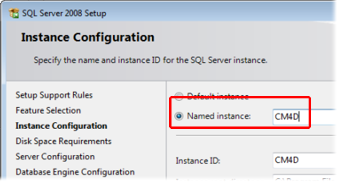
· Be a Named Instance - "CM4D" (for example, the connection would be VM004Reporter\CM4D)
· Have the Label - "4Reporter" (created with the 4Reporter.sql file from the C:\CM4D Reporter\User Config folder)
· Be located on the same machine that is running Reporter
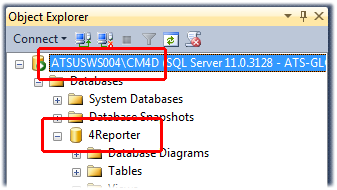
1. Run the 4Reporter.sql script in your database client to create the Reporter SQL database.
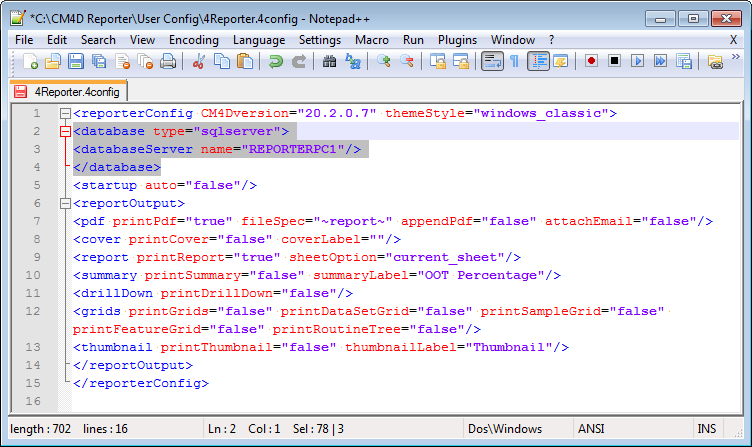
2. Edit the 4Reporter.4config file in an XML or text editor. The example below is shown in an XML editor, displaying colors to indicate attributes and values.
a. Change the line <database type="SQLite"/> to <database type="sqlserver">.
b. Insert a new line below and enter the text: <databaseServer name="YOURPCNAME"/>
c. Insert a new line below and enter the text: </database>
3. Save the config file and close the editor.
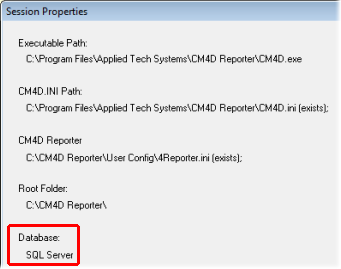
To check the database type that Reporter
is connected to, select File >
Session Properties.
When upgrading to a new version, you must manually update your 4Reporter database. To do this, run the update scripts provided with your upgrade:
· Single-Schema Upgrades - If you are upgrading to the newest version of Reporter from the previous version, you will only need to run the latest upgrade script on your database.
· Multiple-Schema Upgrades - If you are upgrading to the newest version of Reporter from a version older than one release, you will need to run all intermediate update scripts in sequential order on your database before updating to the latest Schema version.
For example, if you want
to upgrade from v16 to v20, run the Update scripts on the 4Reporter
database in the specified order:
1. Run Update17a.sql
to upgrade the database Schema from 16a (v16.1) to 17a (v17.1).
2. Run Update18a.sql
to upgrade the database Schema from 17a (v17.1) to 18a (v18.1).
3. Run Update19a.sql
to upgrade the database Schema from 18a (v18.1) to 19a (v19.1).
4. Run Update20a.sql
to upgrade the database Schema from 19a (v19.1) to 20a (v20.0).
5. Run Update20b.sql
to upgrade the database Schema from 20a (v20.0) to 20b (v20.2).
If the configured SQL Server database is missing, or is the wrong schema version, the Reporter startup will fail.